Step
4.
The Bluetooth Channel indicator will be off after successfully paired.
Step
5.
Press "fn" + "Q"/"W" keys to choose the system.
(fn+Q
is
for iOS and Mac OS, and fn+W
is
for Windows and Android}
Pair with 2
nd
device
Step 1. Slide right to power on the keyboard.
Step
2.
Hold and press the key
of
G for 5 seconds to pairing mode
in
channel
2,
and the Bluetooth channel 2 indicator will quickly flash
blue and start to search for the available Bluetooth device.
Step
3.
On your Bluetooth device, find the Bluetooth name " iClever
IC-DK03 KB" and click
to
connect
it.
Step
4.
The Bluetooth Channel indicator will be off after successfully paired.
Step
5.
Press "fn" + "Q"/"W" keys to choose the system
(fn+Q
is
for iOS and Mac OS, and fn+W
is
for Windows and Android}
Step
1.
Delete the connection records with iClever keyboard.
For example for iPad. click "Settings" > "Bluetooth" > under "MY DEVICE"
to delete the iClever keyboard connection record.
Step
2.
Turn off the Bluetooth and turn it on again to Refresh.
For example, for iPad. click "Settings" > "Bluetooth" > if the on-screen
switch beside Bluetooth currently show as ON. tap it twice to refresh
it.
Step
3.
Connect it again.
C.
Switch among connected devices.
Press the key
of
EJ
/
~
/ G to switch among connected devices.
D.
Re-pair the Bluetooth that has already connected.
Hold and press the key of G I G for 5 seconds again to re-pair.
-4-
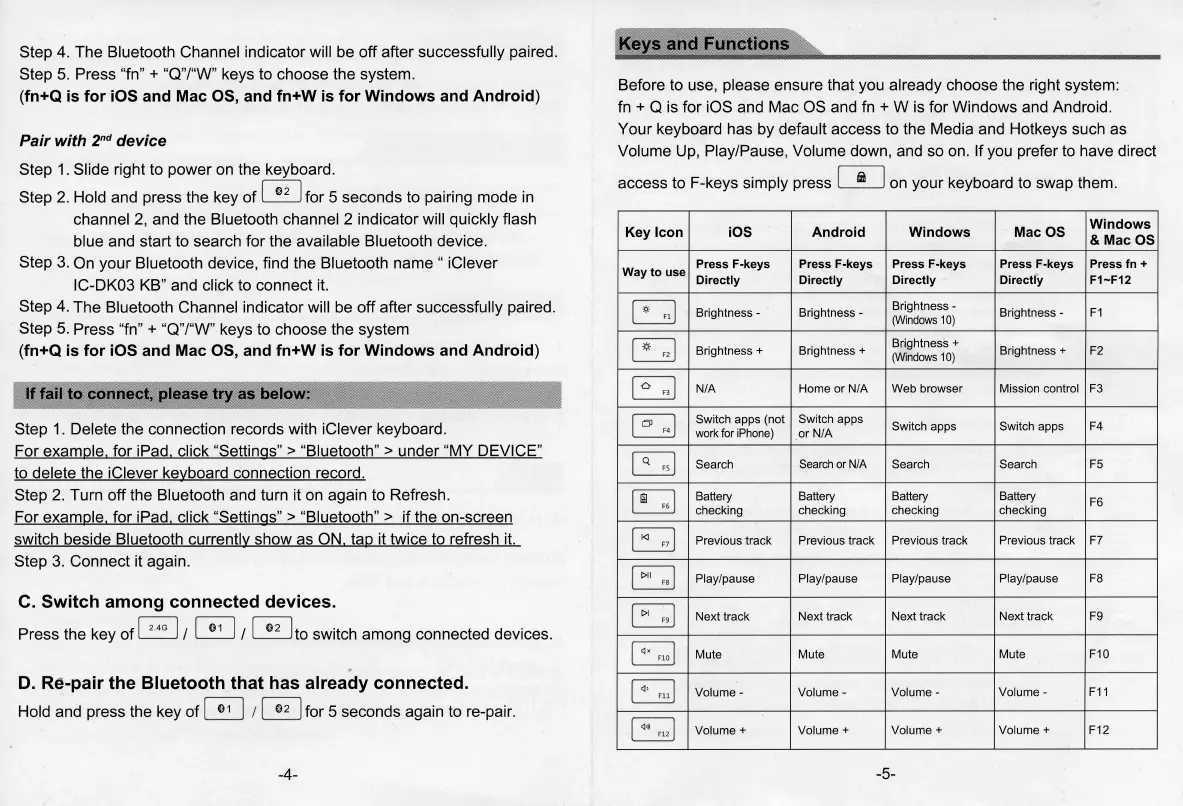
Before to use, please ensure that you already choose the right system:
fn
+ Q is for iOS and Mac
OS
and
fn
+Wis
for Windows and Android.
Your keyboard has by default access to the Media and Hotkeys such
as
Volume
Up,
Play/Pause, Volume down, and
so
on. If
you
prefer to have direct
access to F-keys simply press
CD
on
your keyboard to swap them.
Key Icon iOS Android Windows Mac
OS
Windows
& Mac
OS
Way
to
use
Press F-keys Press F-keys Press F-keys Press F-keys Press fn +
Directly
Directly Directly Directly
F1-F12
u
Brightness - Brightness -
Brightness -
Brightness -
F1
'
(Windows
10)
~
Brightness + Brightness +
Brightness +
Brightness + F2
'
(
Windows
10)
~
N/A
Home
or
N/A Web browser Mission control F3
~
Switch apps (not Switch apps
Switch apps Switch apps F4
work
for
iPhone)
orN
/A
E]
Search
Search
or N/A
Search Search F5
~
Battery
Battery Battery Battery
F6
6
checking checking
checking checking
u
7
Previous ·track
Previous track
Previous track Previous track F?
~
'
Play/pause Play/pause Play/pause
Play/pause F8
b]
Next track Next track
Next track Next track F9
Q
0
Mute Mute
Mute Mute F10
~
'
Volume-
Volume -
Volume- Volume-
F11
~
'
Volume+
Volume+ Volume+ Volume+
F12
-5-


 To Next Page
 Loading...