CHAPTER 2. GETTING STARTED 16
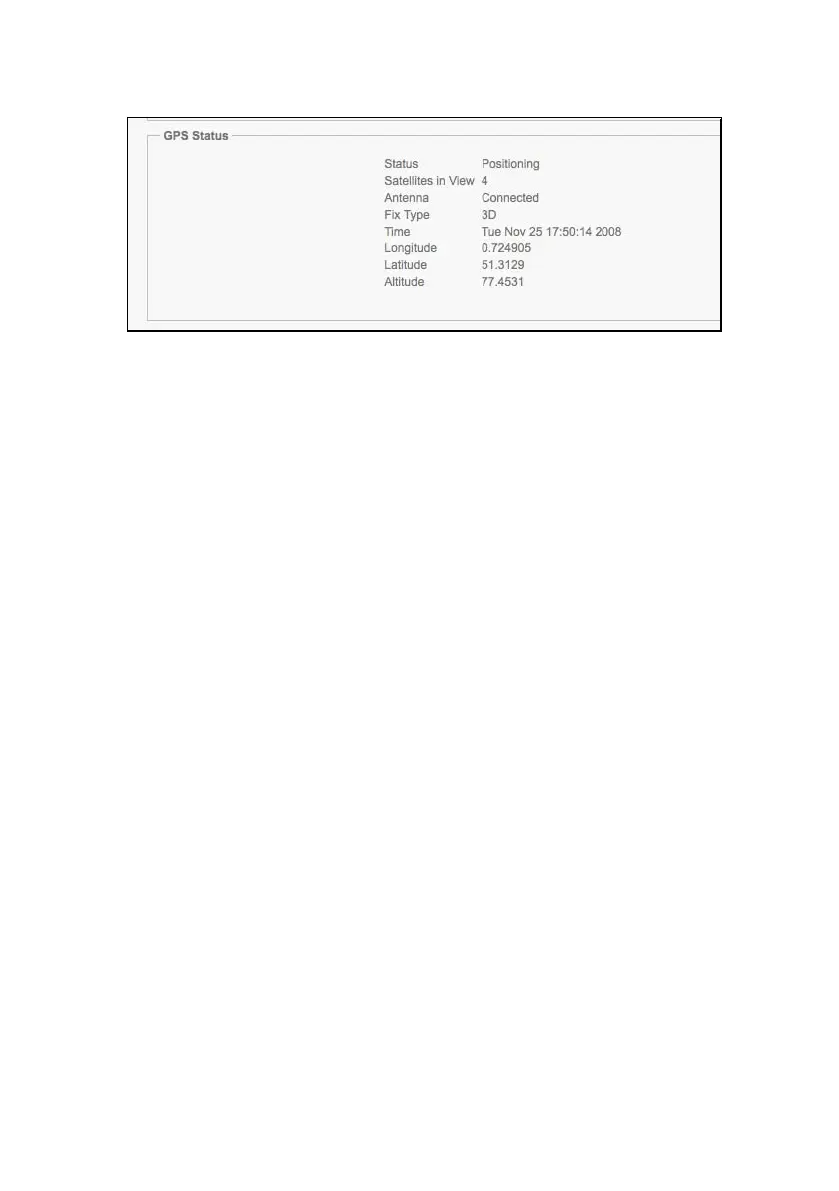
Figure 2.8: GPS status in MoovAdmin
2.13 Setting up a Captive Portal
By default, the Moovbox ships with the Ethernet and Wi-Fi interfaces routed to the
WAN modem on a two bridge groups; Ethernet on ‘Default’ and Wi-Fi on ‘Access
Point’. This configuration enables traffic from both interfaces to connect to the Inter-
net, and thus lets the Moovbox work out of the box. Further information about the
use of bridge groups can be found in the MoovAdmin Reference Guide.
Some situations will need the Moovbox configured so that traffic originating on the
Wi-Fi interface is directed to a splash page, or ‘captive portal’, when users try to con-
nect. This is useful in a public hotspot application, for example. You can use your own
RADIUS-based system to manage authentication and management of Wi-Fi users,
or use the optional MoovManage service which has built-in captive portal functional-
ity.
The following steps describe how to configure the Moovbox for use with the Moov-
Manage captive portal.
1 The first step is to assign a Captive Portal to the Access Point bridge group. In
the Configuration menu (upper left) choose Bridge Groups, and in the Bridge
Groups pane click the Access Point bridge group Edit button.
2 In the Edit Bridge Group pane, click the Edit Captive Portal button. The Cap-
tive Portal pane will appear (see Figure 2.9); select MoovManage and click
the Apply button.


 To Next Page