CHAPTER 2. GETTING STARTED 14
2.11 Using MoovAdmin to configure the cellular modem
Having connected to the Moovbox, you should see the MoovAdmin status screen as
illustrated above. If your device did not ship with a preconfigured modem already
installed, you’ll need to set up the Moovbox to work with your own. To configure the
modem:
1 In the Configuration menu (upper left) choose Device Settings.
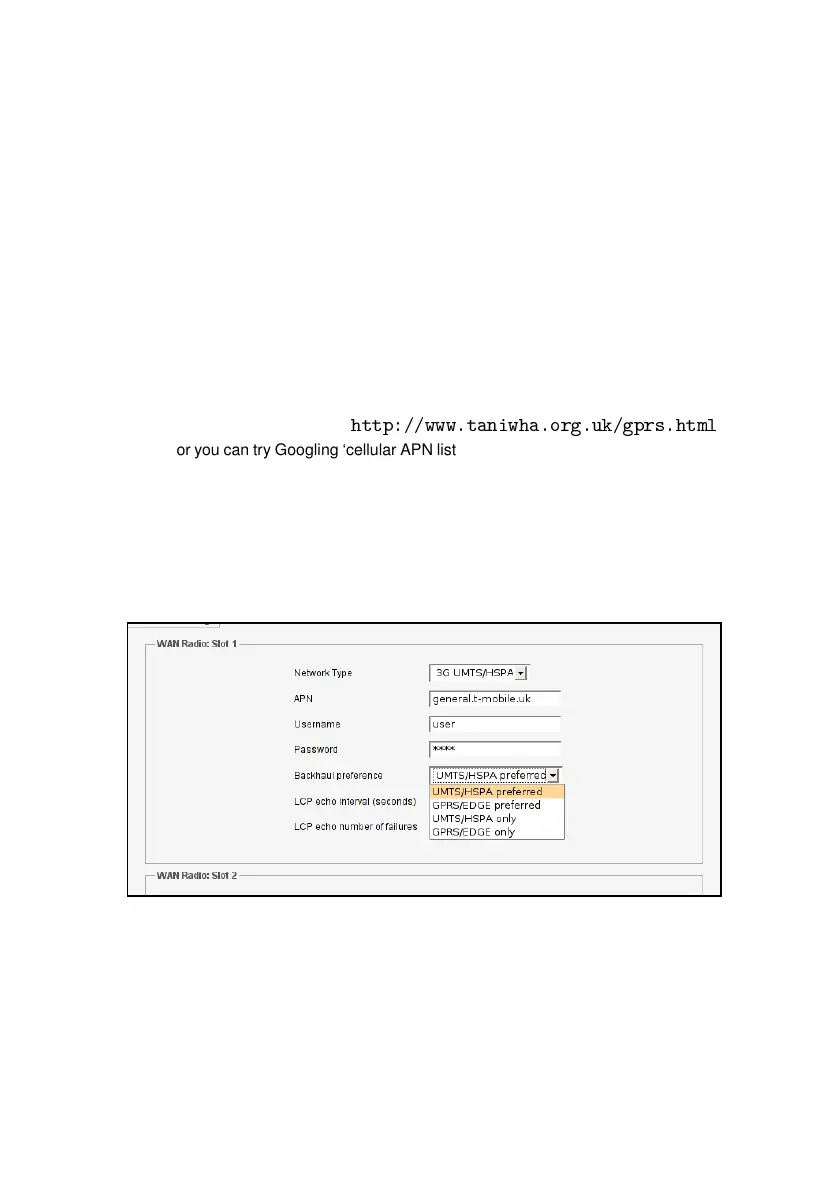
2 In the WAN Radio pane, enter the appropriate details for your provider. Most
mobile network providers require an APN, Username and Password. If you
do not know what details to enter, contact your Moovbox supplier, wireless
broadband provider, visit
http://www.taniwha.org.uk/gprs.html
or you can try Googling ‘cellular APN list’ which results in a number of sources
for worldwide APNs, usernames and passwords.
3 In the Backhaul Preference pop-up select the desired type of data connection.
If you’re using a 3G HSPA mobile carrier network, choosing ‘UMTS/HSPA Pre-
ferred’ would prioritize the fastest possible connection but allow the connection
to fall back to GPRS/EDGE when UMTS/HSDPA coverage is not available.
Figure 2.7: The WAN modem configuration options in MoovAdmin
4 Apply the changes by clicking the Apply button at the foot of the pane.
5 Now you must save your changes and reboot the unit. In the Administration
pane, choose Save & Reboot and then click the Save and Reboot button.


 To Next Page