The I/O CONTR 4 pins jack socket is for the I/O Extender. Do not connect
any other device into this connector!
PAIRING AN APPLE REMOTE
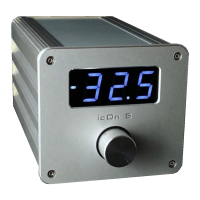
icOn 5 works with its supplied (and paired) Apple remote to prevent any
disturbance by other Apple remotes used together with an Apple TV, etc.
If you want to use another Apple remote with icOn 5 you have to “pair”
them. icOn 5 will learn the unique ID code of the new Apple remote and
will work only with it afterwards. Steps of pairing:
1. Switch on icOn 5 with the power switch on the back and keep touching
the sensor immediately till ‘ir’ will appear on the display.
2. Push the CENTRAL button in the next 5 seconds on the remote. After
few more seconds a ‘YA’ shows that the remote is pared successfully
with icOn 5.The next numbers are the serial number of your icOn 5.
3. If ‘no’ shows, the pairing was unsuccessful. Please try it again.
Using other buttons than the CENTRAL button you can change the
basic congurations of your icOn 5. This is how:
4. If you upgrade your icOn with an IO Expander unit with the VOLUME
up button can recongure the rmware of the icOn from 3 inputs to 7
inputs. Repeating the pairing with this button toggles between the two
input modes.
5. If you want to customise the volume display mode:
- for step number display: push CH Up button
- for dB display: push CH down button
6. To choose between the +3 dB or -10 dB maximum volume levels please
push the VOLUME down button. Repeating the pairing with this button
toggles between the two maximum volumes.
7. You can activate the AV bypass function for the IN2 with the Mute button
and deactivate it with the Menu button. Be very careful with the AV
bypass function, it can easily destroy your loudspeaker if you
mistakenly use the source with it’s full output level at IN2 !!!
10


 To Next Page