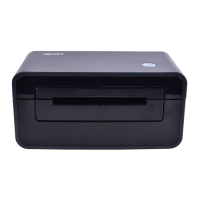
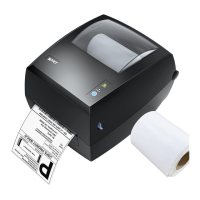
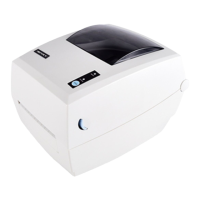
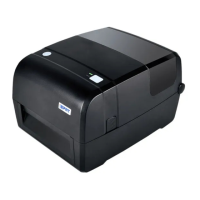
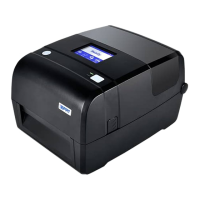
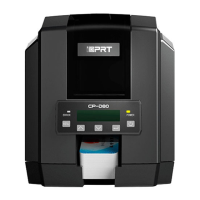
The iDPRT SP900 is a thermal receipt printer designed for commercial POS systems, the food industry, and other applications requiring real-time receipt printing. It boasts high print quality, high print speed, and high stability.
Function Description:
The SP900 functions as a thermal receipt printer, capable of printing on continuous thermal paper. It supports page mode printing and is compatible with various paper widths. The printer includes a cash drawer interface, allowing for integrated POS solutions. It features LED indicators and a beeper to communicate its status and any potential issues. The printer can be connected to a host system via USB or Ethernet interfaces. For advanced control and configuration, a utility tool for POS systems is provided, along with Windows and macOS drivers.
Important Technical Specifications:
- Printing Method: Direct thermal line printing
- Resolution: 203 dpi, 8 dots/mm
- Printing Width: 72mm (default) / 48mm
- Print Speed: 260mm/s
- Interfaces: Standard: USB, Ethernet, Cash drawer; Optional: WiFi, BT
- Print Density: Adjustable from level 1 to level 4
- Memory: RAM 4MB, Flash 4MB
- Fonts: Chinese (GBK 24x24), Alphanumeric (ASCII 9x17, 12x24), User-defined, and various optional character sets (PC437, Katakana, PC850, PC860, PC863, PC865, PC857, PC737, ISO08859-7, WPC1252, PC866, PC852, PC858, KU42, TIS11, TIS18, PC720, WPC775, PC855, PC862, PC864, ISO8859-2, ISO8859-15, WPC1250, WPC1251, WPC1253, WPC1254, WPC1255, WPC1256, WPC1257, WPC1258, MIK, Iran, Iran II, Latvian, ISO-8859-1, ISO-8859-3, ISO-8859-4, ISO-8859-5, ISO-8859-6, ISO-8859-8, ISO-8859-9, PC856, PC3848, MONGOLIAN, VISCII).
- Barcodes: 1D (UPC-A, UPC-E, EAN8, EAN13, CODE39, CODE93, ITF, CODEBAR, CODE128), 2D (PDF417, QR code).
- Graphics: Supports varied density bitmap and download bitmap printing, with a total bitmap size of 256K.
- Detection: Standard: Paper end detection, cover opening detection, cutter jam detection, over-temperature detection; Optional: Paper near end, black mark detection.
- LED Indicator: Power LED, status indicator.
- Power Supply: Input AC100V-240V, Output 24V 2.5A.
- Paper Type: Specified Thermal Paper.
- Paper Width: 58(+0.1/-0)mm / 80(+0.1/-0)mm / 83(+0.1/-0)mm.
- Paper Thickness: 0.056~0.13mm.
- Roll Paper Diameter: Max. OD φ83mm.
- Paper Load: Easy-loading structure of upward open cover.
- Paper Cut: Partial cut or full cut.
- Operating Condition: 0℃~40℃, 20%~85%RH, non-condensing.
- Storage Condition: -20℃~70℃, 5%~95%RH, non-condensing.
- Dimensions: 165.4(L)*130(W)*119.3(H)mm.
- Weight: 1.24kg.
- Command: ESC/POS.
- Driver: Windows Server 2008/2012/2016, Windows 7/8/10, Linux, Javapos, OPOS, macOS.
- SDK: WinCE, Android, iOS.
Usage Features:
- Easy Paper Loading: The printer features an easy-loading structure with an upward open cover. Users simply pull up the cover open lever, remove any used paper core, insert the new roll paper in the correct direction, pull out some paper, and close the cover. The paper is then automatically cut.
- Paper Width Adjustment: The printer accommodates different paper widths (82.5mm, 79.5mm, 57.5mm) by adjusting or inserting paper guides on each side. For 57.5mm paper, the roll should be placed in the middle, and guides inserted straight.
- Power Connection: The power adapter cable connector should be plugged into the rear of the printer, and the power cord connected to the adapter and a wall outlet. It's crucial to connect/disconnect the power adapter correctly to prevent damage.
- Interface Cable Connection: Ensure the printer is off before connecting the interface cable (USB or Ethernet) to the matched interface on the printer and the host.
- Cash Drawer Connection: The printer supports a 24V cash drawer device. Connect the cash drawer cable to the cash drawer interface on the rear of the printer when the printer is off. Do not connect a phone line.
- Print Self-Test: A self-test can be performed to check the printer's settings and status. With the printer off and paper loaded, press the paper feed button and power button simultaneously to turn on the printer.
- Windows Driver Printing: After installing the Windows driver and setting the interface type, a "Print Test Page" can be printed from the driver program.
- Utility Tool: A dedicated utility tool for POS systems is available for Windows operating systems (XP SP3 to Windows 10, and Server 2008 R2 to 2016). This tool allows users to add, modify, or delete printers, perform connection tests, manage images, download fonts, and configure various parameters like print density, paper width, auto line feed, DPI mode, USB port mode, buzzer settings, and more.
- Firmware Update: The utility tool also supports firmware updates.
- MAC Driver Installation: A specific driver is provided for macOS (e.g., macOS 10.11), allowing for installation and configuration on Apple systems.
Maintenance Features:
- Cleaning Head: To maintain print quality, the print head should be cleaned when dirty. Turn off the printer and wait 2-3 minutes for the print head to cool. Use a cleaning pen to clean the head from the center to the edges. Do not use the printer until the alcohol has completely evaporated (1-2 minutes).
- Cleaning Sensors, Roller, and Paper Path: Open the printer cover, remove the paper, and use a dry cloth or cotton swab to remove dust or foreign substances. For adhesive or pollution materials, soak the cloth/swab in medical alcohol and clean the parts. Ensure the printer is completely dry before use.
- Troubleshooting: The manual provides guidance on common issues such as the printer not working (no power, printer off, circuit board broken), LED indicator and beeper signals (cover open, paper out, cutter error, print head over-temperature, print head thermistor error, flash memory write error), and printing troubles (blurred printing, unqualified paper, dirty thermal head/print roller, low print density, paper jam, vertical print words missing, thermal head damaged).
- Removing Jammed Paper: If paper jams, open the printer cover, remove the jammed paper, reload the roll, and close the cover. Avoid touching the hot thermal print head.
- Power Management: Switch off the printer power supply when not in use for a long time. Disconnect the power supply of the printer power adapter if not using the printer for an extended period. Avoid dragging the power adapter cable or placing the adapter near heating devices.

 Need help?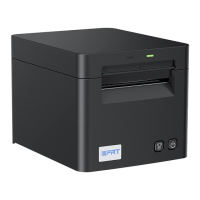

 To Next Page
 General