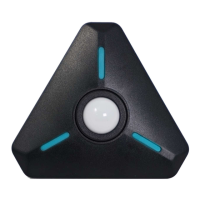
The app has stopped, or the meter has disconnected from the
app. The meter is now looking for a connection.
1. Turn the meter off by pressing and holding the power button
for 1.5 seconds. The LEDs will flash red then turn white and
fade.
2. Stop the app.
3. Restart both the app and the meter.
1. Turn on Location Services (LS). On Android phones this is
required. If LS are off, the app won’t find the meter. If LS was
off, try connecting again. If LS was on and there is still no
connection, proceed to step 2.
2. Clear the bonding states in your phone and your meter:
2a. Press and hold the meter’s power button for 10 seconds –
until you see the LEDs start to blink magenta. Then let go of
the button. Turn off the meter.
2b. Go to your smartphone Settings, Connected Devices,
Bluetooth. Find the Illuminati Meter entry and Forget it.
3. From the settings -> Bluetooth section, turn off Bluetooth. The
reason for doing this is to reset the Bluetooth “stack”. Give it
10 or 15 seconds and turn Bluetooth back on.
4. Turn on the meter.
5. Start the App.
6. For iOS, you will need to select “Scan” to find the meter. For
Android, pull down from the



 To Next Page