EasyManua.ls Logo

Illuminati IM150 - User Manual

Illuminati IM150
19 pages
Print Icon
To Next Page IconTo Next Page
Loading...
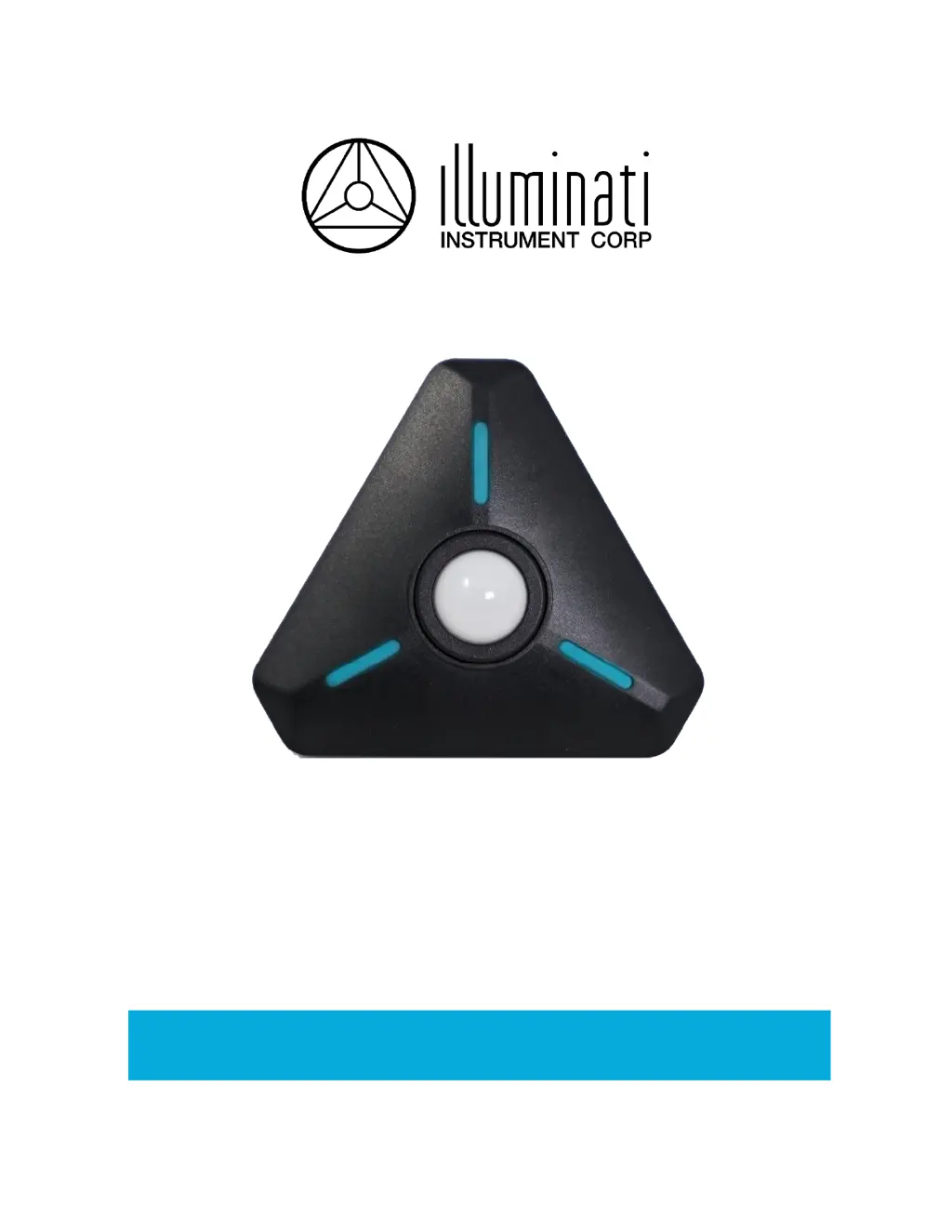
Illuminati Wireless Light and Color Meter
Model IM150
User Manual

Other manuals for Illuminati IM150

Questions and Answers

  • D
    Darrell HodgeAug 7, 2025
    What to do if Illuminati IM150 LEDs flash red and blue?
    • J
      jerryjohnsonAug 7, 2025
      If the LEDs on your Illuminati Measuring Instruments flash red three times, followed by a continuous rotating blue pattern, it indicates that the app has stopped or the meter has disconnected from the app. To resolve this: 1. Turn the meter off by pressing and holding the power button for 1.5 seconds, until the LEDs flash red, turn white, and fade. 2. Stop the app. 3. Restart both the app and the meter.
  • S
    Sharon TaylorAug 19, 2025
    How to fix Illuminati Measuring Instruments when LEDs flash red?
    • R
      Robert PhamAug 19, 2025
      If the LEDs on your Illuminati Measuring Instruments flash red three times in succession after being powered on, you should check or replace the batteries.
  • B
    brandon98Oct 28, 2025
    Why won't my Illuminati Measuring Instruments meter connect?
    • D
      Daniel MillerOct 28, 2025
      If your Illuminati Measuring Instruments meter won't connect, the issue might be with Location Services being off on Android phones. Here's what you can do: 1. Turn on Location Services (LS) as it is required on Android. If LS was off, try connecting again. If LS was on and there is still no connection, proceed to step 2. 2. Clear the bonding states in your phone and your meter: * Press and hold the meter’s power button for 10 seconds until you see the LEDs start to blink magenta, then release. Turn off the meter. * Go to your smartphone Settings, Connected Devices, Bluetooth. Find the Illuminati Meter entry and Forget it. 3. From the settings -> Bluetooth section, turn off Bluetooth to reset the Bluetooth 'stack'. Wait 10-15 seconds before turning Bluetooth back on. 4. Tu...

Summary

Quick Start Guide

Using with an iPhone

Step-by-step instructions for setting up and using the IM150 with an iPhone.

Using with an Android Phone

Step-by-step instructions for setting up and using the IM150 with an Android phone.

Getting Started

Connecting Your IM150

Initial Setup: Power On and App Start

Steps to power on the IM150 and launch the Illuminati Meter app.

Wireless Connection and Bonding

Details on connecting the IM150 to smartphones and the bonding process.

App Settings and Identification

Technical Settings

Trigger Settings

Configure photocell sensitivity, enable photocell, and sync cord strobe metering.

Adding Tiles to the App

Setting Exposure Conditions

Flash Metering

Using the app to set and monitor flash metering conditions like ISO, F-number, and shutter speed.

Color Temperature Viewing

Unbond Meter

Unbond Meter from Phone

Procedure to unbond the IM150 meter from your phone for troubleshooting or sharing.

Unbond Phone from Meter

Steps to remove the IM150 meter from your smartphone's Bluetooth settings.

LED Colors and Meanings

Illuminati IM150 Specifications

General IconGeneral
BrandIlluminati
ModelIM150
CategoryMeasuring Instruments
LanguageEnglish

Related product manuals