EasyManua.ls Logo

Illuminati IM100 - User Manual

Illuminati IM100
32 pages
Print Icon
To Next Page IconTo Next Page
Loading...
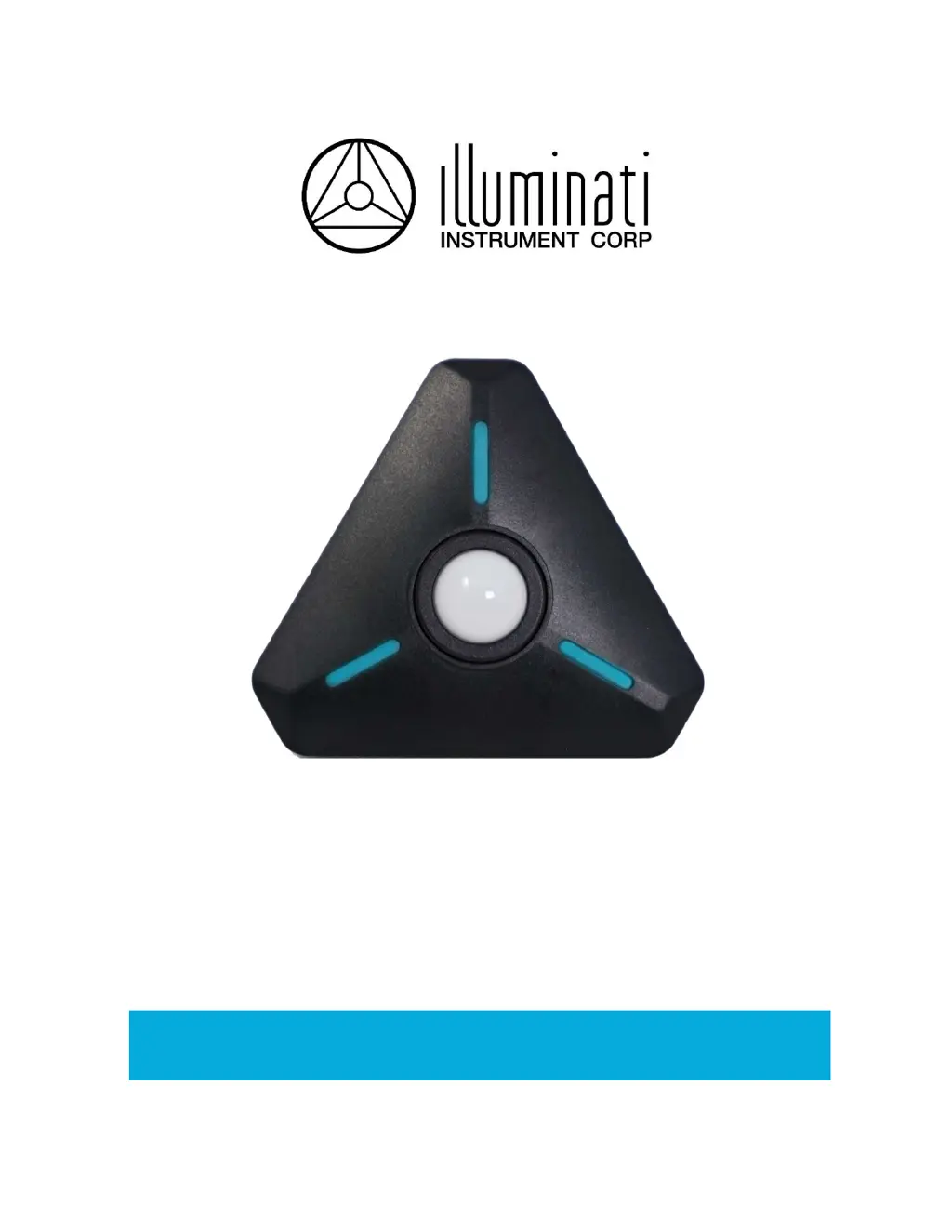
Illuminati Wireless Light and Color Meter
Model IM100
User Manual – Android, v1.41

Questions and Answers

  • K
    Kevin HaysAug 3, 2025
    What to do if Illuminati Measuring Instruments meter will not connect?
    • T
      Teresa BartonAug 3, 2025
      To resolve connection issues with your Illuminati Measuring Instruments meter, follow these steps: 1. Close the app. 2. Erase the bonding in your smartphone’s settings menu. 3. Turn off the meter, then press and hold the power button for 8-10 seconds when restarting it to unbond it from your smartphone.
  • L
    Lori WilliamsAug 8, 2025
    What to do if Illuminati Measuring Instruments app has stopped or meter disconnected?
    • C
      Christopher JohnsonAug 8, 2025
      If the app has stopped or the Illuminati Measuring Instruments meter has disconnected, try the following: 1. Turn the meter off by pressing and holding the power button until it flashes blue continuously in a rotating pattern for 1.5 seconds. 2. Stop the app. 3. Restart both the app and the meter.
  • J
    Jennifer RileyAug 12, 2025
    Why do the LEDs flash red on my Illuminati IM100?
    • M
      Mackenzie FergusonAug 12, 2025
      The LEDs are flashing red three times on your Illuminati Measuring Instruments because of a low battery. Check and replace the batteries.
  • P
    pachecoryanAug 18, 2025
    Why won't my Illuminati IM100 Measuring Instruments meter connect to the app?
    • S
      Steven BoothAug 18, 2025
      To resolve connection issues with your Illuminati Measuring Instruments meter, first ensure that Location Services are enabled, which is mandatory for Android devices. If the problem persists, clear the bonding states by holding the power button on the meter for 10 seconds until the LEDs blink magenta, then release it and turn off the meter. Next, go to your smartphone's Bluetooth settings, find the Illuminati Meter entry, and 'Forget' it. Turn Bluetooth off for 10-15 seconds to reset the Bluetooth stack, then turn it back on. Restart the meter and the app. iOS users should select 'Scan' in the app to find the meter, while Android users can pull down from the top of the screen to initiate a scan.
  • G
    Gloria FoxAug 23, 2025
    What to do if the Illuminati IM100 Measuring Instruments app has stopped or disconnected?
    • J
      joshua28Aug 23, 2025
      If the app stops or the Illuminati Measuring Instruments meter disconnects, power off the meter by pressing and holding the power button until the LEDs flash blue continuously in a rotating pattern, then flash red, turn white, and fade. Next, stop the app and restart both the app and the meter.
  • A
    Andrea WalkerAug 28, 2025
    How to fix Illuminati IM100 Measuring Instruments when LEDs flash red after power on?
    • M
      Ms. Amanda ButlerAug 28, 2025
      The red flashing LEDs on your Illuminati Measuring Instruments indicate a low battery warning. To resolve this, check the batteries and replace them if necessary.

Summary

Quick Start Guide

Download and Install Illuminati App

Download and install the Illuminati Meter application from the app store.

Connect Meter to iPhone and Android

Step-by-step guide to connect the Illuminati Meter to iPhone and Android devices via Bluetooth.

Getting Started with IM100

Install Batteries and Download App

Instructions for installing batteries and downloading the Illuminati app.

Connect IM100 Meter to Smartphone

Power On, Start App, and Grant Location Access

Steps to power on the meter, start the app, and grant necessary location permissions.

Establish Meter Connection

Meter Readings Display Tiles

Meter Settings Configuration

Alarms Setup and Settings Screen

Guides on setting up alarms and navigating the meter settings screen.

Meter Alarm Functionality

Alarm Types, Conditions, and LED Indicators

Details alarm types, conditions, and the meaning of LED indicators.

Optimal Meter Placement

Measure Exposure with IM100

Still Exposure and Ambient Monitoring

Covers still exposure measurement and continuous ambient monitoring.

IM100 Flash Exposure Metering

IM100 Corded Flash Metering

Video and Cine Exposure Measurement

Measure Light Source Color Temperature

Measure Flash Color Temperature

Configure IM100 Device Settings

Bond, Update Firmware, and Identify Meter

Update IM100 Firmware

Troubleshoot Firmware Update Issues

Common problems and solutions encountered during firmware updates.

Identify Specific IM100 Meters

IM100 LED Status Indicators

IM100 Troubleshooting Guide

Resolve Connection and LED Issues

Troubleshooting steps for connection problems and LED status indicators.

Illuminati IM100 Specifications

General IconGeneral
BrandIlluminati
ModelIM100
CategoryMeasuring Instruments
LanguageEnglish

Related product manuals