Illuminati Instrument Corp. IM100 User Manual – Android, v1.41 P a g e | 1 3
Measuring Exposure
Still Exposure
To set up the conditions for your reading, tap
the purple tile – or any exposure tile - and the
Still Exposure tab will open.
Monitor Ambient
At the bottom of this screen is the Monitor
Ambient checkbox. If you turn Monitor Ambient
on, the meter will continuously update the
meter readings at an interval you set in the
Device Settings screen. This is convenient if you
want to monitor exposure and color
temperature continuously.
Manual Readings
If you leave Monitor Ambient off, you can
trigger a manual meter reading in two ways:
1. Tap the shutter icon in the lower
right corner of the exposure screen.
2. Press the meter’s power button once.
In either case, the LEDs on the meter will flash
once and your meter reading will be refreshed.
The reading will not change until you take
another manual reading, or, you invoke the
Monitor Ambient setting. This “sample and
hold” feature can be useful in some situations.
Settings Dials
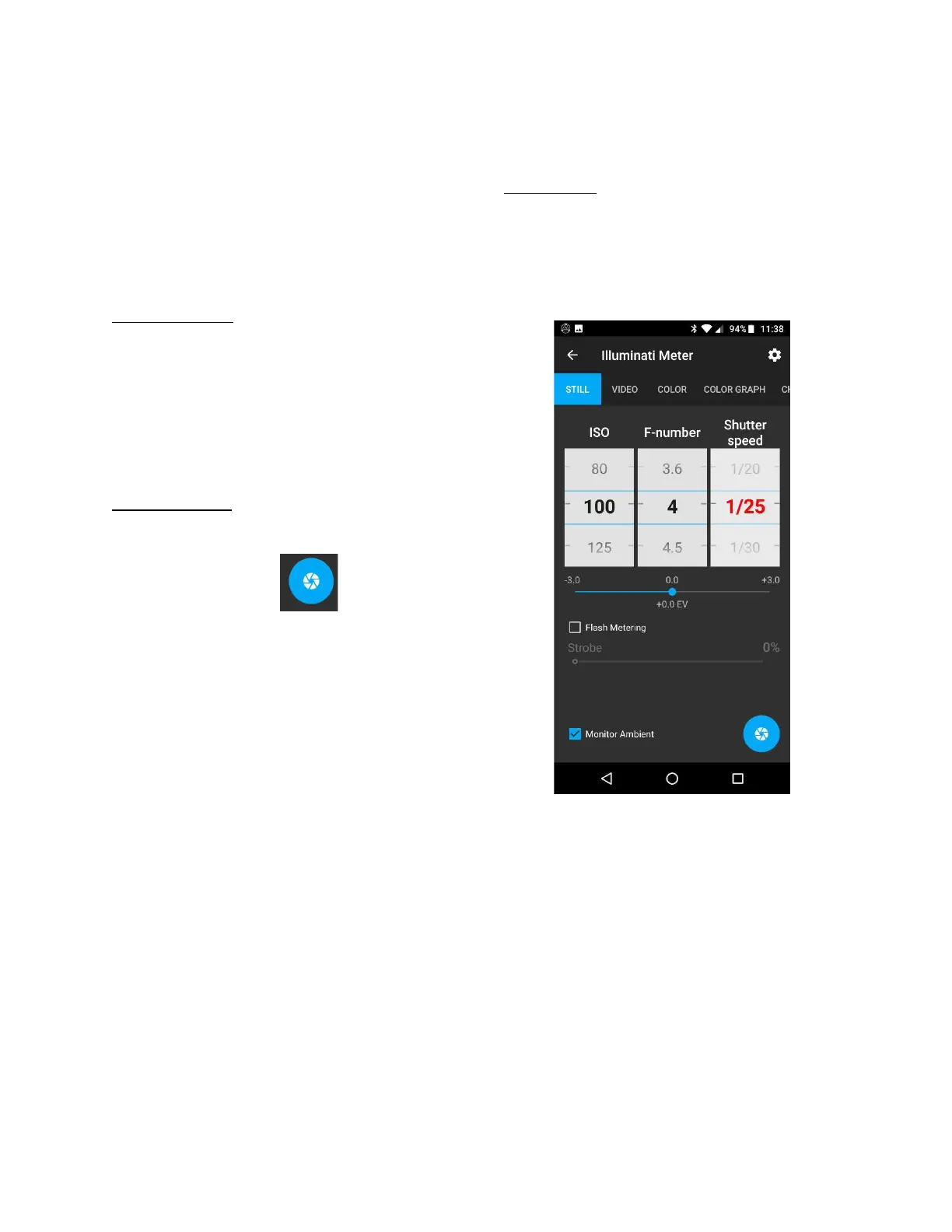
For still imaging, you will see settings for ISO,
Aperture, Shutter Speed and a few more
controls. Verify that Monitor Ambient (lower
left of this screen) is on. The meter will
continuously update the exposure readings.
Still Exposure Reading Set to
Range on Shutter Speed (red)
The meter will solve for the missing value of the
exposure triangle using settings you provide. In
the example, we want to use ISO 100 and an
aperture of F4. Just press the Shutter speed
wheel until it turns red. Then rotate the ISO
wheel to 100 and the aperture to F4. The app
will automatically give you the shutter speed.
The meter will also range on ISO or Aperture if
you press and hold one of them until they turn
red. Try a few different settings to get familiar
with the interface.


 To Next Page