6 | P a g e IM150 User Manual Illuminati Instrument Corp.
Connect Your IM150
Power On
Turn on the IM150 using the power button on
the corner of the meter.
Start the App
Start the Illuminati App on your smartphone.
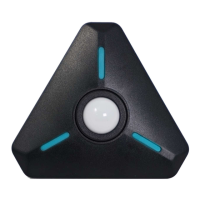
The LEDs will appear blue when the meter is not
connected to your phone.
Connect
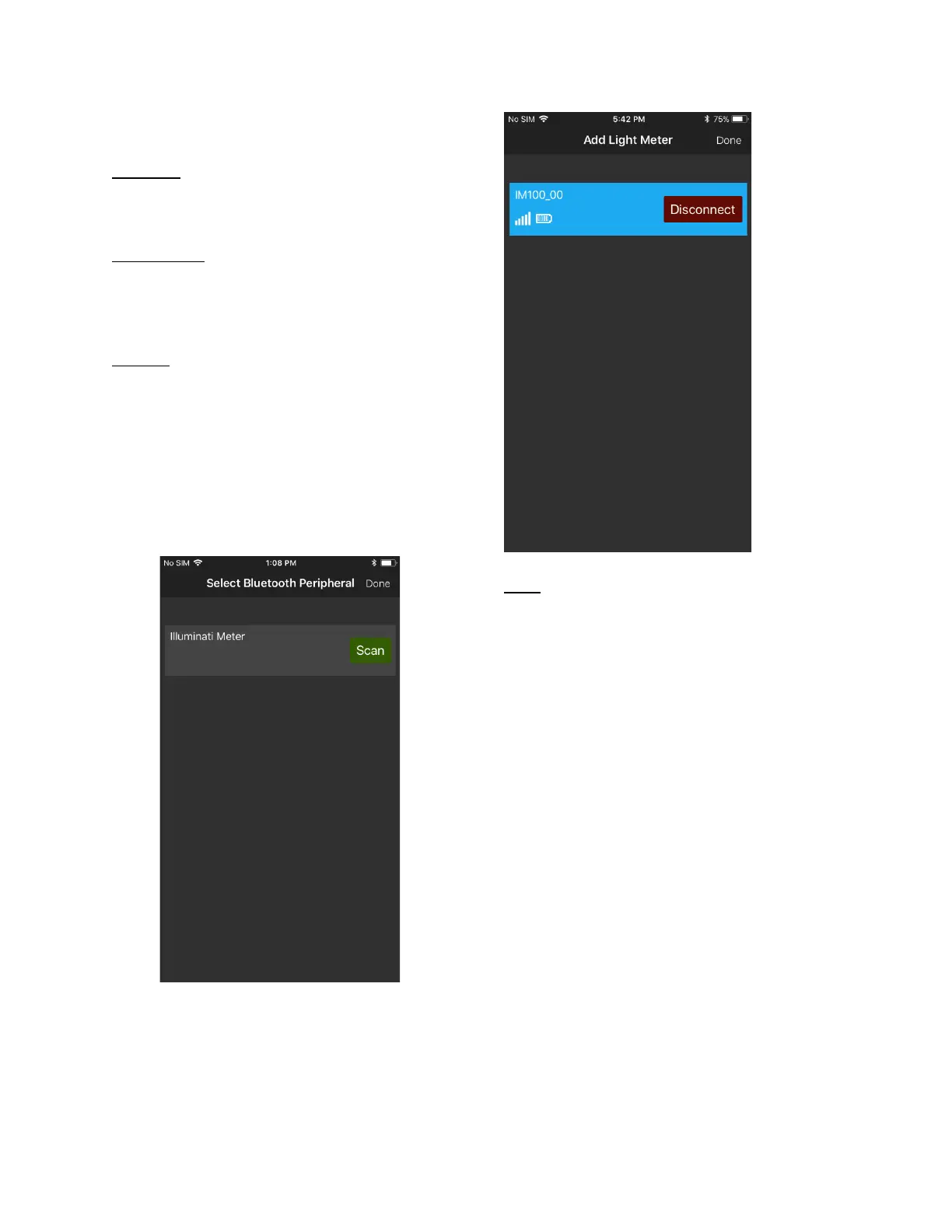
iPhone: The app will find the meter. Click
“Scan”, and the meter will connect to the
phone. When connected the meter LEDs will
briefly flash green, then stop flashing.
Android: The app finds the meter and connects
automatically. You will know this has happened
when you see the LEDs briefly flash bright green
and then turn off. No need for the step below.
When the mater and the App connect, you will
see a blue band with the device’s name on it, as
in the illustration below.
Bond
While not necessary, bonding is needed if:
a) there are other IM150 meters in the vicinity
and you want to ensure connectivity between
your own smartphone and your illuminati
meter
b) you want to rename your meter
c) you want to update the meter’s firmware
Bonding your meter to your phone ensures that
you control its settings. If this is not an issue for
you, you may not need to bond your meter.
Bonding is required for you to rename your
meter (instructions further below).
Press the blue bar with the connected meter on
it (don’t click on the “Disconnect” button).
Press the “Bond” button – upper left.



 To Next Page