Transferring the Images
To transfer the images from the Image Bank to the currently selected
Thumbnails folder you have the following options:
Drag and drop
Simply select a number of thumbnails in the Contents window and drag
them to the thumbnails window.
Show single image
Select a single image in the Contents window and click the Show button.
Immediately the image will be shown in FlexColor's preview window
and a transfer of the selected image to your thumbnails folder will start.
Double-clicking or typing Return will have the same effect.
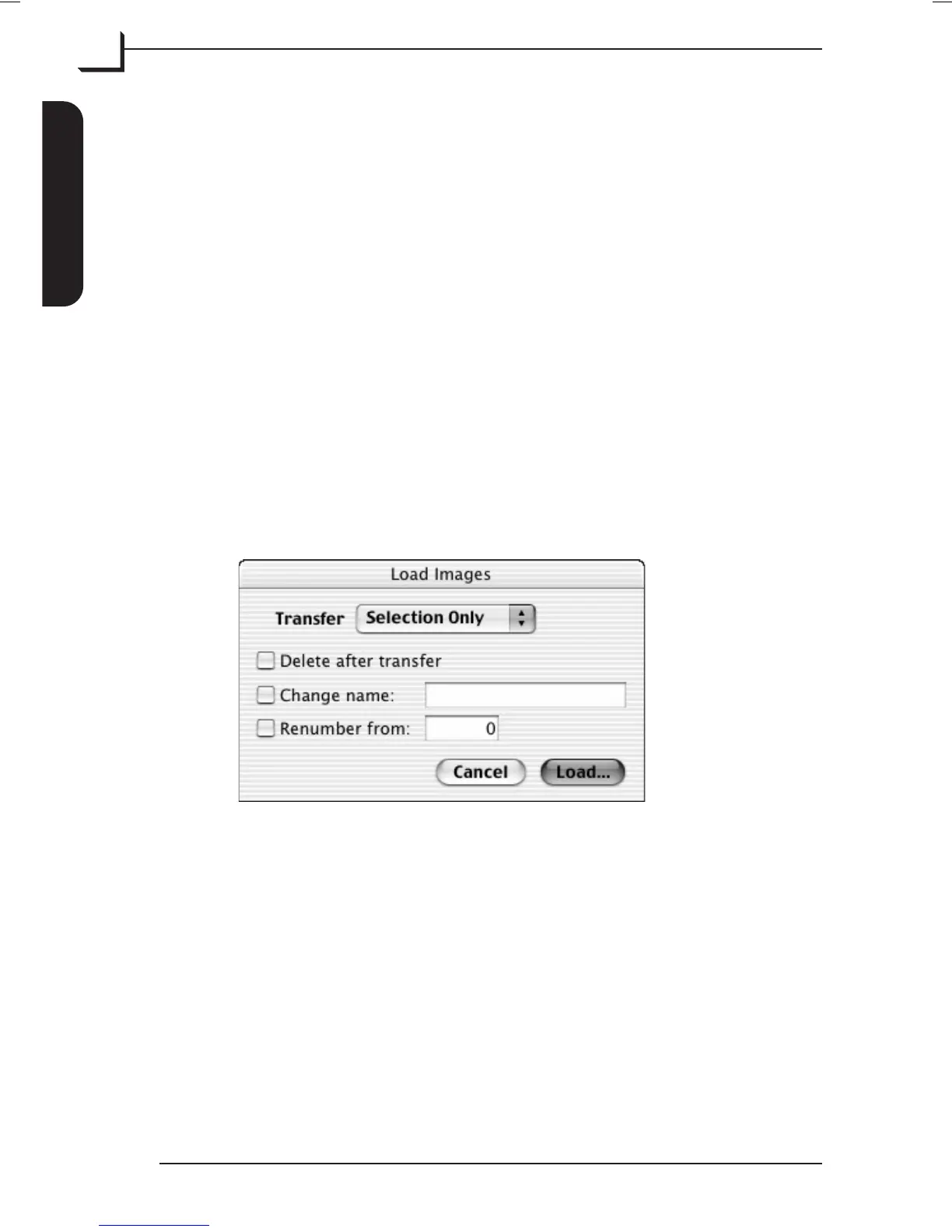
Load Dialog
Using the Load Images dialog box gives you more control of the image
transfer:
•
Select the images you want to load and click Load...
A Load Images dialog box appears:
•
From the Transfer pop-up menu choose whether you want to load
All, Selection Only, or Approved.
•
Check the Delete after transfer checkbox if you want the shots to be
deleted from the Image Bank’s hard disk after having loaded them to
the computer.
•
Check the Change name checkbox if you want the shots to be
renamed while loaded - type the new name in the name field.
•
Check the Renumber from checkbox if you want the shots to be
renumbered while loaded - type the starting number in the number
field.
•
Click Load...
The images will be transferred to and saved as "3F" files in the
currently selected Thumbnails folder on the computer.
User's Guide - Imacon Ixpress
English
The Image Bank
38
Transferring Images



 To Next Page