Using the Control Panel
Displaying Images
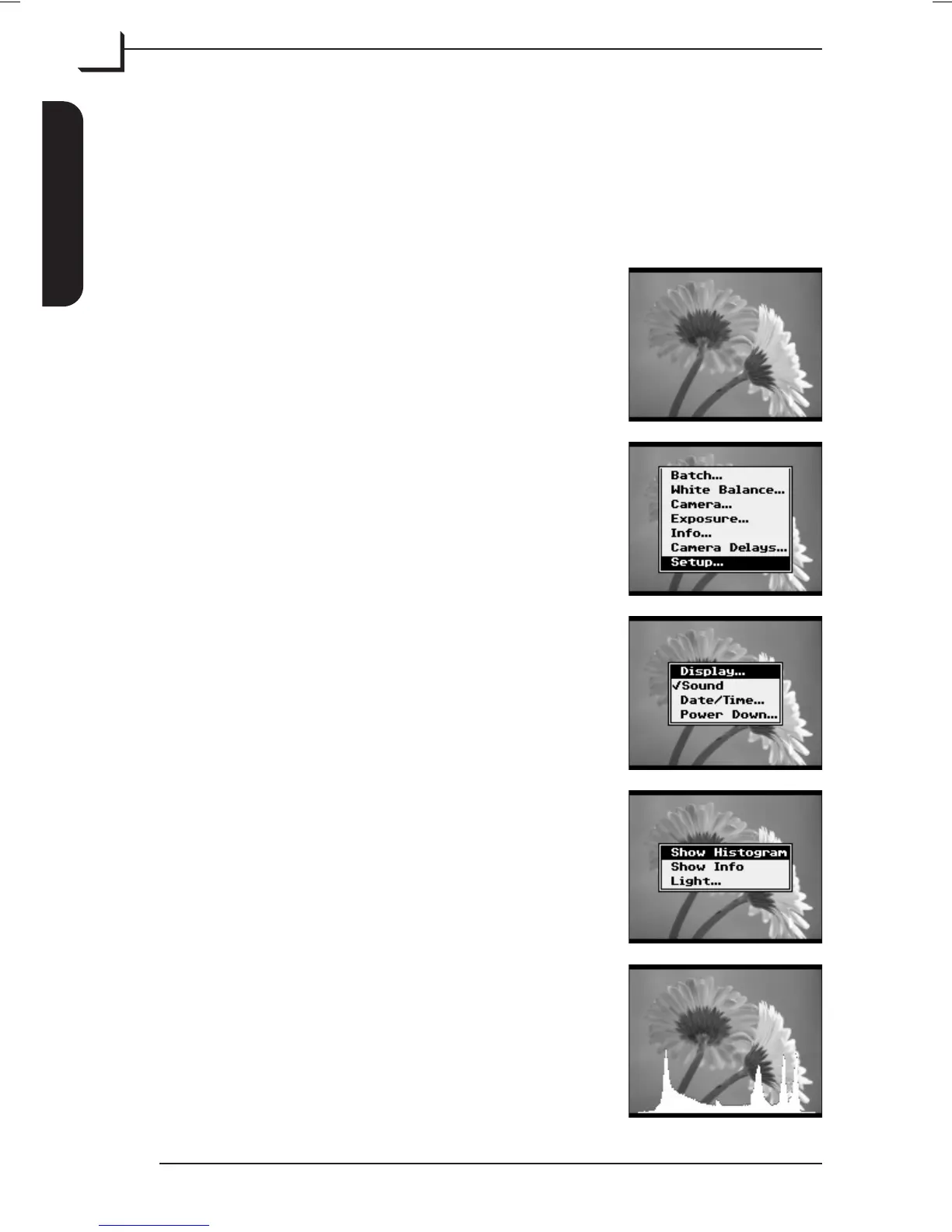
When power is supplied to the camera back it starts up showing the
main window:
The picture displayed in the main window is
the latest shot.
To change the display to show the image info
and histogram press MENU button.
In the pop-up menu use Browse/Scroll button
to highlight the Setup item, then press OK
button to enter.
Now highlight the Display... item and press OK
to enter.
Highlight Show Histogram and press OK.
The histogram for the current image will be
displayed at the display bottom on top of the
preview.
User's Guide - Imacon Ixpress
English
The Ixpress Camera Back
16
Using the Control Panel



 To Next Page