Chapter 2: Installing and Connecting Speedway/Revolution
Copyright © 2009, Impinj, Inc. 10
To connect Speedway/R to your PC over a serial connection:
1. If necessary, download the latest version of Putty, which is a free and reliable SSH,
Telnet, and serial client. Version 0.59 or higher contains support for serial connections.
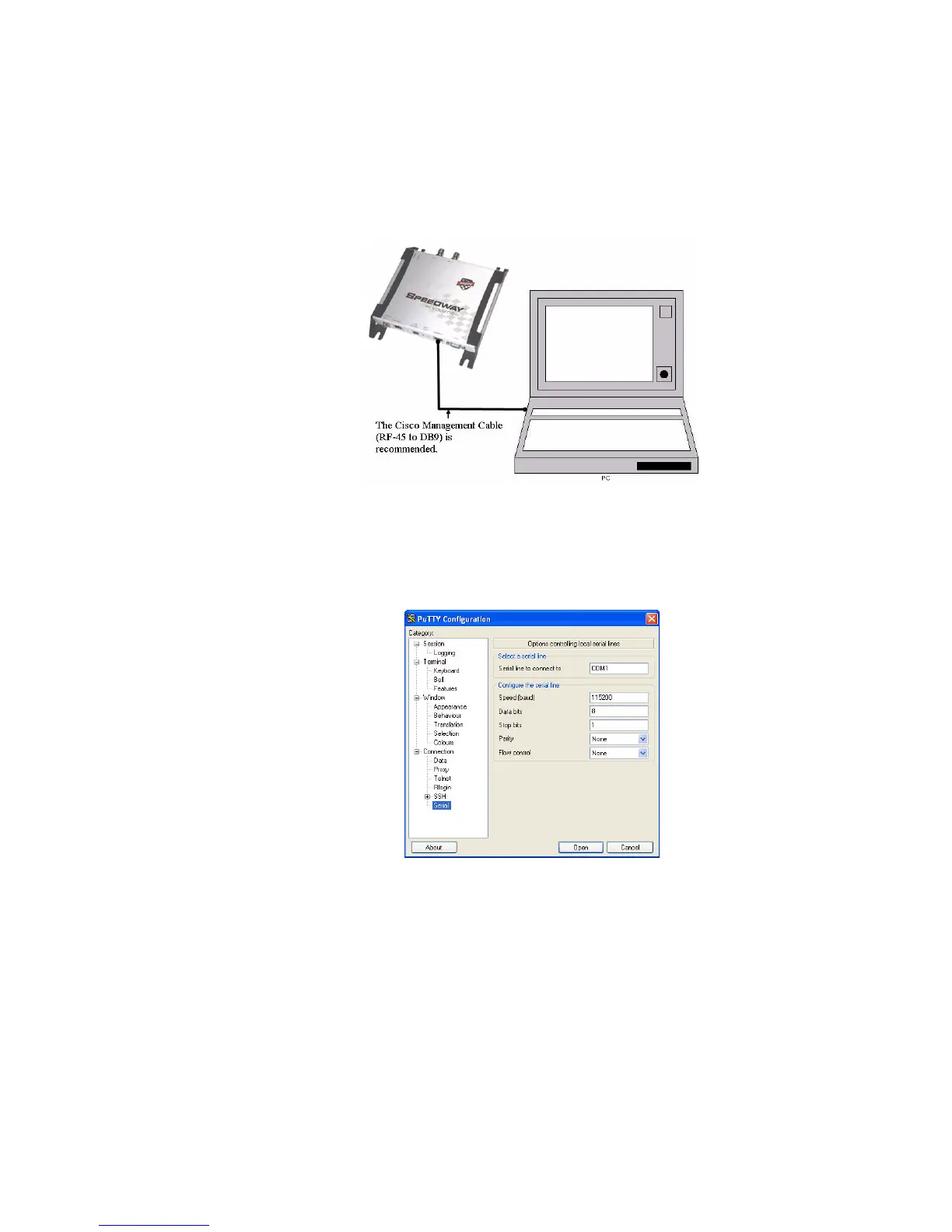
2. Using a standard, grounded DB9 serial cable, connect your PC’s valid/active COM
port to the serial port on the reader, as illustrated below:
3. Power the reader and wait for the boot sequence to complete. (See “Step 4: Power the
Reader” on page 11.)
4. On the PC, run the Putty application and select the Serial connection option. Verify
that Serial line to connect to is set to COM1 (if that is correct for your PC). Set
Speed to 115200. Set Flow control to None.
5. Click Open. The Rshell console window opens.
6. Log in with the following default credentials (unless they have been changed):
User Name: root
Password: impinj
7. When the Rshell command line prompt appears, you can begin configuring the net-
work settings for the reader. See “Using Rshell to Configure Network Settings for
Speedway/R” on page 13 for details.
8. When you have completed configuration of the appropriate network settings, connect
the reader to your Ethernet network as described on page 9.
Note:
If you decide to connect to DHCP after connecting serially, remember to use Rshell to
change the IP address on the reader from static to dynamic. See “Using Rshell to Config-
ure Network Settings for Speedway/R” on page 13 for details.


 To Next Page