EasyManua.ls Logo

InFocus IN114a - User Manual

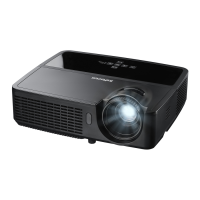
InFocus IN114a
36 pages
Print Icon
To Next Page IconTo Next Page
Loading...

Other manuals for InFocus IN114a

Questions and Answers

  • E
    Elizabeth MooreAug 17, 2025
    Why is the InFocus IN114a Projector lamp not turning on and the projector is overheating?
    • R
      Rebecca ClarkeAug 18, 2025
      If the InFocus Projector lamp won’t turn on and the projector is overheating, it may be due to the overheating indicator. Ensure that the vents are not blocked and turn off the projector. Allow it to cool down for one minute before attempting to use it again.
  • H
    hernandezfrankAug 20, 2025
    What to do if my InFocus IN114a says 'Signal out of range'?
    • K
      Kimberly RiversAug 20, 2025
      If your InFocus Projector displays 'Signal out of range' instead of the computer image, here's what you can do: * First, try pressing the Auto Image button on the remote. * If that doesn't work, adjust your computer's refresh rate via the Control Panel > Display > Screen Resolution > Advanced Settings > Adapter tab (the exact path may vary depending on your operating system). * You might also need to set a different resolution on your computer.
  • K
    Kristine CastroAug 22, 2025
    Why does my InFocus IN114a only show my laptop background?
    • C
      cynthiakirbyAug 22, 2025
      If your InFocus Projector only shows your laptop's background and not the desktop icons, you need to change the Multiple Display setting to 'Duplicate these displays'. For Windows 7, this can be found in Control Panel > Display > Screen Resolution. Note that the exact location of this setting may vary depending on your operating system.
  • D
    Donna FoxAug 25, 2025
    How to fix upside down image on InFocus IN114a?
    • K
      katherinestewartAug 26, 2025
      If the image on your InFocus Projector is upside down, turn off the Ceiling Mount option in the Basic menu.
  • S
    sierra65Aug 27, 2025
    What to do if InFocus IN114a Projector only shows laptop background?
    • P
      Patrick FlynnAug 27, 2025
      If your InFocus Projector only displays your laptop’s background and not the Desktop icons, change the Multiple Display setting to "Duplicate these displays". This setting can typically be found in the Control Panel under Display > Screen Resolution.
  • A
    Anna MezaAug 30, 2025
    What to do if the InFocus IN114a Projector shows "Signal out of range"?
    • J
      Javier KellerAug 30, 2025
      If your InFocus Projector displays “Signal out of range”, try the following: Press the Auto Image button on the remote. Also, adjust your computer's refresh rate via the Control Panel (Display > Screen Resolution > Advanced Settings > Adapter tab). You might also need to set a different resolution on your computer.
  • K
    Kirsten MccarthySep 1, 2025
    What to do if the InFocus IN114a Projector image is fuzzy or cropped?
    • M
      Mark ThompsonSep 2, 2025
      If the image on your InFocus Projector appears fuzzy or cropped, change the computer's resolution setting to match the projector's resolution. You can typically find this setting in the Control Panel under Display > Screen Resolution.
  • S
    Scott MayoSep 4, 2025
    How to adjust colors on InFocus Projector?
    • J
      James BaileySep 4, 2025
      To adjust the colors on your InFocus Projector so they match the source, go to the Advanced Menu, then Image, and then Color. From there, you can adjust items such as Color, Red Gain, Green Gain, Blue Gain, Red Offset, Green Offset, Blue Offset, Color Space, Color Temp, Gamma, Tint and White Intensity.
  • T
    Troy RobinsonSep 6, 2025
    How to make InFocus IN114a Projector image sharper?
    • A
      Autumn MosesSep 6, 2025
      To make the image sharper on your InFocus Projector, adjust the Sharpness setting in the Basic Menu.
  • R
    Ruben RoblesSep 9, 2025
    How to correct a non-square image on InFocus IN114a?
    • M
      mboothSep 9, 2025
      To correct a non-square image on your InFocus Projector, adjust the Keystone setting on the keypad.

Summary

Declaration of Conformity

FCC Warning Compliance

Device complies with FCC Rules, subject to operating conditions.

Agency Approval Listings

Lists various country-specific approvals and certification labels.

Important Safety Considerations

Projector Introduction and Setup

Product Specifications Overview

Details on projector resolutions and compatibility with devices.

Available Accessories

Lists standard and optional accessories for the projector.

Online Registration Process

Register your projector online to activate warranty and receive updates.

Projector Connector Panel

Projector Positioning Guidelines

Connecting a Computer Source

VGA Computer Connection

Connects computer via VGA port.

HDMI Computer Connection

Connects via HDMI for digital audio/video.

Connecting Power Supply

Connects the power cord to the projector and outlet.

Optional Computer Connections

Connects audio or monitor out for additional computer options.

Displaying an Image

Adjusting the Image

Connecting Video Devices

HDMI Video Input

Connects via HDMI for digital audio/video.

Composite Video Input

Connects via composite video yellow connector.

VGA Video Input

Connects via 15-pin VGA output.

Component Video Input

Connects via component video connectors.

S-Video Video Input

Connects via S-video cable.

Audio Input Connection

Connects audio via 3.5mm stereo cable.

Shutting Down the Projector

Troubleshooting Setup Issues

Using the Remote Control

Remote Control Functions

Details functions like Power, Menu, navigation, and special buttons.

Remote Control Troubleshooting

Tips for resolving issues with the remote control's operation.

Using the Projectors Speakers

Audio Troubleshooting

Steps to resolve issues when no audio is heard through speakers.

Using the Keypad Buttons

Optimizing Computer Image

Presentation Features

Features to enhance presentations like Custom key and Auto Off Time.

Optimizing Video Image

Customizing Projector Settings

Personalize projector for specific needs like rear projection and custom keys.

Navigating Projector Menus

Basic Menu Adjustments

Advanced Menu Options

Image Settings Configuration

Controls image settings like 3D, zoom, and position.

Color Settings Adjustment

Adjusts video image color settings like saturation, gain, and offset.

PC Settings Configuration

Adjusts computer image settings like phase, tracking, and screen saver.

Video Settings Configuration

Adjusts video signal properties like film detection and overscan.

Advanced Menu Setup

Audio Input Setup

Configure audio input for speakers and HDMI.

Closed Captioning Setup

Controls display of closed captions for NTSC sources.

Image Setup Adjustments

Adjusts digital zoom, magnification, and orientation.

Keypad and Remote Settings

Configure blank screen, custom key, mute, and keypad lock.

Lamp and OSD Settings

Programmed Dimming Control

Enhances contrast and disables Lamp Low Power for specific scenes.

Lamp Low Power Mode

Lowers light output and fan speed to save power and reduce noise.

OSD (On-Screen Display) Setup

Configure language, menu position, and transparency.

PIN Protection Settings

Set up a password to protect the projector.

Power Management Settings

Settings for Power Saving Mode, AC Power On, and Instant Power On.

Source Selection Configuration

Configure Auto Source, Power-up Source, and Search Screen.

Timer and Altitude Settings

High Altitude Mode Configuration

Configure projector for high altitude environments.

Status and Service Information

View source/projector info, reset lamp hours, and factory reset.

Projector Maintenance

Cleaning the Projector Lens

Instructions for safely cleaning the projector lens.

Using the Security Lock

Guide for attaching and using a cable lock system.

Replacing the Projection Lamp

InFocus IN114a Specifications

General IconGeneral
Matrix size0.55 \
Number of colors1.073 billion colors
Native aspect ratio4:3
Projection distance- m
Projection technologyDLP
Supported aspect ratios4:3, 5:4, 16:9, 16:10
Contrast ratio (typical)15000:1
Screen size compatibility- \
Projector native resolutionXGA (1024x768)
Keystone correction, vertical± 40 °
Vertical synchronization (max)120 kHz
Vertical synchronization (min)24 kHz
Horizontal synchronization (max)91 kHz
Horizontal synchronization (min)15 kHz
Projector brightness (economic mode)2800 ANSI lumens
FocusManual
Offset15 %
Throw ratio1.9 - 2.2:1
Zoom capabilityYes
Focal length range- mm
Lamp power190 W
Light source typeLamp
Lamp power (economic mode)160 W
Service life of light source5000 h
Service life of light source (economic mode)6000 h
Full HDNo
Supported video modes1080i, 1080p, 480i, 480p, 576i, 576p, 720p
Analog signal format systemNTSC, PAL, SECAM
Supported graphics resolutions1920 x 1200 (WUXGA)
HDMI version1.4
Audio (L/R) in-
USB connector typeUSB Type-B
Serial interface typeRS-232
USB 2.0 ports quantityUSB 2.0 ports have a data transmission speed of 480 Mbps, and are backwards compatible with USB 1.1 ports. You can connect all kinds of peripheral devices to them.
VGA (D-Sub) ports quantity3
Component video (YPbPr/YCbCr) in0
Noise level30 dB
Preset modesBeige wall, Blackboard, Bright, Cinema, Custom, Presentation, Whiteboard
CertificationUL, c-UL (US/Canada), FCC (US/Canada), CE (Europe), CCC+CECP (China), KCC (Korea), IRAM (Argentina), NOM (Mexico), PCT/CU/EAC (Russia), PSB (Singapore), SABS (South Africa), SASO (Saudi Arabia), CB, Nemco/GS, KC
Password protection typeUser
Noise level (economic mode)29 dB
On Screen Display (OSD) languagesIND, ARA, CHI (SIMPL), CHI (TR), CZE, DAN, DEU, DUT, ENG, ESP, FIN, FRE, HUN, ITA, KOR, NOR, POL, POR, RUS, SWE, TUR
RMS rated power2 W
PlacementDesktop, Ceiling
Product typeStandard throw projector
Product colorBlack
Cable lock slot typeKensington
Power sourceAC
Power consumption (standby)- W
Operating altitude0 - 3048 m
Operating temperature (T-T)0 - 40 °C
Cables includedAC, VGA
Weight and Dimensions IconWeight and Dimensions
Depth220 mm
Width292 mm
Height108 mm
Weight2450 g
Package depth305 mm
Package width362 mm
Package height197 mm
Package weight3220 g

Related product manuals