EasyManua.ls Logo

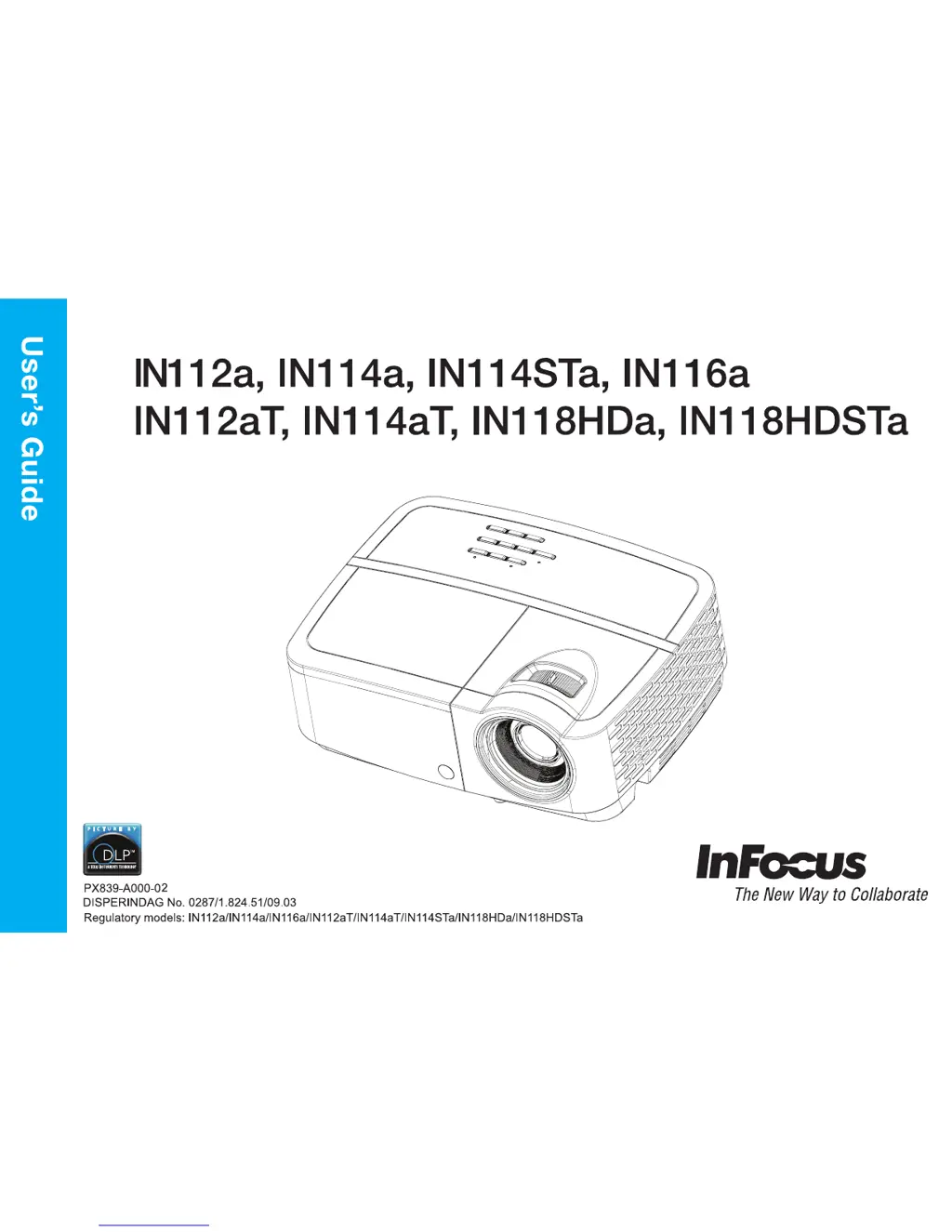
InFocus IN118HDSTa - User Manual

InFocus IN118HDSTa
36 pages
Print Icon
To Next Page IconTo Next Page
Loading...

Questions and Answers

  • M
    michael84Aug 16, 2025
    Why is the InFocus IN118HDSTa lamp not turning on and the projector is overheating?
    • L
      Lawrence DavisAug 16, 2025
      If the InFocus Projector lamp won’t turn on and the projector is overheating, it may be due to the overheating indicator. Ensure that the vents are not blocked and turn off the projector. Allow it to cool down for one minute before attempting to use it again.
  • J
    Jackie WallaceAug 18, 2025
    How to fix upside down image on InFocus Projector?
    • J
      Jessica LeAug 18, 2025
      If the image on your InFocus Projector is upside down, turn off the Ceiling Mount option in the Basic menu.
  • R
    rebeccalloydAug 21, 2025
    What to do if InFocus IN118HDSTa Projector only shows laptop background?
    • M
      Mike MonroeAug 21, 2025
      If your InFocus Projector only displays your laptop’s background and not the Desktop icons, change the Multiple Display setting to "Duplicate these displays". This setting can typically be found in the Control Panel under Display > Screen Resolution.
  • R
    Rickey BushAug 25, 2025
    What to do if the InFocus IN118HDSTa Projector shows "Signal out of range"?
    • C
      Cindy CookAug 26, 2025
      If your InFocus Projector displays “Signal out of range”, try the following: Press the Auto Image button on the remote. Also, adjust your computer's refresh rate via the Control Panel (Display > Screen Resolution > Advanced Settings > Adapter tab). You might also need to set a different resolution on your computer.
  • Q
    qdickersonAug 28, 2025
    What to do if the InFocus IN118HDSTa Projector image is fuzzy or cropped?
    • K
      Kevin PadillaAug 28, 2025
      If the image on your InFocus Projector appears fuzzy or cropped, change the computer's resolution setting to match the projector's resolution. You can typically find this setting in the Control Panel under Display > Screen Resolution.
  • A
    armstrongkathrynAug 30, 2025
    How to adjust colors on InFocus IN118HDSTa?
    • L
      larryfoxAug 30, 2025
      To adjust the colors on your InFocus Projector so they match the source, go to the Advanced Menu, then Image, and then Color. From there, you can adjust items such as Color, Red Gain, Green Gain, Blue Gain, Red Offset, Green Offset, Blue Offset, Color Space, Color Temp, Gamma, Tint and White Intensity.
  • D
    Debra MendezSep 2, 2025
    How to make InFocus Projector image sharper?
    • S
      smithnicoleSep 2, 2025
      To make the image sharper on your InFocus Projector, adjust the Sharpness setting in the Basic Menu.
  • B
    Bradley JohnsonSep 5, 2025
    How to correct a non-square image on InFocus IN118HDSTa?
    • Z
      zfernandezSep 6, 2025
      To correct a non-square image on your InFocus Projector, adjust the Keystone setting on the keypad.
  • D
    Dr. Shannon HuntSep 9, 2025
    How to adjust aspect ratio on InFocus IN118HDSTa Projector?
    • D
      Daniel SmithSep 9, 2025
      To adjust the aspect ratio on your InFocus Projector to fit a 4:3 or 16:9 screen, go to the Basic Menu and select the Aspect Ratio menu. From there, change the aspect ratio to 4:3 or 16:9.
  • K
    Kimberly HinesSep 12, 2025
    How to correct reversed image on InFocus IN118HDSTa Projector?
    • J
      Jeremy WellsSep 12, 2025
      To correct an image that is reversed left to right on your InFocus Projector, turn off the Rear Project option in the Advanced Menu under Setup > Image Setup... menu.

Summary

Product Compliance and Approvals

Declaration of Conformity

Manufacturer's statement of compliance with directives and norms.

FCC Warning and Compliance

Compliance information and warnings regarding FCC regulations for digital devices.

Agency Approvals

Mentions various agency approvals and certification labels.

Projector Setup and Overview

Product Introduction

Overview of the projector's capabilities and compatibility.

Connector Panel Overview

Details the various input and output ports on the projector.

Projector Positioning Guidelines

Guidelines and specifications for projector placement relative to the screen.

Connecting Input Sources

Connecting Computer Sources

Instructions for connecting computer sources via VGA, HDMI, and other ports.

Connecting Video Sources

Instructions for connecting various video sources like VCRs, DVD players, etc.

Projector Operation and Controls

Displaying an Image

Steps to turn on the projector and display an image from a source.

Adjusting Image Settings

How to adjust image height, distance, zoom, focus, and keystone.

Using the Remote Control

Explains the functions of the projector's remote control buttons.

Using Keypad Buttons

Details the functions of the projector's physical control buttons.

Using the Projector Audio

How to connect audio sources and manage sound output.

Image Settings and Customization

Optimizing Computer Image Quality

Adjusting settings for computer input to improve image quality.

Presentation Features

Features designed to enhance presentations.

Optimizing Video Image Quality

Adjusting settings for video sources to improve image quality.

Customizing Projector Settings

Personalizing projector settings and features for specific needs.

Navigating Projector Menus

Basic Menu Settings

Detailed explanation of basic menu options like Aspect Ratio, Brightness, etc.

Advanced Menu Settings

Detailed explanation of advanced menu options like 3D Control, Color, PC, Video settings.

Troubleshooting and Maintenance

Troubleshooting Setup Issues

Common problems and solutions for image display and projector operation.

Projector Maintenance

Procedures for cleaning the lens and using security features.

Cleaning the Lens

Instructions for cleaning the projector lens safely.

Using the Security Lock

How to attach and use a security cable lock.

Replacing the Projection Lamp

Step-by-step guide for replacing the projector lamp, including warnings.

InFocus IN118HDSTa Specifications

General IconGeneral
Native aspect ratio16:9
Projection distance- m
Projection technologyDLP
Contrast ratio (typical)-
Screen size compatibility- \
Projector native resolution1080p (1920x1080)
Keystone correction, vertical-40 - 40 °
Projector brightness (economic mode)2200 ANSI lumens
Offset17 %
Throw ratio0.52:1
Focal length range- mm
Service life of light source5000 h
Service life of light source (economic mode)6000 h
Full HDYes
DVI portNo
HDMI version1.4
Serial interface typeRS-232
USB 2.0 ports quantityUSB 2.0 ports have a data transmission speed of 480 Mbps, and are backwards compatible with USB 1.1 ports. You can connect all kinds of peripheral devices to them.
VGA (D-Sub) ports quantity3
Ethernet LAN (RJ-45) ports0
Noise level30 dB
Noise level (economic mode)29 dB
RMS rated power2 W
PlacementDesktop
Product typeStandard throw projector
Product colorBlack
Power sourceAC
Power consumption (standby)- W
Weight and Dimensions IconWeight and Dimensions
Depth108 mm
Width292 mm
Height220 mm
Weight2500 g
Package depth197 mm
Package width362 mm
Package height305 mm
Package weight3200 g

Related product manuals