Page 14 Controlling Mondopad™
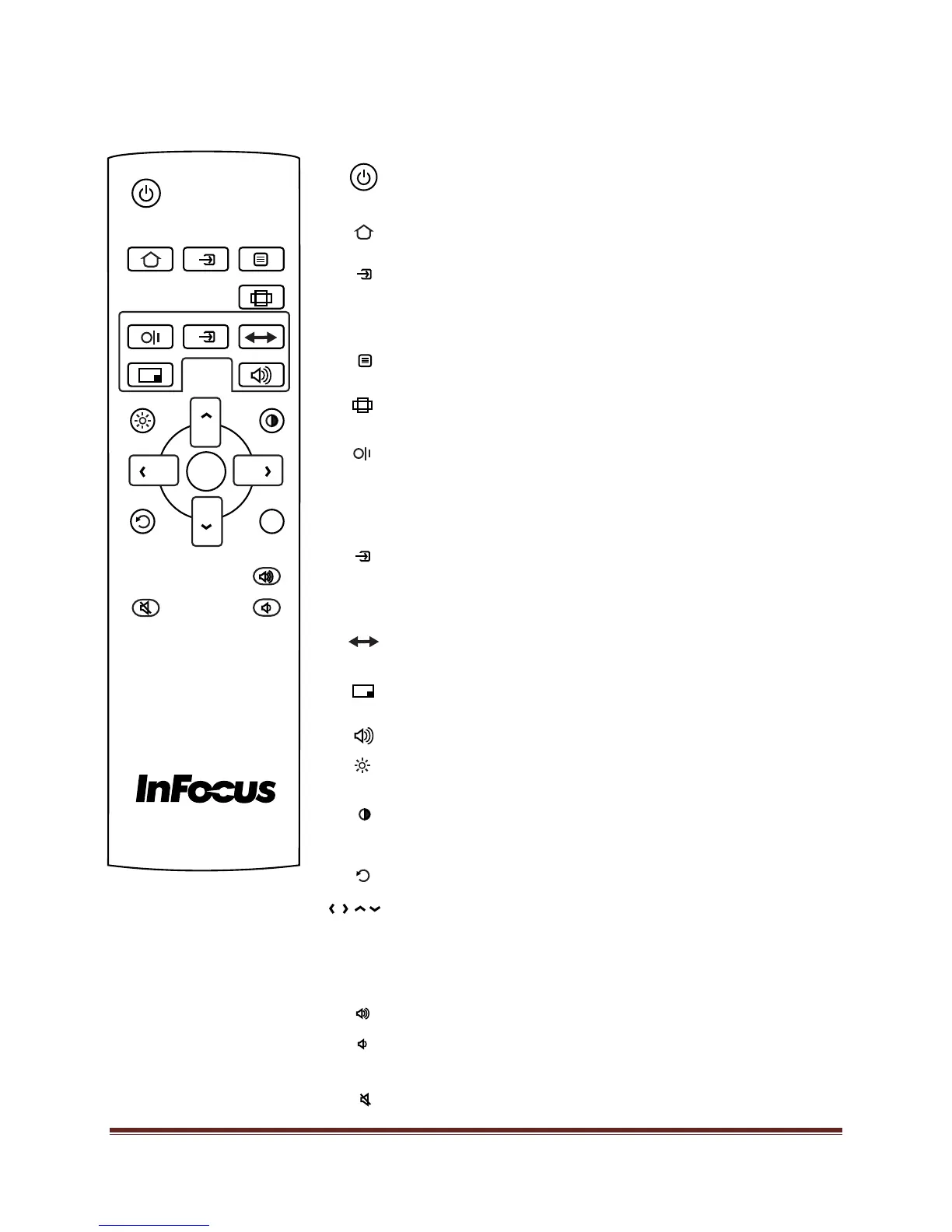
The remote has the following buttons:
Power: Switches the power on or puts the tablet into
Standby.
Home: Changes the active source back to the embedded
PC (Mondopad™).
Input: Toggles the Source menu on and off, which allows
the user to change sources. Options include: HDMI1,
HDMI2, PC (Mondopad), VGA, Component, S-video and
Video (composite).
Menu: Turns the OSD menu on and off.
Resize: Switches aspect ratios.
PiP On/Off: Turns the PiP function on and off and changes
the PiP configuration between two active PiP sources.
Options include corner and side-by-side configurations
(50%-resized, 25%-resized and 50%-fullscreen), depending
on source types.
PiP Input: Switches the PiP window source. Options include
HDMI1, HDMI2, PC, VGA, Component, S-video and Video.
Note: The PiP window is not visible when a secondary
source has not been selected.
PiP Swap: Switches the position of the main and secondary
sources.
PiP Position: Moves the PiP window position from corner to
corner (upper left, upper right, lower left, lower right).
PiP Audio: Turns the PiP audio mix on and off.
Brightness: Opens the Brightness OSD menu. Use the right
and left arrow buttons to adjust.
Contrast: Opens the Contrast OSD menu. Use the right and
left arrow buttons to adjust.
Back: Returns the user to the previous menu.
Left, Right, Up, Down Arrows and OK: Use these buttons
to navigate through and make changes to the Mondopad
and Onscreen Menu features.
Info: N/A.
Vol up: Increases the audio volume.
Vol down: Decreases the audio volume.
Mute: Switches the audio on or off.
POWER
HOME
INPUT
MENU
RESIZE
ON/OFF
PIP
INPUT
PIP
PIP
SWAP
PIP
POSITION
PIP
AUDIO
BRIGHTNESS
CONTRAST
BACK
OK
INFO
i
VOL UP
VOL DOWN
MUTE
HOME
INFO
RESIZE
SWAP
VOL UP
VOL DOWN
BACK
MUTE
CONTRASTBRIGHTNESS
ON/OFF
INPUT MENU
PIP
INPUT
AUDIOPOSITION
OK
POWER
i


 To Next Page