Page 38 Video Conferencing
To delete a Contact:
1. Click the Contacts tab.
2. Highlight the desired contact and click the Delete Contact icon.
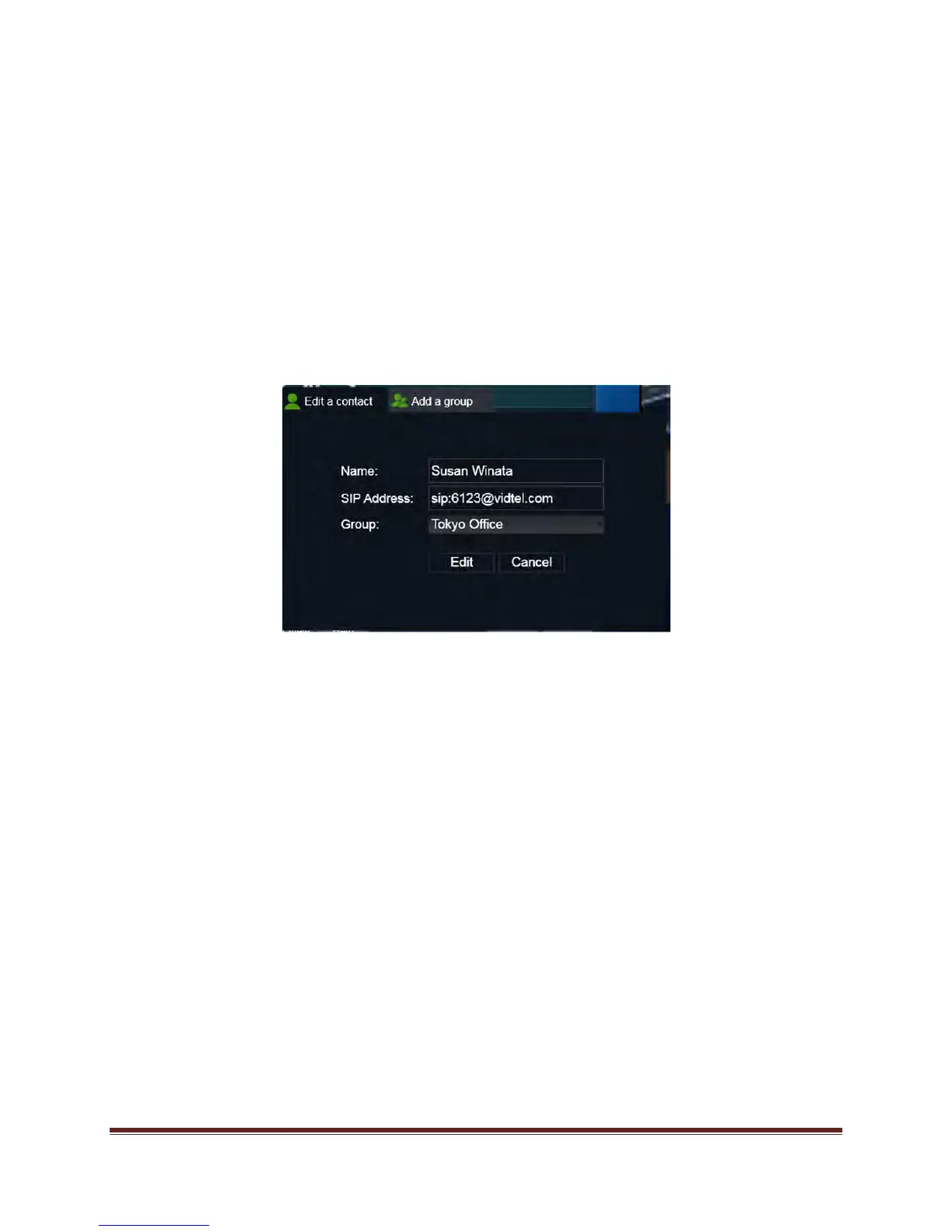
To edit a Contact:
1) Click the Contacts tab.
2) Highlight the contact you wish to edit.
3) Click the Pencil icon.
4) Click and modify the field(s) to be updated.
5) Click the Edit button.
Video Conferencing Behavior
After a video conference has begun, the user can open up a full screen view of a View & Share
file, Whiteboard, Browser or Application to share with the participants. A small participant’s
window is overlaid on the screen and can be moved using the touchpad. A Hang-Up, Hold and
Regular View icon are also available for the moderator to use.
If more than one participant is involved, the call is sent to a bridge and multiple video windows
are open simultaneously. The largest video window displays the most active participant. Note:
The number of participants who can participate in a bridged video conference is determined by
the service package chosen by the customer.


 To Next Page