OSD (On-Screen Display) Menu System Page 45
To change the PiP source: Press remote PiP Input button.
To swap the main and PiP sources: Press the remote’s PiP Swap button.
To change the PiP position for Corner-to-Corner configurations: Press the PiP
Position button to move from corner to corner or use the arrow keys on the remote or
keypad to finely adjust the PiP position.
To switch PiP configurations when the Main window is not PC/Mondopad: Press the
PiP On/Off button to toggle between the available configuration options.
To change the audio source between the Main and PiP windows: Go to the PiP Audio
option in the PiP menu and choose Main or Sub.
To change the PiP window size: Press the Menu button on the remote or keypad and go
to the PiP Size option in the PiP menu.
To reset the PiP feature to factory default settings: Press the Menu button on the
remote or keypad and go to the PiP Reset option in the PiP menu.
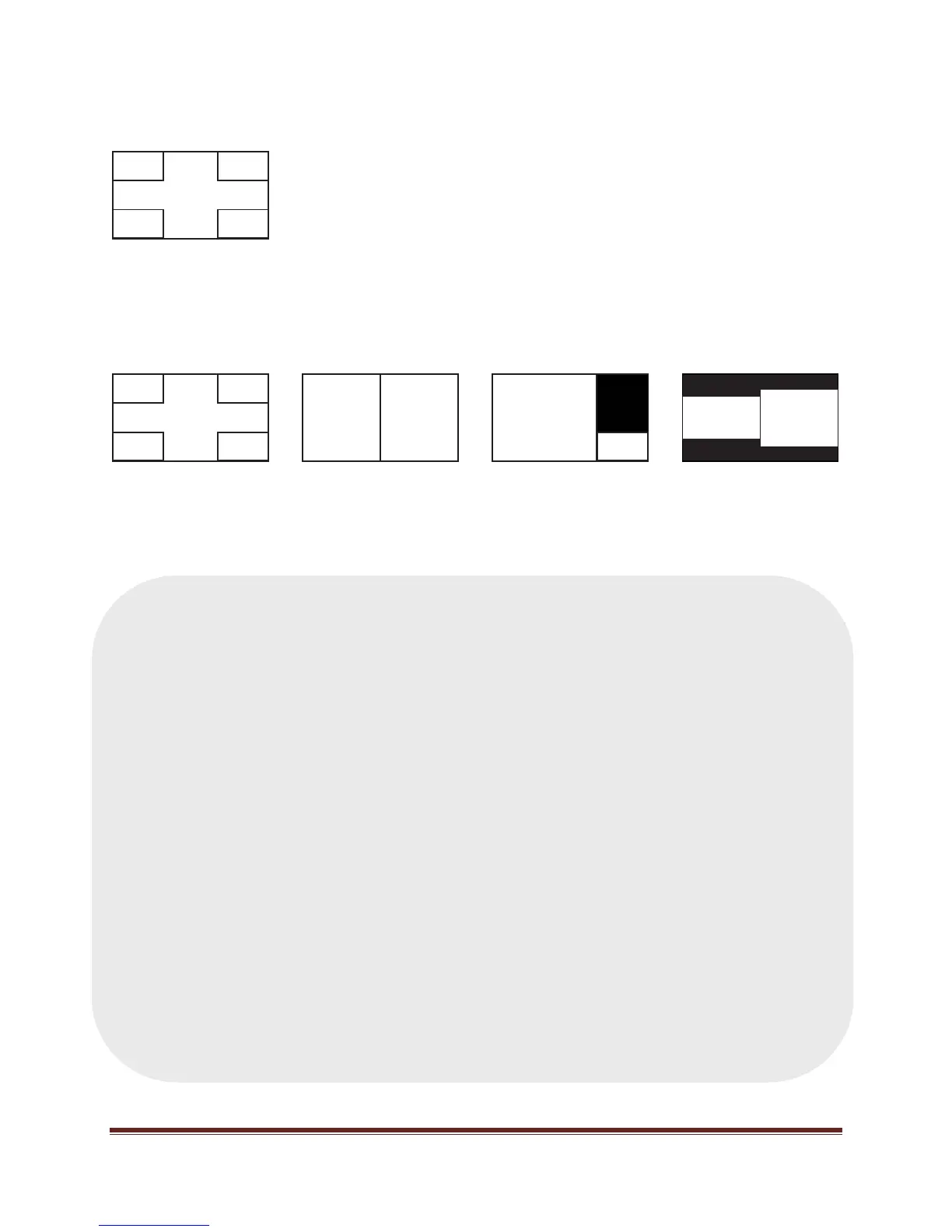
When the Main picture is PC/Mondopad™, the following configurations are available:
When the Main picture is not PC/Mondopad, the following configurations are available:
PiP
PiPPiP
PiP
Main
PiP
PiP PiP
PiP
PiPPiP
PiP
Main Main Main Main
Corner-to-Corner
Corner-to-Corner
Side-by-Side
Stretched
Picture-on-Picture Side-by-Side
Native


 To Next Page