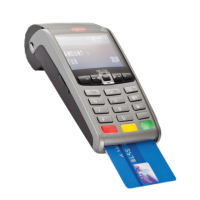
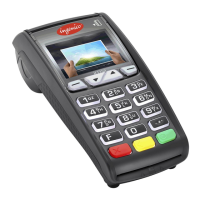
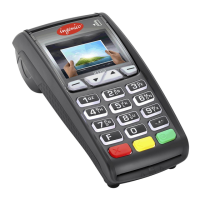
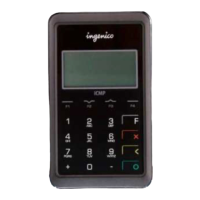
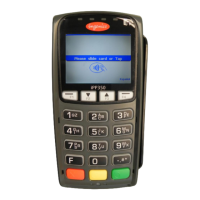
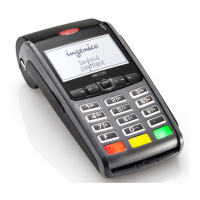
Main Idle Screen Press 7
CLOSE BATCH and Deposit Funds?
YES press F1 No press F4
Terminal will Dial out and Settle the Batch
PRINT REPORT ?
YES press F1 No press F4
Main Idle Screen Press Key
0 REPORTS MENU
1 CLERK MENU Press 0
2 BATCH MENU
3 SETUP MENU
REPORTS MENU
1 DETAIL
2 SUMMARY
DETAIL
1 PRINT (Will Print out Full Detailed Report)
2 DISPLAY
Display
1 REFERENCE #
3 CARD TYPE
PREV NEXT Use Buttons to Scroll Thru The
F2 F4 Transactions
SUMMARY
1 PRINT (Will Print out Summary Report)
2 DISPLAY
CANCEL NEXT Use Buttons to Scroll Thru The
F2 F4 Transactions
Main Idle Screen Press 3
SEARCH BY
1 ALL
2 REF # (From Original Receipt)
4 ACCT # (Last 4 of Credit Card # Ran)
Select Best Option to Search for Transaction need to VOID out
Once find the Correct Trans Press ENTER
Terminal Will Capture Transaction and Print Merchant Copy
Main Idle Screen Press 8
Other
1 TransAdjust
2 Auth Only
3 Reprint
REPRINT MENU
1 LAST
2 SEARCH
LAST
1 MERCHANT COPY
2 CUSTOMER COPY
3 BOTH
Will Print out Which Ever selection you pick
SEARCH
Reprint Pre-Auth Select F4 for NO
1 ALL
2 REF # (From Original Receipt)
4 ACCT # (Last 4 of Credit Card # Ran)
Select Best Option to Search for Transaction need a Receipt For
Once find the Correct Trans Press ENTER
1 MERCHANT COPY
2 CUSTOMER COPY
3 BOTH
Will Print out Which Ever selection you pick



 To Previous Page
 Loading...