EasyManua.ls Logo

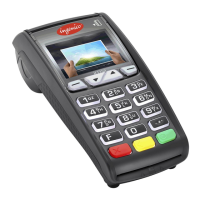
Ingenico iCT250E - User Manual

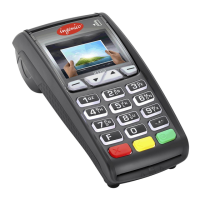
Ingenico iCT250E
44 pages
Print Icon
To Next Page IconTo Next Page
Loading...
Nets One PA user guide | 1
Nets Nordic
Payment Terminals
User Guide

Table of Contents

Questions and Answers

  • M
    mark38Aug 4, 2025
    What to do if Ingenico iCT250E is not connected to network?
    • S
      schaeferchristinaAug 4, 2025
      If your Ingenico Payment Terminal isn't connecting to the network, resulting in offline transactions, there are a few things you can check: * First, restart the terminal by pressing and holding the yellow “Clear” button and the full stop/comma button simultaneously until it restarts (about 30 seconds). Then try again. * If you're using GPRS, make sure the signal strength is displayed at the top. If not, contact your network provider to check coverage and SIM card subscriptions. * If you're using Ethernet, ensure the cable is properly connected to both the terminal and the network socket.
  • M
    Michael JuarezAug 10, 2025
    How to fix Ingenico iCT250E when it freezes and keys don't work?
    • W
      William WoodAug 10, 2025
      If your Ingenico Payment Terminal freezes and the keys stop working, try these steps: * Restart the terminal by holding down the yellow “Clear” button and the comma button simultaneously for about 3 seconds, then wait for it to restart (approximately 30 seconds). Try again after the restart. * If it remains frozen, remove the power cable or battery until the display goes dark, then reconnect the power cable or battery.
  • G
    garzarichardAug 19, 2025
    What to do if my Ingenico iCT250E is broken and won't turn on?
    • T
      Teresa SpencerAug 19, 2025
      If your Ingenico Payment Terminal is broken and won't turn on, check that the cables are connected and the battery is inserted correctly.
  • D
    David JohnsonAug 27, 2025
    How to fix Ingenico iCT250E error message 'missing keys'?
    • B
      bryantcalvinAug 27, 2025
      To address the “missing keys” error on your Ingenico Payment Terminal, check for available updates in the settings menu (MENU-0-2).

Summary

Getting Started

Whats in the Box

Lists the equipment included with the payment terminal upon delivery.

Ingenico Terminal Overviews

iCT250 E & iWL250 3 G Details

Details the components and functions of Ingenico iCT250E and iWL250 3G terminals.

Lane Terminal Overviews

Lane 5000 & 3000 Details

Details the components and functionality of Lane 5000 and Lane 3000 payment terminals.

Spire Terminal Overviews

SPc5 & SPg7 Details

Details the components and features of Spire SPc5 and SPg7 terminals.

Terminal Menu Navigation

Quick Menu and Header Icons

Explains quick menu access, terminal menu structure, and header icons for efficient operation.

Daily Operation: Reconciliation

Manual Reconciliation Process

Step-by-step guide for performing manual end-of-day reconciliation.

Processing Transactions

Purchase, Reversal, Refund, Tipping

Guides on performing purchases, reversals, refunds, and tip transactions.

Receipt Printing Configuration

Contactless Payments (NFC)

Wallet Solutions and Contactless Purchase

Explains NFC, wallet solutions, and the process for contactless purchases.

Backup Solution Procedures

Network and Backup Configurations

Procedures for backup solutions, Ethernet, and mobile network settings configuration.

Generating Transaction Reports

Transaction Lists and Summaries

How to generate transaction lists and summary reports like X-total and Z-total.

Access Control Setup

Terminal Security Features

Covers access control, daily reboots, software updates, and PIN entry security guidance.

Troubleshooting Common Errors

Terminal Service and Security

PIN Entry Security Guidance

Recommendations for secure PIN entry to prevent observation and fraud.

Ingenico iCT250E Specifications

General IconGeneral
Battery LifeUp to 8 hours
ConnectivityEthernet
BatteryOptional battery for mobile use
Power SupplyAC adapter
Operating SystemIngenico OS
Operating Temperature0°C to +40°C
Storage Temperature-20°C to +70°C
Humidity5% to 90% RH non-condensing
Card ReaderSmart card reader, magnetic stripe reader, contactless reader (NFC)

Related product manuals