EasyManua.ls Logo

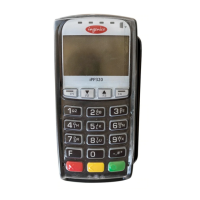
Ingenico iPP350 - Troubleshoot Manual

Ingenico iPP350
57 pages
Print Icon
To Next Page IconTo Next Page
Loading...
DIV351006 Rev 2 Telium
Troubleshooting Guide
Guide
Telium Devices (iPP320, iPP350,
iSC250, iSC350, iSC480, iSMPc,
iSMP350, iUP250, and iWL250
Devices)
Ingenico Inc. - 3025 Windward Plaza, Suite 600 - Alpharetta, GA 30005
Tel: (678) 456-1200 - Fax: (678) 456-1201 - www.ingenico.com

Table of Contents

Other manuals for Ingenico iPP350

Questions and Answers

  • K
    Kenneth BrownJul 27, 2025
    What to do if my Ingenico Payment Terminal freezes and none of the keys work?
    • L
      Loretta LoweryJul 27, 2025
      If your Ingenico Payment Terminal freezes, restart it by holding down the yellow “Clear” button and the full stop/comma button simultaneously. Release the buttons and wait approximately 30 seconds for the terminal to restart. If it remains frozen, remove the power cable or battery to ensure the display goes dark, then reconnect the power cable/battery. If the problem persists, further assistance may be needed.
  • G
    gallowaymartinAug 1, 2025
    Why is my Ingenico Payment Terminal not connected to the network and only providing backup solutions?
    • R
      Ricky LindseyAug 2, 2025
      If your Ingenico terminal cannot connect to the network, try restarting it by holding the yellow “Clear” button and the full stop/comma button simultaneously until it restarts (about 30 seconds). If using GPRS, ensure the signal strength is displayed at the top. If there's no signal, contact your network provider to verify coverage and SIM card subscriptions. If using Ethernet/Broadband, ensure the Ethernet cable is securely connected to both the terminal and the network socket.
  • R
    Rebecca WadeAug 8, 2025
    How to prevent image persistence on Ingenico Payment Terminal?
    • C
      Catherine HoffmanAug 8, 2025
      To prevent image persistence on your Ingenico Payment Terminal's LCD display, avoid displaying a still image for more than four hours. Use a screensaver with a black or medium-gray background when the device is inactive for 10 minutes. Also, power down the device when it is not in use.
  • L
    Lacey BlankenshipAug 14, 2025
    How to fix an 'Incorrect Card' message when swiping the Merchant Card on my Ingenico iPP350 Payment Terminal?
    • K
      Kristina FloresAug 14, 2025
      If you receive an “Incorrect Card” message when swiping the Merchant Card on your Ingenico Payment Terminal, you may have used the wrong card or the card details may need to be reset. To reset, go to Menu > 9 > 7 (“Reset Merchant Card” option). The terminal will prompt you for the Merchant Code (contact Customer Service to obtain this code). Enter the code, and then swipe your card when prompted. After swiping, you should be able to use the terminal again.
  • C
    Chase KennedyAug 20, 2025
    How to troubleshoot problems with the modem on my Ingenico iPP350 Payment Terminal?
    • J
      johncalderonAug 20, 2025
      To troubleshoot modem issues with your Ingenico Payment Terminal, first check if the modem is lit up. Ensure all cables are correctly connected to the terminal, modem, and wall socket. Disconnect the line and power cables from the modem, then reconnect the line cable first (the one with a clip), followed by the power cable.

Summary

Introduction to the Telium Troubleshooting Guide

Support Procedures

Outlines steps to follow before contacting Ingenico Technical Support for assistance.

General Troubleshooting

Display Issues

Offers solutions for problems related to the device's display.

Security Issues

Addresses troubleshooting steps for security-related errors and alerts.

Card Response Issues

Offers solutions for problems related to reading magnetic stripe or contactless cards.

Communication Issues

Provides troubleshooting steps for device communication problems with the POS.

Error Messages

Lists common error messages and their recommended troubleshooting actions.

Telium Manager Menu

Verify Contactless and Magnetic Stripe Reader (MSR) Formats

Guides on verifying contactless enablement and MSR ISO format selection.

Contactless

Details how to verify contactless card reader enablement via the Initialization menu.

MSR Swipe (ISO)

Explains how to verify the correct MSR ISO format selection through the Telium Manager.

Telium System Application (TSA) Menu

Encryption Validation

Guides on validating injected encryption keys like KTK, Master Session, and DUKPT.

Telium Download Application (TDA) Menu

PIN Pad Device Quick Reference Guides

Ingenico iPP350 Specifications

General IconGeneral
Resolution128 x 64 pixels
ConnectivityUSB
Card ReadersMagnetic Stripe
SecurityPCI PTS 3.x certified
Dimensions83 mm W x 40 mm H

Related product manuals