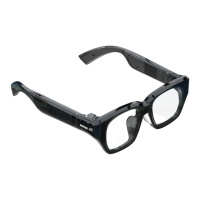
5. File Transfer
(Same Wifi Between Glasses and Phone)
1. Transfer photos from glasses to cell phone:
- Step1: Connect the glasses to the phone"INMOLENS APP" through Bluetooth
- Step2: Open the INMOLENS APP on the phone, click the navigation bar at the bottom
"glasses"> "File Transfer", click "Start transmission", and the photos in the glasses can be
automatically transmitted to the phone.
2. Transfer photos from glasses to computer:
- Step1: Connect the glasses to the computer through the data cable and find the "Air2" disk,
"CameraV2" folder
- Step2: Copy the photos from "CameraV2" folder to your computer
6. Screen Capture
- Step1: Connect the glasses to the phone INMOLENS APP through Bluetooth
- Step2: Open the INMOLENS APP, click "Screscreenshot" to save the screenshots to the
phone album
7. Message Reminder (Android)
- Step1: Open the INMOLENS APP and click on "Mobile Phone Notification"
- Step2: Select the app where you want to push the message notification, open the
notification permission, and the glasses can receive the mobile app message


 To Next Page