EasyManua.ls Logo

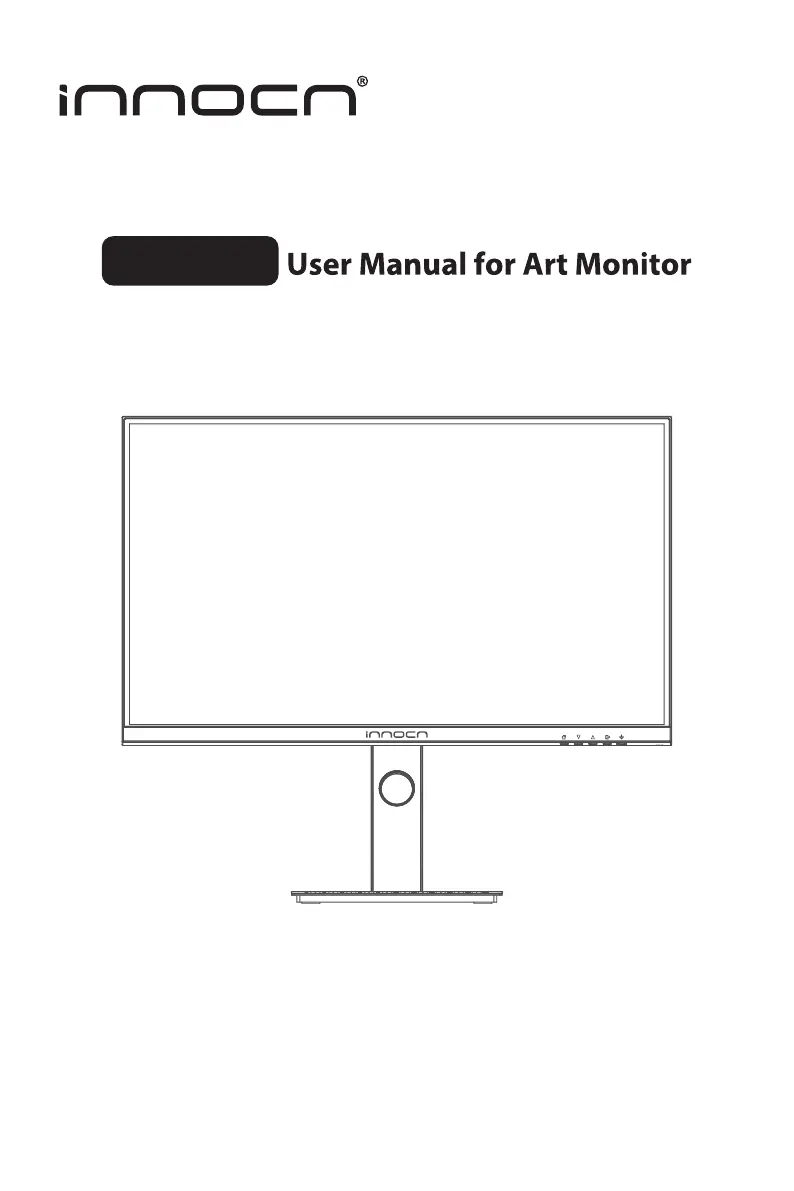
INNOCN 27C1U-D - User Manual

INNOCN 27C1U-D
67 pages
Print Icon
To Next Page IconTo Next Page
Loading...
27C1U-D

Other manuals for INNOCN 27C1U-D

Questions and Answers

  • S
    stricklandrobertAug 15, 2025
    How to fix a black screen on INNOCN 27C1U-D but the power light is on?
    • S
      Steven WolfAug 15, 2025
      If your INNOCN Monitor's screen is black but the power light is on, ensure the video cable connecting the monitor and computer is properly connected and secure. Also, check for bent or broken pins in the video cable connector. Verify that your operating system hasn't entered hibernation, sleep, or power-save mode by pressing any key or moving the mouse. Ensure the correct input source is selected in the Input Source menu. Try replacing the signal cable (HDMI / DisplayPort) to test.
  • K
    Kathleen ParksAug 18, 2025
    Why is the USB interface not working on my INNOCN 27C1U-D?
    • B
      Benjamin JohnsonAug 18, 2025
      If the USB interface on your INNOCN Monitor isn't working, check that you've plugged in the USB-B uplink cable from your computer to the monitor’s USB-B port. Ensure your monitor is turned on. Try reconnecting the uplink cable to your computer and the USB peripherals. Switch the monitor off and then on again, or reboot your computer. Note that some USB devices, like external portable HDDs, require higher electric current and should be connected directly to the computer.
  • M
    Melissa RobertsonAug 21, 2025
    What to do if INNOCN Monitor has no display, black screen and no power lights?
    • B
      Benjamin JohnsonAug 21, 2025
      If your INNOCN Monitor doesn't boot, shows a black screen, and has no power lights, first verify that the power outlet is functioning properly using other electrical equipment. Make sure the power button on the front panel is normal for boot and pressed fully. Check for bent or broken pins in the video cable connector.
  • S
    Shaun StewartAug 25, 2025
    How to fix poor focus, blurry picture, or ghosting on INNOCN Monitor?
    • M
      Morgan ShafferAug 26, 2025
      If the picture on your INNOCN Monitor is fuzzy, blurry, or ghosting, try the following: Eliminate video extension cables. Reset the monitor to factory settings. Change the video resolution to the correct resolution and aspect ratio. If the words are still blurry, try enabling or disabling the CLEAR TYPE function from Windows.
  • J
    Joshua GuerraAug 28, 2025
    Why doesn't the image fill the entire screen on my INNOCN Monitor?
    • R
      Ricky FieldsAug 28, 2025
      If the image on your INNOCN Monitor is centered but doesn't fill the entire viewing area, check the Aspect Ratio setting in the Display menu OSD. Also, check the resolution setting in your PC. You may also want to reset the monitor to factory settings.
  • N
    Nancy HullAug 31, 2025
    Why are the control panel keys not working on my INNOCN 27C1U-D?
    • D
      daniel49Aug 31, 2025
      If the control panel keys on your INNOCN Monitor do not work, press only one key at a time. Try restarting the computer. Ensure that a valid video signal is going through the monitor before you attempt to turn on the OSD.
  • M
    Monica RobinsonSep 3, 2025
    Why is there no video after plugging in USB Type-C from computer to INNOCN 27C1U-D?
    • F
      fieldslaurieSep 4, 2025
      If there is no video after plugging in USB Type-C from your computer to the INNOCN Monitor, remember that not every computer/phone's USB Type-C port will support video out signals. Please check your cable and your computer/phone to ensure they support a video signal.
  • C
    christianamberSep 6, 2025
    Why does my INNOCN 27C1U-D screen appear yellow?
    • M
      Mark GravesSep 7, 2025
      If the screen of your INNOCN Monitor appears yellow, make sure the device was not set to 'Care Eyes mode'. You can check this setting under: OSD?Picture Setting?Contextual mode?Care Eyes mode.
  • T
    Troy ValdezSep 10, 2025
    What to do if INNOCN Monitor has visible signs of smoke or sparks?
    • C
      Cynthia BartlettSep 12, 2025
      If you observe visible signs of smoke or sparks from your INNOCN Monitor, do not perform any troubleshooting steps. Contact INNOCN immediately.

Summary

Precautions

Package Content

Installation

Adjustment of monitor

Instructions for use

Cable connection

Explains how to connect various cables (HDMI, DP, Type-C, Audio, Power) to the monitor.

Description of buttons

Details the function of each button on the monitor's control panel, including power and navigation.

Explanation of indicator light

Describes the meaning of the monitor's indicator light status, such as on/off and color indications.

OSD menu

Menu description

Provides an overview of the OSD menu structure, initial language selection, and navigation controls.

Specification

Common troubleshooting

Warranty Information

Contact us

INNOCN 27C1U-D Specifications

General IconGeneral
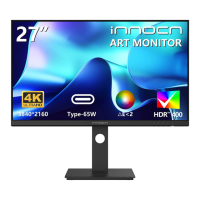
Screen Size27 inches
Resolution3840 x 2160 (4K UHD)
Panel TypeIPS
Refresh Rate60 Hz
Brightness400 cd/m²
Contrast Ratio1000:1
VESA Mount100 x 100 mm
Aspect Ratio16:9
Viewing Angle178° (H) / 178° (V)
HDRHDR10
PortsHDMI 2.0, DisplayPort 1.4, USB-C, 3.5mm Audio Out
Color Gamut100% sRGB
Color Depth10-bit
Power Consumption50 W
Response Time5ms (GTG)

Related product manuals