EasyManua.ls Logo

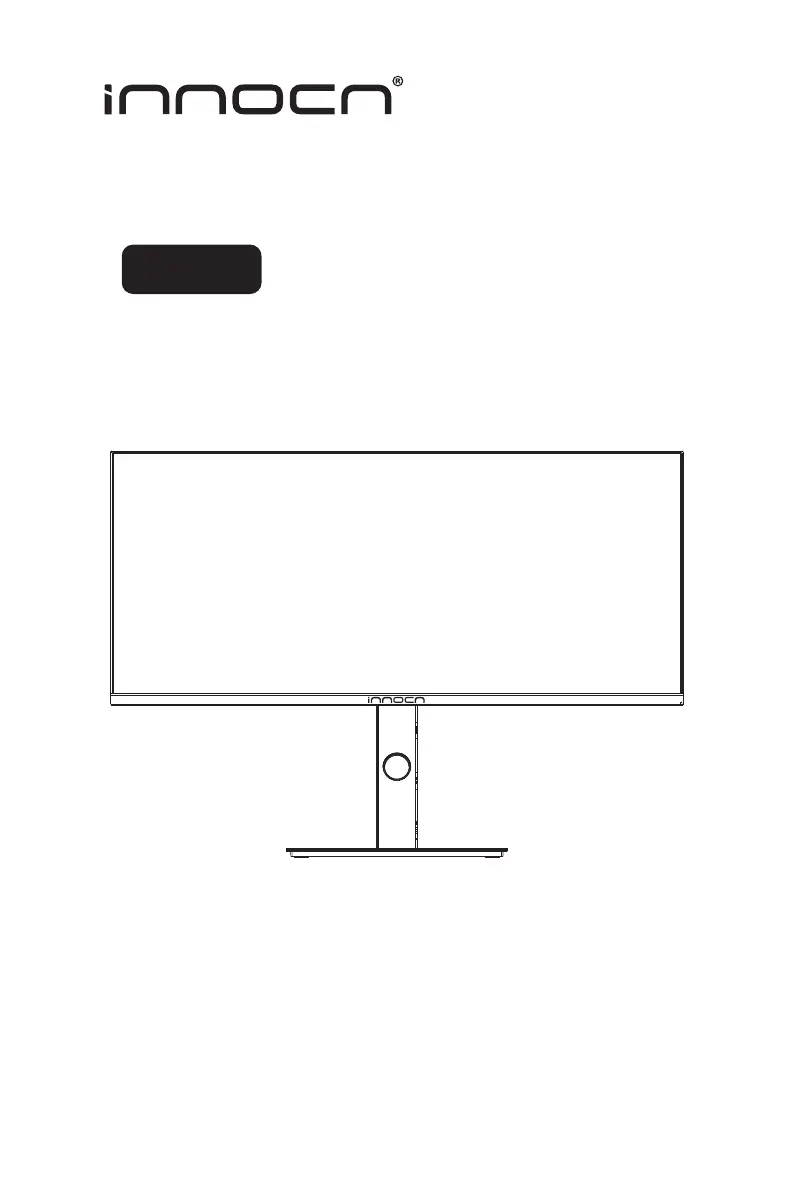
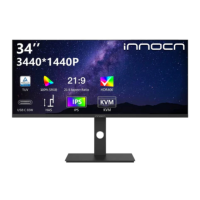
INNOCN 34C1Q - User Manual

INNOCN 34C1Q
63 pages
Print Icon
To Next Page IconTo Next Page
Loading...
34C1Q User Manual for Art Monitor

Questions and Answers

  • V
    vbarnettAug 15, 2025
    Why is the USB interface not working on my INNOCN Monitor?
    • A
      Ashley MasonAug 16, 2025
      If the USB interface on your INNOCN Monitor isn't working, ensure a USB-B uplink cable (included in the package) is connected from your computer to the monitor's USB-B port. Without this connection, the USB ports on the monitor will not function. Also, check that your monitor is turned on. Try reconnecting the uplink cable to your computer and the USB peripherals. Power cycle the monitor by switching it off and then on again, and reboot your computer. Note that some USB devices, such as external portable HDDs, require higher electric current and should be connected directly to the computer system.
  • C
    Christopher ParkAug 18, 2025
    How to fix no display after turning ON INNOCN Monitor (screen is black but power supply lights is ON)?
    • H
      Hannah AndersonAug 18, 2025
      If your INNOCN Monitor screen is black but the power light is on, ensure the video cable connecting the monitor and computer is properly connected and secure. Check if your operating system has entered hibernation, sleep, or power-save mode; press any key (Enter/Power) or move the mouse to wake it. Inspect the video cable connector for bent or broken pins. Verify that the correct input source is selected in the Input Source menu. You can also try replacing the signal cable (HDMI/DisplayPort) to cross-test.
  • H
    Hector MullenAug 22, 2025
    Why I cannot get higher refresh rate on my INNOCN Monitor?
    • S
      suarezharoldAug 22, 2025
      To achieve a higher refresh rate on your INNOCN monitor, first ensure that your video card supports the desired refresh rate. Secondly, make sure you are using a DisplayPort connection to connect your computer to your monitor.
  • V
    Vicki WilliamsAug 25, 2025
    What to do if there is no display after turning ON INNOCN Monitor (not boot, black screen & no power lights)?
    • J
      Jenna RodriguezAug 26, 2025
      If your INNOCN Monitor doesn't boot, showing a black screen with no power lights, first verify that the power outlet is functioning properly using another electrical device. Ensure the power button on the front panel is pressed fully to boot the monitor. Also, check the video cable connector for any bent or broken pins.
  • J
    joshua91Aug 27, 2025
    Why is there no video after plugging in USB Type-C from computer to INNOCN 34C1Q Monitor?
    • C
      Christopher McculloughAug 28, 2025
      If you're not getting video after plugging in USB Type-C from your computer to your INNOCN monitor, it's important to know that not every computer or phone's USB Type-C port supports video output. Verify that both your cable and your computer/phone support video signals through the USB Type-C port.
  • J
    jamie59Aug 30, 2025
    How to fix image centered on screen, but not filling entire viewing area on INNOCN Monitor?
    • C
      Colton BrownAug 30, 2025
      If the image on your INNOCN monitor is centered but doesn't fill the entire viewing area, check the Aspect Ratio setting in the Display menu OSD. Also, verify the resolution setting in your PC's display settings. Resetting the monitor to factory settings can also resolve this issue.
  • K
    karla05Sep 2, 2025
    How to resolve poor focus, fuzzy, blurry, or ghosting picture on INNOCN 34C1Q?
    • L
      Lynn MaloneSep 3, 2025
      If you're experiencing poor focus with a fuzzy, blurry, or ghosting picture on your INNOCN monitor, try these steps: * Eliminate any video extension cables. * Reset the monitor to its factory settings. * Change the video resolution to the correct resolution and aspect ratio. * If the text remains blurry, try enabling or disabling the CLEAR TYPE function within Windows.
  • S
    Sharon OdomSep 6, 2025
    Why does the screen appear yellow on my INNOCN Monitor?
    • S
      Sharon LoganSep 6, 2025
      If your INNOCN monitor screen appears yellow, ensure that the device is not set to “Care Eyes mode”. You can check this setting by going to: OSD?Picture Setting?Contextual mode?Care Eyes mode.
  • M
    Michelle LeeSep 8, 2025
    What to do if control panel keys do not work on INNOCN 34C1Q Monitor?
    • M
      melaniewrightSep 9, 2025
      If the control panel keys on your INNOCN monitor are not working, try pressing only one key at a time. Restarting the computer may also help. Ensure that there is a valid video signal going to the monitor before attempting to use the OSD.
  • T
    Tyler HowardSep 12, 2025
    What to do for missing pixels or spots on INNOCN 34C1Q Monitor LCD screen?
    • R
      Ricky JacksonSep 12, 2025
      If your INNOCN monitor's LCD screen has spots due to missing pixels, try cycling the power on and off. A pixel that is permanently off is a natural defect that can occur in LCD technology.

Summary

Precautions

Package Content

Installation

Adjustment of monitor

Monitor Adjustment Options

Details physical adjustments like rotation, tilt, and height.

Instructions for use

Connecting Cables and Devices

Explains how to connect various cables (HDMI, Type-C, USB, Power).

Monitor Control Buttons

Status Indicator Light

On-Screen Display (OSD) Menu

OSD Language Setup

Sets the default language for the monitor menu upon first boot.

Navigating the OSD Menu

Explains how to navigate and use the OSD menu functions.

Product Specifications

Technical Specifications Overview

Lists technical details like screen size, resolution, and dimensions.

Low Blue Light Certification

Eye Care and Blue Light Tips

Provides advice on reducing eye strain from blue light exposure.

Troubleshooting Common Issues

Monitor Problem Solutions

Lists common monitor issues and their potential solutions.

Warranty Information

Warranty Coverage and Terms

Details what is covered by the product warranty and its duration.

Getting Support and Contact

Customer Support Contact Information

Provides contact details for customer service and technical support.

INNOCN 34C1Q Specifications

General IconGeneral
Screen Size34 inches
Resolution3440 x 1440
Panel TypeVA
Refresh Rate100 Hz
Aspect Ratio21:9
Brightness300 cd/m²
Contrast Ratio3000:1
HDRHDR10
Curvature1500R
Adaptive SyncFreeSync
Ports2x HDMI 2.0, 1x DisplayPort 1.4, 1x USB-C

Related product manuals