EasyManua.ls Logo

INNOCN 29C1F-D - User Manual

INNOCN 29C1F-D
63 pages
Print Icon
To Next Page IconTo Next Page
Loading...
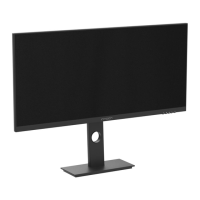
29C1F-D User Manual for Art Monitor

Questions and Answers

  • E
    Erin GalvanAug 17, 2025
    How to fix a black screen on my INNOCN 29C1F-D when the power light is on?
    • S
      Stephanie ObrienAug 17, 2025
      If your INNOCN Monitor displays a black screen after being turned on, but the power light is on, ensure the video cable is properly connected and secure. Also, verify that your operating system hasn't entered hibernation, sleep, or power-save mode by pressing any key or moving the mouse. Inspect the video cable connector for bent or broken pins. Confirm that the correct input source is selected in the Input Source menu. You can also try replacing the signal cable with another identical one (HDMI / DisplayPort) to rule out cable issues.
  • M
    mccoyelaineAug 20, 2025
    What to do if my INNOCN 29C1F-D Monitor picture is fuzzy or blurry?
    • K
      kingashleyAug 20, 2025
      If your INNOCN Monitor image is fuzzy, blurry, or ghosting, try these steps: eliminate any video extension cables, reset the monitor to factory settings, change the video resolution to the correct resolution and aspect ratio. If the words are still blurry, try enabling or disabling the CLEAR TYPE function from Windows.
  • T
    Todd HarrisAug 22, 2025
    Why is my INNOCN 29C1F-D not turning on (black screen & no power lights)?
    • T
      Timothy HahnAug 22, 2025
      If your INNOCN Monitor displays a black screen and has no power lights, verify that the power outlet is functioning properly by testing it with other electrical equipment. Ensure that the power button on the front panel is fully pressed and working. Check the video cable connector for bent or broken pins.
  • M
    Melvin WilcoxAug 26, 2025
    How to fix the image size on my INNOCN Monitor?
    • J
      johnleeAug 26, 2025
      If the image on your INNOCN Monitor is centered but doesn't fill the entire viewing area, check the Aspect Ratio setting in the Display menu OSD. Also, check the resolution setting in your PC's display settings. You might also want to reset the monitor to its factory settings.
  • Z
    Zachary JenningsAug 28, 2025
    Why does my INNOCN 29C1F-D Monitor screen look yellow?
    • E
      Erin ZunigaAug 28, 2025
      If your INNOCN Monitor screen appears yellow, make sure the 'Care Eyes mode' is not enabled. You can usually find this setting in the OSD under Picture Setting, Contextual mode.
  • T
    tmorganAug 31, 2025
    How to increase refresh rate on INNOCN 29C1F-D?
    • J
      Johnny McconnellAug 31, 2025
      If you cannot get a higher refresh rate on your INNOCN Monitor, ensure that your video card supports that refresh rate. Also, make sure you are using a DisplayPort cable to connect your computer to your monitor.
  • J
    jacobschristineSep 2, 2025
    Why is the USB interface not working on my INNOCN 29C1F-D Monitor?
    • D
      Daniel SmithSep 2, 2025
      If the USB interface on your INNOCN Monitor isn't working, check if you've connected the USB-B uplink cable (included in the package) from your computer to the monitor’s USB-B port. Without this connection, the USB ports on the monitor won't function. Also, ensure that your monitor is turned on. Try reconnecting both the uplink cable and the USB peripherals.
  • M
    Megan HudsonSep 5, 2025
    Why is there no video after plugging in USB Type-C to my INNOCN 29C1F-D?
    • J
      jowensSep 5, 2025
      If you've plugged in a USB Type-C cable from your computer to your INNOCN Monitor and there's no video, it might be because not all USB Type-C ports support video output. Verify that both your cable and your computer/phone support video signals through the USB Type-C port.
  • B
    bishoppatriciaSep 8, 2025
    How to adjust brightness/contrast on INNOCN 29C1F-D Monitor?
    • G
      Grace BenderSep 8, 2025
      If you cannot adjust the brightness or contrast ratio on your INNOCN Monitor through the OSD, make sure the 'contextual mode' is turned off. You can find this setting in the OSD under Picture Setting, Contextual mode.
  • J
    Justin BlankenshipSep 12, 2025
    What to do if control panel keys do not work on INNOCN 29C1F-D Monitor?
    • Z
      zblankenshipSep 12, 2025
      If the control panel keys on your INNOCN Monitor do not work, try pressing only one key at a time. Restarting the computer might also help. Ensure that the monitor is receiving a valid video signal before attempting to use the OSD.

Summary

Safety Precautions

General Safety Instructions

Essential safety guidelines for monitor usage, handling, and environment.

Package Contents

Whats Included in the Box

Lists all components provided with the monitor, including display, stand, cables, and manual.

Monitor Installation

Installing the Monitor Stand

Step-by-step guide for assembling and attaching the monitor stand to the display.

Monitor Adjustments

Monitor Angle Adjustments

Details on adjusting vertical, rotation, and tilting angles of the monitor.

Monitor Height Adjustment

Information on adjusting the monitor's height from 0 to 120mm.

Cable Connections

Connecting Various Cables

Guide on connecting HDMI, DVI, AC power, DP, Audio, and Type-C cables to the monitor.

Monitor Controls and Indicators

Monitor Button Functions

Explanation of each physical button's function (Menu, Down, Up, Exit, Power).

Monitor Indicator Light Status

Describes the meaning of the indicator light (white for normal, red for no signal/low voltage).

OSD Menu Setup and Navigation

Setting the Default OSD Language

Guide to selecting the initial display language for the OSD menu.

Understanding OSD Menu Options

Overview of the OSD menu structure and button mapping for navigation.

OSD Menu Functions

Detailed OSD Function Settings

Details available settings within the OSD, such as Picture, Gamma, Color, and Sharpness.

Monitor Specifications

Product Specification Details

Comprehensive list of technical details including size, resolution, refresh rate, and power input.

Low Blue Light Certification

Using the Low Blue Light Feature

Explains the Low Blue Light function and provides usage tips to reduce eye fatigue.

Troubleshooting Common Issues

Monitor Troubleshooting Guide

Addresses common issues like no display, fuzzy picture, missing pixels, and connectivity problems.

Warranty and Support

Monitor Warranty Coverage

Details the warranty period for the monitor and conditions that void the warranty.

How to Contact Innocn Support

Provides service email and website for customer support and technical assistance.

INNOCN 29C1F-D Specifications

General IconGeneral
Screen Size29 inches
Resolution2560 x 1080
Aspect Ratio21:9
Panel TypeIPS
Response Time4 ms
Contrast Ratio1000:1
Curvature1500R
Viewing Angle178°/178°
VESA Mount100 x 100 mm
Color Gamut95% DCI-P3
Speakers2x 3W

Related product manuals