service@innocn.com
English
7
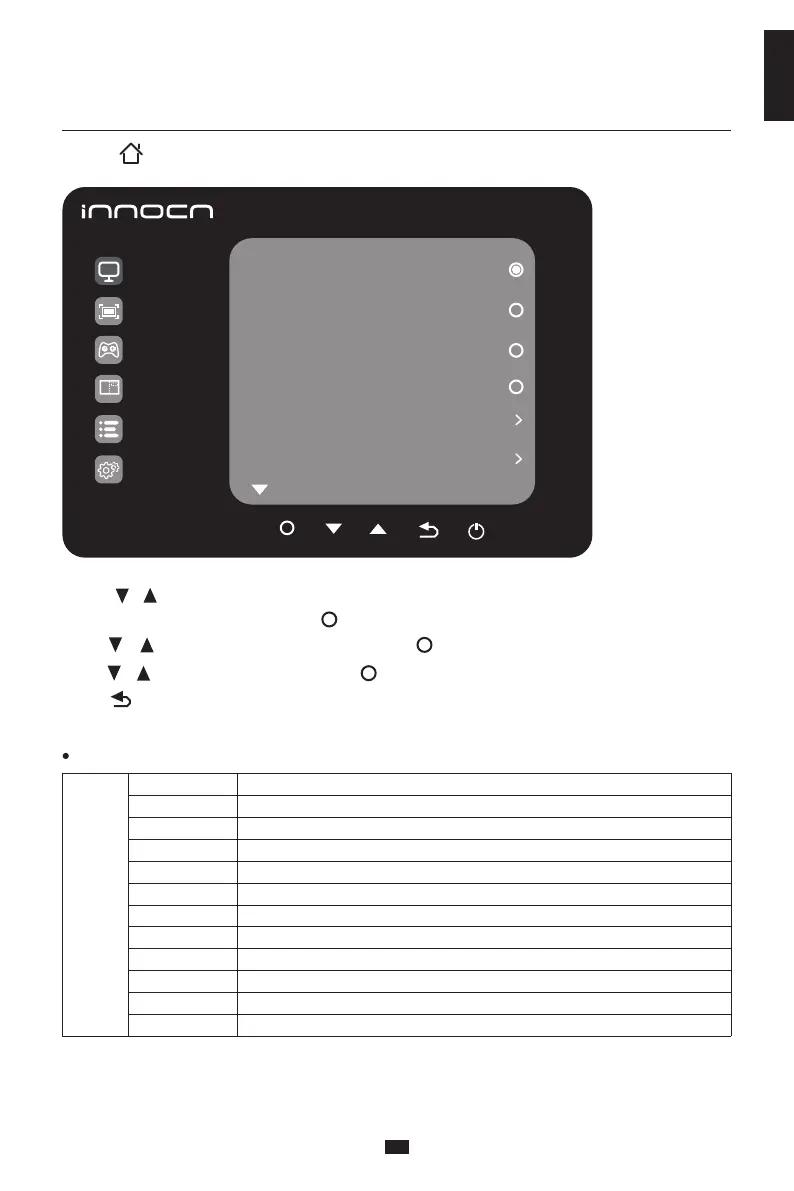
2. Press to enter the OSD screen.
3. Press or to scroll through the functions.
- Select the desired function, and press to enter the sub-menu.
- Press or to scroll through sub-menus, and press key to select and confirm the desired function.
- Press or to select one option, and press to confirm settings and exit from the current menu.
4. Press to exit from the menu screen
Functions of the monitor vary with models, and the functions in this manual are for reference only
Professional
Standard Mode N/A
N/A
N/A
N/A
1.6/1.8/2.0/2.2/2.4/2.6/2.8/S.curve
Natural/Design/Warm/Cool/User C.T1/User C.T2/User C.T3
0-5
0-100
0-100
R/G/B/C/M/Y
sRGB Mode
Adobe Mode
Uniformity Mode
Gamma
C.T settings
Sharpness
Shadow Balance
Low blue light
Hue
Saturation R/G/B/C/M/Y
Dynamic Brightness Off/Standard/Expert/Elaboration
Professional
Picture Sttings
Game Settings
Standard Mode
sRGB Mode
Adobe Mode
Uniformity Mode
Gamma
C.T settings
2.2
Natural
PIP/PBP
OSD Settings
Other Settings


 To Next Page