EasyManua.ls Logo

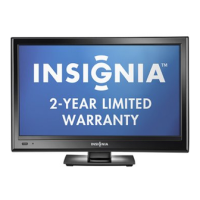
Insignia NS-19E320A13 - User Manual

Insignia NS-19E320A13
61 pages
Print Icon
To Next Page IconTo Next Page
Loading...
NS-19E320A13
NS-22E340A13
User Guide
19"/22" LED TV
NS-19E320A13_NS-22E340A13_11-1256_MAN_V1_ENG.book Page 0 Thursday, February 9, 2012 3:19 PM

Table of Contents

Other manuals for Insignia NS-19E320A13

Questions and Answers

  • V
    vobrienSep 10, 2025
    How do I eliminate audio noise from my Insignia NS-19E320A13 LCD TV?
    • D
      Danielle KramerSep 10, 2025
      Audio noise from your Insignia LCD TV can be caused by interference from other devices (for example, a surround sound receiver, external speakers, fans, or hair dryers). Try turning off one device at a time to determine which device is causing interference. After you have determined which device is causing interference, move it further from the TV to eliminate the interference.
  • M
    michael07Sep 9, 2025
    Why are there lines on my Insignia NS-19E320A13 LCD TV screen?
    • G
      Gregory PetersonSep 9, 2025
      If dotted lines or stripes appear on your Insignia LCD TV screen, make sure that the antenna or cable TV is connected correctly and securely. If you are using an antenna, the digital channel signal may be low. If you are using an antenna and the signal strength is low, adjust the antenna or use a highly directional outdoor antenna or set-top antenna with a built-in amplifier. Make sure that the video cables are connected securely to your TV. The video cable(s) you are using may be bad. Try a new set. Other devices may be interfering with your TV. Try turning off one device at a time to determine which device is causing interference. After you have determined which device is causing interference, move it further from the TV.
  • T
    Taylor BrownSep 8, 2025
    Why is picture quality inconsistent on my Insignia NS-19E320A13?
    • S
      Sandra CollinsSep 8, 2025
      If your Insignia LCD TV has good picture quality on some channels but poor quality on others while the sound remains good, the problem may be caused by a poor or weak signal from the broadcaster or cable TV provider. If you connect to cable or satellite TV without a set-top box and experience poor picture quality, you may need to install a set-top box to improve signal reception and picture quality. Contact your cable or satellite TV provider about upgrading to a set-top box.
  • S
    Susan LongAug 22, 2025
    What to do if Insignia LCD TV is damaged?
    • J
      Jennifer Norris MDAug 23, 2025
      If your Insignia LCD TV experiences damage, such as a frayed power cord, liquid spills, exposure to rain or water, operational issues despite following instructions, physical damage from dropping, or a distinct change in performance, unplug it from the power outlet. Refer servicing to qualified personnel.
  • L
    Lynn BaileySep 5, 2025
    Why are some channels not displaying on my Insignia NS-19E320A13?
    • J
      Jesus GuerreroSep 6, 2025
      If one or more channels are not displaying on your Insignia LCD TV, ensure the channels are not blocked via parental controls or hidden from the channel list. If using a cable or satellite box, use its remote to change channels and ensure the correct input is selected. If using an antenna, the digital channel signal may be weak.
  • P
    Patrick WrightSep 4, 2025
    How do I improve poor picture quality on my Insignia NS-19E320A13?
    • B
      butlerloriSep 4, 2025
      If your Insignia LCD TV has a poor picture, make sure that the room is not too bright, as light reflecting off the screen can make the picture difficult to see. Also, if an S-VHS camera or a camcorder is connected while another connected device is turned on, the picture may be poor, so turn off one or more devices.
  • J
    Julie PowellSep 3, 2025
    Why are there no channels after auto channel search on Insignia NS-19E320A13?
    • T
      Travis CarlsonSep 3, 2025
      If no channels appear after running Auto Channel Search on your Insignia LCD TV, reception can vary by channel depending on the broadcast power level of a given station. Contact your cable or satellite TV provider. Make sure the antenna or cable/satellite TV is connected securely to your TV. Try replacing the cable between the antenna/cable or cable/satellite box and your TV.
  • L
    Leslie ArmstrongSep 2, 2025
    Why is my Insignia NS-19E320A13 LCD TV showing only snow?
    • C
      Chloe MoralesSep 2, 2025
      If your Insignia LCD TV screen only shows snow (noise), try switching to another channel, as the station may be experiencing problems. Ensure that the antenna or cable TV is connected correctly and securely. If you are using an antenna, the digital channel signal may be low. If you are using an antenna and the signal strength is low, adjust the antenna or use a highly directional outdoor antenna or set-top antenna with a built-in amplifier.
  • C
    Cheryl WilsonSep 1, 2025
    Why does my Insignia NS-19E320A13 have no color?
    • B
      Brian HerringSep 1, 2025
      If your Insignia LCD TV has no color, a dark picture, or incorrect colors, try changing to another channel as the station might have issues. Adjust the color settings. Check if the video cables are securely connected to your TV. Ensure that the antenna or cable TV is properly connected. If you're using an antenna, the digital channel signal may be weak; consider adjusting the antenna or using a directional outdoor/set-top antenna with an amplifier.
  • D
    dcooperAug 30, 2025
    What causes dark picture on Insignia NS-19E320A13 LCD TV but sound is fine?
    • A
      April DiazAug 31, 2025
      If your Insignia LCD TV has a lit screen but the picture is dark, poor, or nonexistent while the sound is good, try another channel as the station may be experiencing problems. Make sure that the antenna or cable TV is connected correctly and securely. Adjust the brightness and make sure that the correct picture mode is selected. If you are using an antenna, the digital channel signal may be low. If you are using an antenna and the signal strength is low, adjust the antenna or use a highly directional outdoor antenna or set-top antenna with a built-in amplifier. Make sure that the video cables are connected securely to your TV. The video cables you are using may be bad. Try a new set.

Summary

Important Safety Instructions

Child Safety Guidelines

Ensuring safe usage practices and placement of the TV to prevent accidents and injuries.

Operational Safety Instructions

Detailed instructions for safe operation, handling, and maintenance of the television.

Introduction and Initial Setup

Product Overview

Introduction to the Insignia 19"/22" LED TV and its features.

Installing the Stand or Wall Mount

Step-by-step guide for attaching the TV stand or wall mount.

TV Components and Connections

Package Contents and Controls

List of items included and identification of TV's physical buttons and ports.

TV Input;Output Jacks

Details on side and back panel connectors for audio and video devices.

Remote Control Guide

Explanation of the buttons and functions of the television's remote control.

Connecting External Devices

Choosing the Best Connection Type

Guidance on selecting the optimal connection type for best video and audio quality.

Connecting Power and Basic Sources

Instructions for connecting power, cable/satellite boxes, and antennas.

Connecting Multimedia Players and Computers

Steps for connecting DVD/Blu-ray players, computers, and camcorders.

Connecting Audio Devices

Guide for connecting headphones and home theater systems for audio output.

Using the Remote Control

Installing Remote Control Batteries

Procedure for inserting and replacing batteries in the remote control.

Aiming the Remote Control

Guidance on properly pointing the remote control towards the TV's sensor.

Getting Started with Your TV

First-Time TV Setup Wizard

Guided setup process for initial TV configuration, including language and channels.

Turning the TV On and Off

Steps for powering the TV on, off, and understanding standby mode.

Selecting Video Input Sources

How to switch between different connected devices and inputs on the TV.

Navigating TV Menus and Settings

On-Screen Menu Navigation

Explanation of how to navigate through the TV's on-screen menu system.

Selecting Channels and Adjusting Volume

Methods for changing TV channels and controlling audio levels.

Picture and Sound Adjustments

Adjusting TV Picture Quality

Detailed guide for modifying picture parameters like brightness, contrast, and color.

Adjusting Computer Image Display

Steps for optimizing the display of a connected computer image.

Adjusting TV Sound Settings

Customizing sound modes, balance, and audio output options.

Playing TV Audio Only

Option to mute the picture and listen only to TV audio.

Channel Management Features

Automatic Channel Scanning and Setup

Procedure for scanning and storing available TV channels.

Managing Channel Lists

Hiding channels and setting up favorite channel lists for easier browsing.

Checking Digital Signal Strength

Methods to assess the quality of digital TV signal reception for optimal viewing.

Parental Controls and Content Filtering

Setting and Managing Passwords

Procedure for setting up or modifying the parental control access password.

Locking TV Buttons

Disabling physical buttons on the TV to prevent unauthorized access.

Blocking Unrated and Restricted Content

Options to block TV programs based on ratings or unrated content.

Setting Parental Control Levels

Configuring content restrictions based on age and content ratings for US and Canada.

Time and Menu Settings

Setting the TV Clock and Timer

Guide for setting the TV's date, time, and sleep timer for accurate scheduling.

Adjusting Menu Language and Input Labels

Changing menu language and customizing names for connected input sources.

Advanced TV Features

Using INlink (HDMI CEC) for Device Control

Enabling and managing HDMI CEC for controlling connected devices.

Using a USB Flash Drive for Media

Connecting and using a USB drive to view photos and customize slideshows.

Maintaining Your Television

Guidelines for cleaning and caring for the TV cabinet and screen.

Troubleshooting and Specifications

Resolving Common Video and Audio Issues

Solutions for common problems related to picture, sound, and connectivity.

Troubleshooting Remote Control and General Issues

Steps for resolving remote control malfunctions and general TV operational problems.

Understanding TV Specifications

Technical details including dimensions, display type, ports, and power requirements.

Remote Control Programming and Legal Notices

Programming Universal Remote Controls

Finding and entering codes to operate the TV with universal remotes.

Legal and Regulatory Information

FCC compliance statements, warnings, and cable requirements.

One-Year Limited Warranty Information

Warranty Coverage and Service

Details on warranty duration, what is covered, and how to obtain service.

Warranty Exclusions and Limitations

List of conditions and damages not covered by the product warranty.

Insignia NS-19E320A13 Specifications

General IconGeneral
Screen Size19 inches
Resolution1366 x 768
Display TypeLCD
USB Ports1
Weight7.5 lbs
Refresh Rate60Hz
Component Video Input1
Composite Video Input1
Aspect Ratio16:9
Built-in TunerATSC/NTSC
Speakers2
Power Consumption35W
InputsHDMI, USB, Component, Composite

Related product manuals