EasyManua.ls Logo

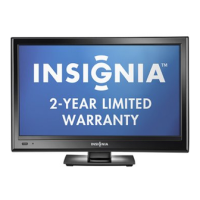
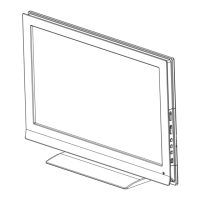
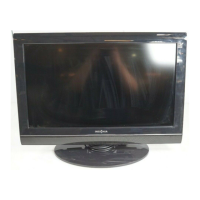
Insignia NS-19E320A13 - User Manual

Insignia NS-19E320A13
61 pages
Print Icon
To Next Page IconTo Next Page
Loading...
NS-19E320A13
NS-22E340A13
User Guide
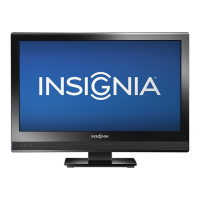
19"/22" LED TV
NS-19E320A13_NS-22E340A13_11-1256_MAN_V1_ENG.book Page 0 Thursday, February 9, 2012 3:19 PM

Table of Contents

Other manuals for Insignia NS-19E320A13

Questions and Answers

  • A
    Ann RojasAug 29, 2025
    Why does my Insignia NS-19E320A13 LCD TV say no signal?
    • R
      Regina GomezAug 30, 2025
      If your Insignia LCD TV displays a 'No signal' error message, press the INPUT button and make sure you have selected the correct input for the device or service you are trying to use. If you are using a cable or satellite box, use the remote that came with that box to change channels. Also, make sure that you have the correct input selected to view channels from the cable or satellite box.
  • C
    charles48Aug 28, 2025
    What to do if my Insignia LCD TV has no power?
    • D
      David ReedAug 29, 2025
      If your Insignia LCD TV has no power, make sure that the power cord is correctly connected to your TV and the power outlet. If it's connected, unplug the power cord, wait 60 seconds, then plug it back in and turn on your TV. Also, other devices may be interfering with your TV. Try turning off one device at a time to determine which device is causing interference. After you have determined which device is causing interference, move it further from the TV.
  • S
    Scott BowenAug 27, 2025
    How to troubleshoot sound issues on Insignia LCD TV?
    • D
      denisejonesAug 27, 2025
      If your Insignia LCD TV has a good picture but no sound, first, increase the volume and make sure the sound isn't muted. Ensure headphones are disconnected, as they disable TV speakers. Select the correct audio mode. Verify that the audio cables are securely connected to your TV. Also, check that your antenna or cable TV is properly connected. If using an antenna, the digital channel signal may be low. Finally, the audio cables may be faulty, so try a new set.
  • A
    andrew90Aug 27, 2025
    How to fix no picture and sound on Insignia LCD TV?
    • C
      Craig KimAug 27, 2025
      If your Insignia LCD TV screen is dark and there's no sound, first, press the power button on the TV or remote. Ensure the 'Audio Only' option is off. Check that video cables are securely connected. Adjust the contrast and brightness. Verify the power cord is plugged in. Select the correct video input source. Try another channel as the station may have issues. Ensure the incoming signal is compatible. Confirm the antenna or cable TV is correctly connected. Also, check the closed caption settings, as some TEXT modes can block the screen.
  • B
    Bruce DavisAug 25, 2025
    Why is my Insignia NS-19E320A13 LCD TV remote control not working?
    • R
      Robert VillegasAug 26, 2025
      If your Insignia LCD TV remote isn't working, ensure the power cord is correctly connected to both the TV and the power outlet. Remove any obstructions between the remote and the TV's sensor. Point the remote directly at the sensor. Make sure you've removed all plastic wrapping from the batteries and that they are correctly installed. If problems persist, replace the old batteries with new ones.
  • C
    Colton HeathAug 25, 2025
    Why is outdoor antenna grounding important for Insignia NS-19E320A13 LCD TV?
    • M
      Michael GibsonAug 25, 2025
      If you have an outside antenna or cable system connected to your Insignia LCD TV, ensure it's grounded. This provides protection against voltage surges and static charges.

Summary

Important Safety Instructions

Child Safety Guidelines

Ensuring safe usage practices and placement of the TV to prevent accidents and injuries.

Operational Safety Instructions

Detailed instructions for safe operation, handling, and maintenance of the television.

Introduction and Initial Setup

Product Overview

Introduction to the Insignia 19"/22" LED TV and its features.

Installing the Stand or Wall Mount

Step-by-step guide for attaching the TV stand or wall mount.

TV Components and Connections

Package Contents and Controls

List of items included and identification of TV's physical buttons and ports.

TV Input;Output Jacks

Details on side and back panel connectors for audio and video devices.

Remote Control Guide

Explanation of the buttons and functions of the television's remote control.

Connecting External Devices

Choosing the Best Connection Type

Guidance on selecting the optimal connection type for best video and audio quality.

Connecting Power and Basic Sources

Instructions for connecting power, cable/satellite boxes, and antennas.

Connecting Multimedia Players and Computers

Steps for connecting DVD/Blu-ray players, computers, and camcorders.

Connecting Audio Devices

Guide for connecting headphones and home theater systems for audio output.

Using the Remote Control

Installing Remote Control Batteries

Procedure for inserting and replacing batteries in the remote control.

Aiming the Remote Control

Guidance on properly pointing the remote control towards the TV's sensor.

Getting Started with Your TV

First-Time TV Setup Wizard

Guided setup process for initial TV configuration, including language and channels.

Turning the TV On and Off

Steps for powering the TV on, off, and understanding standby mode.

Selecting Video Input Sources

How to switch between different connected devices and inputs on the TV.

Navigating TV Menus and Settings

On-Screen Menu Navigation

Explanation of how to navigate through the TV's on-screen menu system.

Selecting Channels and Adjusting Volume

Methods for changing TV channels and controlling audio levels.

Picture and Sound Adjustments

Adjusting TV Picture Quality

Detailed guide for modifying picture parameters like brightness, contrast, and color.

Adjusting Computer Image Display

Steps for optimizing the display of a connected computer image.

Adjusting TV Sound Settings

Customizing sound modes, balance, and audio output options.

Playing TV Audio Only

Option to mute the picture and listen only to TV audio.

Channel Management Features

Automatic Channel Scanning and Setup

Procedure for scanning and storing available TV channels.

Managing Channel Lists

Hiding channels and setting up favorite channel lists for easier browsing.

Checking Digital Signal Strength

Methods to assess the quality of digital TV signal reception for optimal viewing.

Parental Controls and Content Filtering

Setting and Managing Passwords

Procedure for setting up or modifying the parental control access password.

Locking TV Buttons

Disabling physical buttons on the TV to prevent unauthorized access.

Blocking Unrated and Restricted Content

Options to block TV programs based on ratings or unrated content.

Setting Parental Control Levels

Configuring content restrictions based on age and content ratings for US and Canada.

Time and Menu Settings

Setting the TV Clock and Timer

Guide for setting the TV's date, time, and sleep timer for accurate scheduling.

Adjusting Menu Language and Input Labels

Changing menu language and customizing names for connected input sources.

Advanced TV Features

Using INlink (HDMI CEC) for Device Control

Enabling and managing HDMI CEC for controlling connected devices.

Using a USB Flash Drive for Media

Connecting and using a USB drive to view photos and customize slideshows.

Maintaining Your Television

Guidelines for cleaning and caring for the TV cabinet and screen.

Troubleshooting and Specifications

Resolving Common Video and Audio Issues

Solutions for common problems related to picture, sound, and connectivity.

Troubleshooting Remote Control and General Issues

Steps for resolving remote control malfunctions and general TV operational problems.

Understanding TV Specifications

Technical details including dimensions, display type, ports, and power requirements.

Remote Control Programming and Legal Notices

Programming Universal Remote Controls

Finding and entering codes to operate the TV with universal remotes.

Legal and Regulatory Information

FCC compliance statements, warnings, and cable requirements.

One-Year Limited Warranty Information

Warranty Coverage and Service

Details on warranty duration, what is covered, and how to obtain service.

Warranty Exclusions and Limitations

List of conditions and damages not covered by the product warranty.

Insignia NS-19E320A13 Specifications

General IconGeneral
Screen Size19 inches
Resolution1366 x 768
Display TypeLCD
USB Ports1
Weight7.5 lbs
Refresh Rate60Hz
Component Video Input1
Composite Video Input1
Aspect Ratio16:9
Built-in TunerATSC/NTSC
Speakers2
Power Consumption35W
InputsHDMI, USB, Component, Composite

Related product manuals