EasyManua.ls Logo

Insignia NS-19LD120A13 - User Manual

Insignia NS-19LD120A13
54 pages
Print Icon
To Next Page IconTo Next Page
Loading...
NS-19LD120A13
User Guide
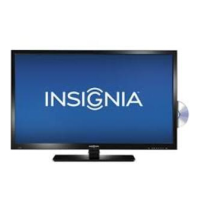
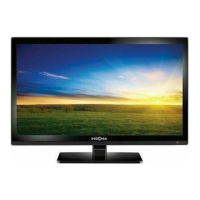
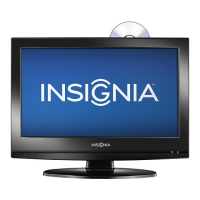
19" LCD TV/DVD Combo
NS-19LD120A13_11-1329_MAN_V1_ENG.book Page 0 Friday, April 20, 2012 3:10 PM

Table of Contents

Other manuals for Insignia NS-19LD120A13

Questions and Answers

  • L
    leonardbrandonAug 20, 2025
    How to fix Insignia TV DVD Combo remote control not working?
    • J
      Jason GrossAug 20, 2025
      If the remote control for your Insignia TV DVD Combo isn't working, ensure the power cord is properly connected. Also, make sure there are no obstructions between the remote and the sensor on the TV's front. Point the remote directly at the sensor, verify the batteries are correctly installed, and replace them if necessary.
  • P
    patricia41Aug 22, 2025
    What to do if Playback does not start on Insignia NS-19LD120A13 TV DVD Combo?
    • T
      Tim AdamsAug 22, 2025
      If your Insignia TV DVD Combo doesn't start playback, make sure that a disc is inserted into the disc slot. The disc may be dirty, or the disc format may not be supported.
  • R
    Rebekah NewmanAug 25, 2025
    What to do if my Insignia NS-19LD120A13 says no signal?
    • F
      Fred YoungAug 25, 2025
      If your Insignia TV DVD Combo displays a 'No signal' error, press the INPUT button and select the correct input for the device or service you're trying to use.
  • N
    nbooneAug 26, 2025
    Why my Insignia TV DVD Combo has no power?
    • K
      Katherine BrownAug 26, 2025
      If your Insignia TV DVD Combo has no power, ensure the power cord is correctly connected to both the TV and the power outlet. If it's connected correctly, unplug the power cord, wait 60 seconds, then plug it back in and turn on your TV. Also, consider that other devices might be interfering with your TV.
  • M
    Michelle StricklandAug 28, 2025
    Why does my Insignia TV DVD Combo have no sound?
    • P
      Patrick GarciaAug 28, 2025
      If your Insignia TV DVD Combo has no sound, and it is connected to a sound system, make sure the volume on the sound system is turned up.
  • E
    Elizabeth BrandtAug 29, 2025
    Why control buttons do not work on Insignia NS-19LD120A13?
    • K
      Kayla HughesAug 29, 2025
      If the control buttons on your Insignia TV DVD Combo do not work, make sure that the Button Lock option is set to Off. If that doesn't work, unplug the power cord, wait a few seconds, then plug the cord back in and turn on your TV.
  • R
    Ralph MartinezAug 31, 2025
    Why does my Insignia NS-19LD120A13 TV DVD Combo keep turning off?
    • S
      sboydSep 1, 2025
      If your Insignia TV DVD Combo keeps turning off, make sure that the sleep timer is not turned on.
  • K
    Kenneth WoodSep 2, 2025
    Why are there no channels after Auto Channel Search on Insignia NS-19LD120A13?
    • J
      Janice MooreSep 2, 2025
      If, after performing an Auto Channel Search on your Insignia TV DVD Combo, there are no channels, it may be due to varying reception depending on the broadcast power level of a given station. Also, make sure that the antenna or cable/satellite TV is connected securely to your TV.
  • J
    jwalkerSep 4, 2025
    How to reset password on Insignia NS-19LD120A13 TV DVD Combo?
    • H
      Heather LopezSep 4, 2025
      If you've lost the password for your Insignia TV DVD Combo, enter 9999 to access parental controls, then set a new password.
  • R
    rogersarthurSep 6, 2025
    Why one or more channels do not display on Insignia NS-19LD120A13 TV DVD Combo?
    • M
      monica97Sep 6, 2025
      If one or more channels do not display on your Insignia TV DVD Combo, make sure that the channels are not blocked or hidden. If you are using a cable or satellite box, use the remote that came with that box to change channels and ensure that you have selected the correct input. If you are using an antenna, the digital channel signal may be low.

Summary

Safety Information

Child Safety and Wall Mounting

Guidelines for safe TV placement and wall mounting.

Important Safety Instructions

Handling the LCD Panel

Precautions for handling the sensitive LCD screen.

Operational and Environmental Safety

Covers power source, servicing, condensation, and environmental warnings.

Product Overview and Setup

Introduction and Components

Overview of the TV/DVD combo and its included parts.

Installation Guide

Steps for installing the TV stand or wall-mount bracket.

Making Connections

Connection Type Selection

Guides on choosing the best connection type for optimal video quality.

Connecting Power

Steps for connecting the AC power cord to the TV/DVD combo.

Connecting a Cable or Satellite Box

Instructions for connecting a cable/satellite box using HDMI.

Using the Remote Control

Battery Installation and Aiming

Steps to install batteries and aim the remote for proper operation.

Initial Setup

First-Time Power-On and Setup Wizard

Guides through the initial setup process for language, time, and signal source.

Picture and Sound Settings

Adjusting Picture Quality

Options for optimizing picture quality through various settings like mode, brightness, and contrast.

Adjusting Sound Settings

Settings to customize audio output modes, balance, and advanced audio options.

Channel Management

Scanning and Hiding Channels

Process for searching, storing, and skipping TV channels.

Advanced Features and Controls

Parental Controls Setup

Options to restrict content based on ratings and set passwords.

Closed Captioning Settings

How to turn closed captioning on/off and customize its display.

Troubleshooting

Common Video and Audio Issues

Solutions for common problems with picture and sound.

Remote Control and Power Issues

Troubleshooting steps for remote control and power problems.

Specifications and Warranty

Product Specifications

Technical details of the TV/DVD combo, including dimensions and inputs.

Warranty Information

Details on the product's warranty coverage, duration, and service procedures.

Insignia NS-19LD120A13 Specifications

General IconGeneral
Screen Size19 inches
Resolution1366 x 768
Display TypeLCD
DVD PlayerYes
HDMI Ports1
USB Ports1
Composite Video InputYes
Refresh Rate60 Hz
Built-in TunerATSC, NTSC
VESA Mount CompatibleYes

Related product manuals