EasyManua.ls Logo

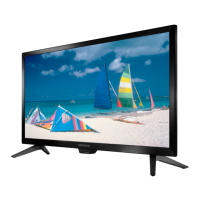
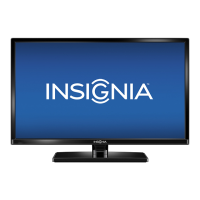
Insignia NS-28E200NA14 - User Manual

Insignia NS-28E200NA14
85 pages
Print Icon
To Next Page IconTo Next Page
Loading...
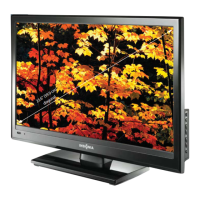
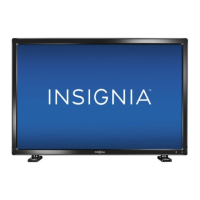
NS-28E200NA14
User Guide
28" LED TV
Before using your new product, please read these instructions to prevent any damage.

Table of Contents

Other manuals for Insignia NS-28E200NA14

Questions and Answers

  • K
    Kevin MurphyAug 19, 2025
    How to fix an Insignia LED TV remote that is not working?
    • T
      Tara TaylorAug 19, 2025
      First, make sure the power cord is correctly connected to your Insignia LED TV and the power outlet. Also, ensure that there are no obstructions between the remote and the TV's sensor. Point the remote directly at the sensor. Verify that the batteries are correctly installed or replace them with new ones.
  • H
    Hayley MilesAug 21, 2025
    Why is my Insignia NS-28E200NA14 remote control not working?
    • C
      Charles ShortAug 21, 2025
      If your Insignia LED TV remote control isn't working, make sure the TV's power cord is properly connected. Ensure there are no obstructions between the remote and the TV's sensor. Point the remote directly at the sensor. Remove any plastic wrapping from the batteries. Verify the batteries are correctly installed, and replace dead batteries with new ones.
  • H
    huertaamyAug 23, 2025
    Why is the picture quality on my Insignia NS-28E200NA14 LED TV good on some channels and poor on others?
    • A
      alexandra27Aug 23, 2025
      If your Insignia LED TV picture quality varies, being good on some channels and poor on others while the sound remains good, it may be due to a weak signal from the broadcaster or cable TV provider. If you're connected to cable or satellite TV without a set-top box, consider installing one to improve signal reception and picture quality. Contact your provider for details on upgrading.
  • J
    Jennifer MillerAug 26, 2025
    What to do if my Insignia LED TV has no power?
    • A
      Amanda ChristianAug 26, 2025
      First, ensure the power cord is securely connected to both your Insignia LED TV and the power outlet. If that doesn't work, unplug the power cord, wait for about 60 seconds, and then plug it back in before turning on your TV. Interference from other devices may also be a factor; try turning off nearby devices one by one to see if that resolves the issue, and then move the interfering device further away from the TV.
  • D
    Dakota Rocha MDAug 28, 2025
    What to do if my Insignia NS-28E200NA14 LED TV has no picture and no sound?
    • A
      Andrea BestAug 28, 2025
      To resolve a blank screen with no sound on your Insignia LED TV, try the following: First, press the power button on the TV or remote. Ensure the 'Audio Only' option is off. Check that video cables are securely connected. Adjust the contrast and brightness settings. Verify the power cord is plugged in. Select the correct video input source. Try another channel to rule out station issues. Confirm the incoming signal is compatible. Ensure the antenna or cable TV is properly connected. Finally, check closed caption settings, as some modes can block the screen.
  • C
    Crystal GrantAug 30, 2025
    What does it mean when my Insignia NS-28E200NA14 says no signal?
    • M
      Matthew GoodmanAug 30, 2025
      If your Insignia LED TV displays a “No signal” error message, first press the INPUT button to select the correct input for your device. If you're using a cable or satellite box, use its remote to change channels and ensure you've selected the correct input on your TV to view those channels.
  • X
    Xavier YangSep 1, 2025
    Why does my Insignia LED TV have picture but no sound?
    • P
      pamelagibsonSep 2, 2025
      If your Insignia LED TV has good picture but no sound, try these steps: Increase the volume and make sure the sound isn't muted. Disconnect any headphones, as they disable the TV speakers. Ensure the correct audio mode is selected and that the audio cables are securely connected. Verify the antenna or cable TV is properly connected. If using an antenna, check the digital channel signal strength. Finally, test with new audio cables in case the current ones are faulty.
  • K
    Kristina HughesSep 4, 2025
    What to do if Insignia NS-28E200NA14 LED TV has dark or no picture but sound is good?
    • G
      Gregory BoothSep 4, 2025
      To fix a dark, poor, or absent picture (while the screen is lit and sound is good) on your Insignia LED TV, try changing the channel to rule out station issues. Ensure your antenna or cable TV is securely connected. Adjust the brightness and select the correct picture mode. If using an antenna, check the digital channel signal strength and adjust the antenna, or consider using a highly directional outdoor or set-top antenna with a built-in amplifier. Also, make sure the video cables are securely connected or try a new set of cables.
  • J
    jhowardSep 6, 2025
    Why does my Insignia NS-28E200NA14 have no color or a dark picture?
    • D
      danielcarrSep 6, 2025
      If your Insignia LED TV displays no color, a dark picture, or incorrect colors, try changing the channel to rule out station problems. Adjust the color settings. Ensure the video cables are securely connected to your TV. Also, make sure the antenna or cable TV is connected correctly and securely. If you are using an antenna, the digital channel signal may be low. To check the digital channel signal strength, use a highly directional outdoor antenna or set-top antenna with a built-in amplifier.
  • E
    Eric SandersSep 8, 2025
    Why does my Insignia LED TV screen only show snow?
    • A
      ashley20Sep 9, 2025
      If your Insignia LED TV only shows snow (noise) on the screen, try changing channels to rule out station issues. Ensure the antenna or cable TV is connected correctly and securely. If you're using an antenna, the digital channel signal may be weak. Consider adjusting the antenna or using a highly directional outdoor or set-top antenna with a built-in amplifier.

Summary

Introduction to Insignia TV

Insignia TV Key Features

Overview of MHL, INlink, and DTS Sound technologies.

CHILD SAFETY

Tune Into Safety

Safety tips for using the TV and furniture to prevent accidents.

Wall Mounting Safety

Guidelines for safely mounting the TV to a wall.

TV Installation

Installing the TV Stand

Step-by-step guide to attach the TV stand.

Installing a Wall-Mount Bracket

Instructions for safely mounting the TV on a wall.

TV Components and Connections

Understanding TV Components

Identification of front, side, and back TV parts.

Remote Control Guide

Functions and operation of the TV remote control.

Connecting External Devices

Guide to selecting optimal connections for various AV devices.

Basic TV Operations

Connecting Power

How to connect the TV to a power outlet.

Initial TV Setup Wizard

Steps for setting up the TV for the first time.

Turning TV On;Off and Input Selection

How to power the TV and select video input sources.

Picture and Sound Settings

Adjusting Picture Quality

Optimizing TV picture settings for clarity and color.

Adjusting Sound Settings

Configuring audio modes, volume, and output.

Channel Management and Audio Output

Audio Output Modes

Selecting audio output for headphones or external systems.

Playing TV Audio Only

How to listen to audio without the picture displayed.

Channel Management Features

Scanning, hiding, favorites, signal strength, and aspect ratio.

Parental Controls and Accessibility

Setting Parental Controls

Managing content access with passwords and rating levels.

Using Closed Captioning

Enabling and customizing closed captioning display.

System Settings

Time and Menu Settings

Adjusting clock, sleep timer, and menu language.

INlink and HDMI CEC Features

Controlling connected HDMI CEC devices via INlink.

MHL and Roku Device Connectivity

Connecting MHL devices and Roku Streaming Sticks.

Media Playback

USB Flash Drive Usage

Connecting and accessing files from a USB drive.

Photo Browsing and Slideshows

Viewing photos, creating favorites, and slideshows from USB.

Maintenance and Troubleshooting

TV Maintenance and Cleaning

Guidelines for cleaning the TV cabinet and screen.

Troubleshooting Common TV Issues

Solutions for video, audio, remote, and general TV problems.

Specifications and Support

Technical Specifications

Detailed specifications of the TV, including dimensions and inputs/outputs.

Universal Remote Control Setup

Codes and instructions for programming universal remotes.

Legal Notices and Warranty

FCC compliance, licensing, and limited warranty information.

Insignia NS-28E200NA14 Specifications

General IconGeneral
BrandInsignia
ModelNS-28E200NA14
CategoryLED TV
LanguageEnglish

Related product manuals