5
Auto-leveling
Cautions:
During the installation of the printing build plate before leveling, it shall be correctly adsorbed on
the hotbed along the guide grooves on both sides of the platform base plate;
Clean the residual materials on the nozzle tip before leveling;
Clean the printing platform before leveling; no foreign matters shall be left;
Clean chamber to prevent the hot bed being lowered from colliding with foreign matters;
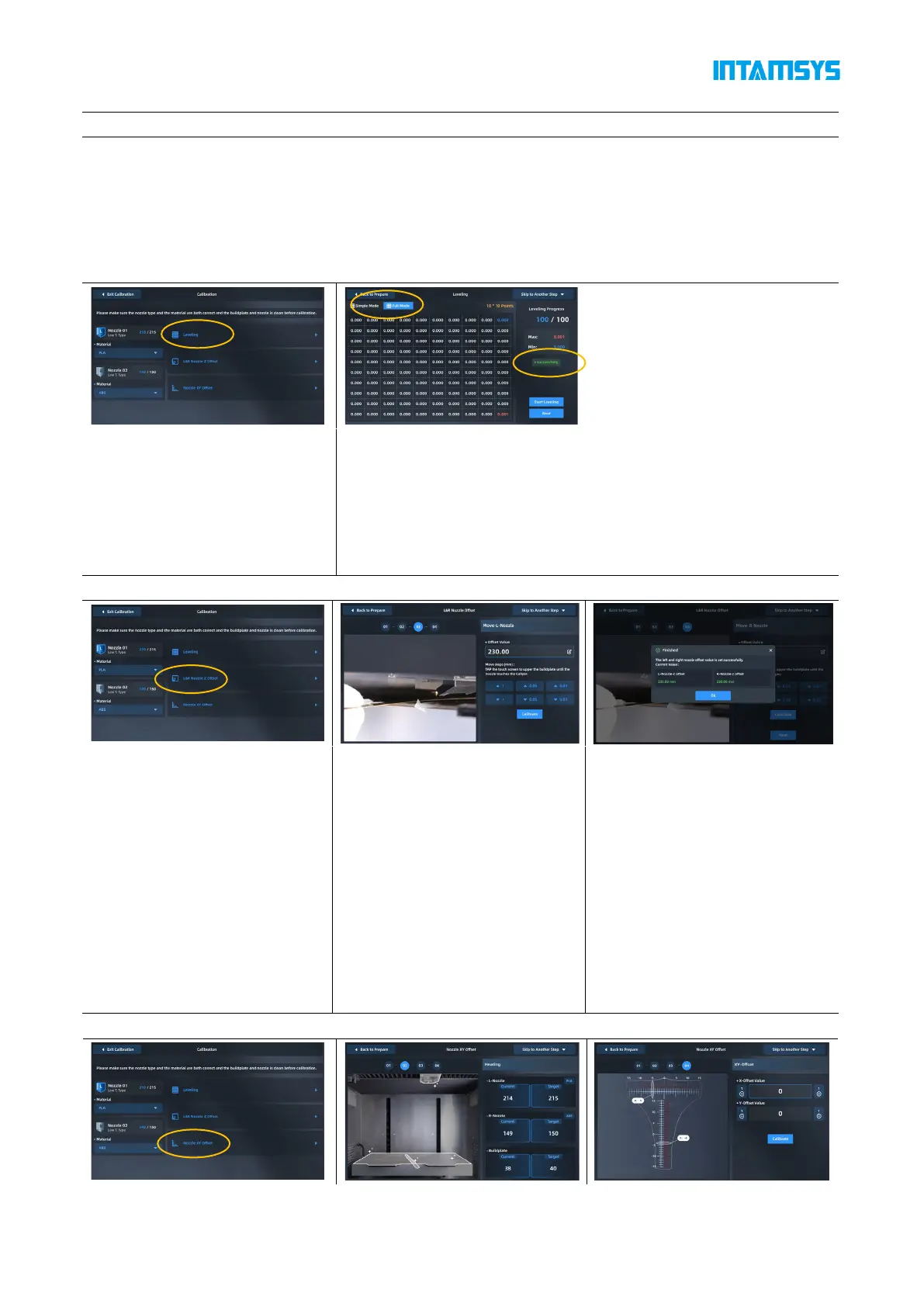
1) In the tool interface, click the
Calibrate button, and then click
the leveling button to enter the
automatic leveling
2) Enter the automatic leveling interface, you can choose simple or
full mode, corresponding to the automatic leveling mode of 16
points and 100 points, click "Next", after the leveling is completed, if
the display is successful, the automatic leveling is completed, if the
display fails, you need to manually adjust the level. Manual leveling is
detailed in §6.1/2 of the user manual
1) Click the Z Offset calibration
icon to enter the Z offset
calibration operation. The user
will first be prompted to prepare
the feeler (thickness 0.2mm) and
clean the buildplate. If it has
been cleaned up, click "Finished"
to officially enter the Z-shift
calibration operation
2) After heating, calibrate the left
nozzle first. According to the
prompts on the screen, place the
feeler ruler between the nozzle
and the glass platform, adjust it
roughly by the "Z↑0.05"/" Z↓0.05
"button, and fine-adjust it by the"
Z↑0.01 "/" Z↓0.01 "button until
the thickness of the feeler ruler is
just one. After adjustment, press
the next button
3) Then calibrate the right
printhead in the same way as the
left printhead. After adjustment,
press the "Next" button and click
"OK" to finish



 To Next Page