To Next Page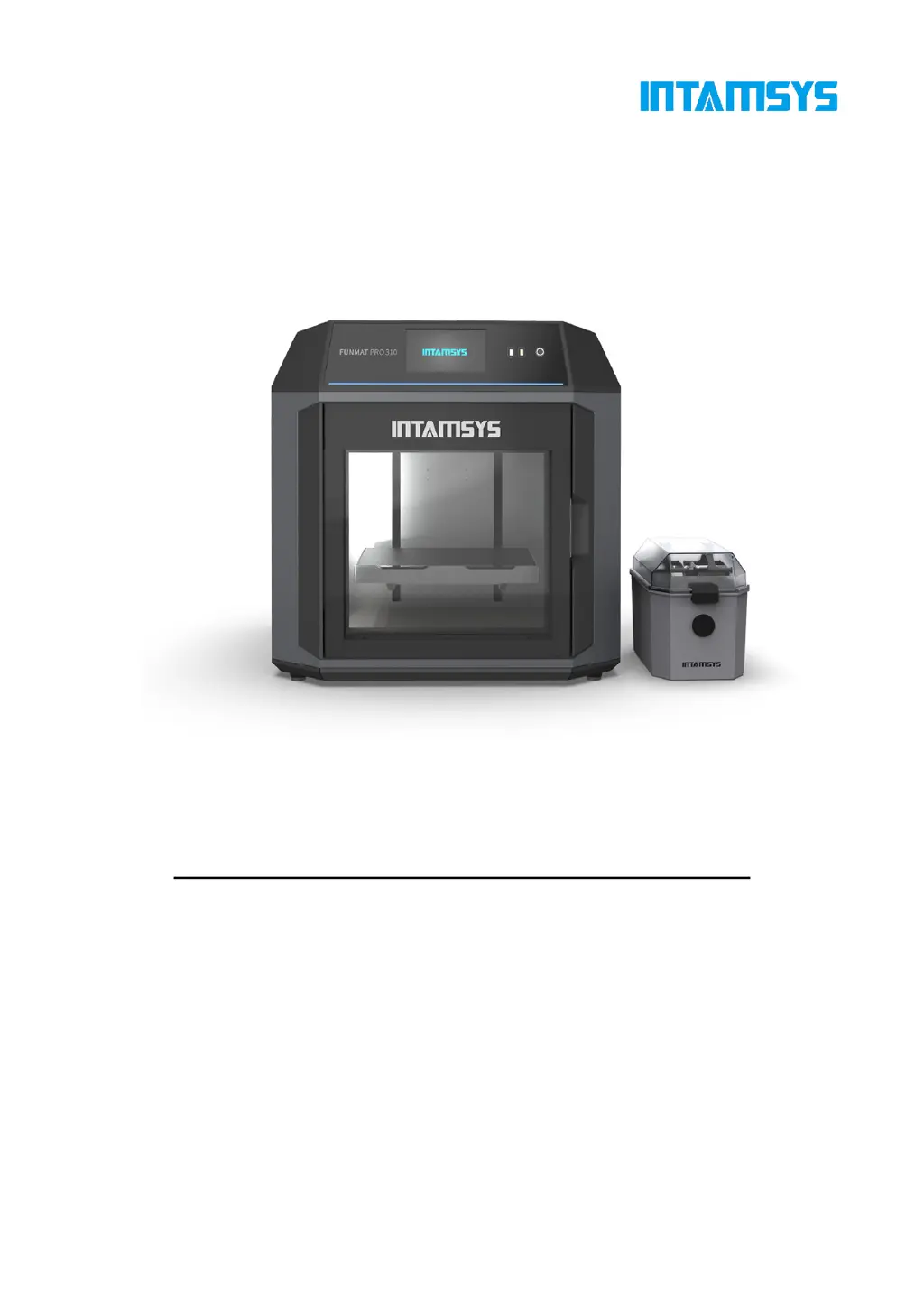

N
Nicholas TorresSep 23, 2025
What to do if power failure occurs in Intamsys FUNMAT PRO 310?
- JJeffrey SchroederSep 23, 2025
If you experience a power failure with your Intamsys 3D Printer, check for any issues in the external power supply.

What to do if power failure occurs in Intamsys FUNMAT PRO 310?
If you experience a power failure with your Intamsys 3D Printer, check for any issues in the external power supply.
What to do if there is a material shortage of left extruder in Intamsys FUNMAT PRO 310 3D Printers?
If the left extruder is out of material on your Intamsys 3D Printer, replace the material or insert the material into the out-of-filament detection sensor.
What to do if the hot bed temperature is too high in Intamsys 3D Printers?
If the hot bed temperature is too high on your Intamsys 3D Printer, check for any issues in the cable or connector of the hot bed sensor.
What to do if chamber temperature is too high in Intamsys FUNMAT PRO 310 3D Printers?
If the chamber temperature is too high on your Intamsys 3D Printer, check for any issues in the cable or connector of the chamber sensor.
What to do for hot bed heating timeout in Intamsys FUNMAT PRO 310 3D Printers?
To address the hot bed heating timeout issue with your Intamsys 3D Printer, check for exceptions in the heating circuit.
What to do if serial port communication error occurs in Intamsys FUNMAT PRO 310?
To address a serial port communication error on your Intamsys 3D Printer, continue printing if possible. If there is no response for a long time, shut down and restart the printer.
What to do if Z-limit sensor triggered in Intamsys FUNMAT PRO 310?
If the Z-limit sensor is triggered on your Intamsys 3D Printer, confirm whether the leveling is normal or whether the model exceeds the printer's printing size.
What to do if extruder leveling sensor is abnormal in Intamsys FUNMAT PRO 310?
If the extruder leveling sensor is abnormal on your Intamsys 3D Printer, extruder calibration and automatic leveling cannot be carried out. Please check whether the extruder leveling sensor is disconnected or whether the connector is loose.
What to do if the R-Nozzle temperature is too high in Intamsys 3D Printers?
If the R-Nozzle temperature is too high on your Intamsys 3D Printer, check the R-Nozzle sensor or heater.
What to do if the R-Nozzle temperature remains unchanged during heating in Intamsys FUNMAT PRO 310 3D Printers?
If the R-Nozzle temperature remains unchanged during heating with your Intamsys 3D Printer, check the installation positions of the R-Extruder sensor and heating rod.
Contact information for customer support.
Basic safety tips for installation, operation, and maintenance.
Meaning of hazard classification signs used in the manual.
Components and areas with highlighted potential hazards.
How sensors and locks ensure safety during operation.
Operating and storage conditions for the printer.
Overview of settings and installation.
List of tools included for maintenance and spare parts.
Guide for preparing the installation site.
Identifying printer information on the nameplate.
Steps for preparing the printer for use.
Steps to unpack the printer from its packaging.
How to take out accessories and filament boxes.
Removing fixing blocks for X and Y axes.
Steps to power on the printer.
How to install the printing build plate.
Visual identification of printer parts and their functions.
Details of the top door and the user interface components.
Components within the printing chamber.
Features of the external filament box.
Components driving the X and Y axes movement.
Components that move the hot bed up and down.
Components of the hot bed assembly.
Introduction to the main user interface elements.
Information displayed on the top status bar.
Functions accessible via the navigation bar.
Content shown in the main display area.
Overview of the main interface during printing.
Methods for loading print files.
Display of model pictures and print progress.
Display of temperature and material status.
Control buttons and progress bar.
Managing print jobs and history.
Material settings and management.
How to select materials.
Step-by-step process for loading materials.
Step-by-step process for unloading materials.
Managing material attributes and creating new materials.
Manually operating the printer's axes.
Performing build plate leveling and nozzle calibration.
Steps for automatic build plate leveling.
Steps for manual build plate leveling.
Calibrating the Z-offset for both nozzles.
Calibrating the XY offset between nozzles.
Adjusting printing parameters during operation.
Viewing and setting device information.
Configuring Wi-Fi connection.
Configuring wired network connection.
Setting camera parameters and previewing video.
Enabling and setting up remote printing.
Enabling/disabling printer motors.
Setting up screen lock password.
Viewing and handling warning messages.
Resuming printing after errors.
Using command line for debugging and advanced operations.
Procedures for powering the printer on and off.
Step-by-step guide to power on the printer.
Steps to safely power off the printer.
Steps for loading materials into the nozzles.
Procedure for replacing the printing nozzle.
Steps for changing material before starting a print.
How to change material during an ongoing print.
Procedure for replenishing filament.
Preparing the printer before starting a print.
Methods to load print files (U-disk, network).
Selecting and loading a print file.
The main steps of the printing process.
Overview of preheat, print, and heat hold stages.
Adjusting preheat and heat hold settings.
Adjusting parameters during printing.
Understanding and responding to print alarms.
How to pause and resume printing.
How to stop a print task.
Actions after a print job finishes.
How the door lock functions.
Real-time viewing of printer temperatures.
Checking software and firmware versions.
Checks to perform before starting a print.
Inspecting the platform and build plate.
Cleaning the inside of the printing chamber.
Checking the nozzle for cleanliness.
Tasks to perform after each print.
Cleaning the build plate after printing.
Cleaning the nozzle after printing.
Cleaning the chamber after printing.
Routine maintenance tasks.
Cleaning the extruder's feeding gears.
Lubricating and maintaining motion components.
Cleaning or replacing the chamber filter.
Maintaining and replacing the filament feeding pipe.
Additional information and recommendations.
Identifying and resolving common faults.
 General
| Brand | Intamsys |
|---|---|
| Model | FUNMAT PRO 310 |
| Category | 3D Printers |
| Language | English |