20
4.1.3 Display area
The display area displays the related information corresponding to the selected function module,
including operation buttons, texts, images, or schematic GIF, etc.
After the machine is powered on and started, it will automatically enter the main interface.
When you select a function button in the navigation bar, the display area switches to the
corresponding interface.
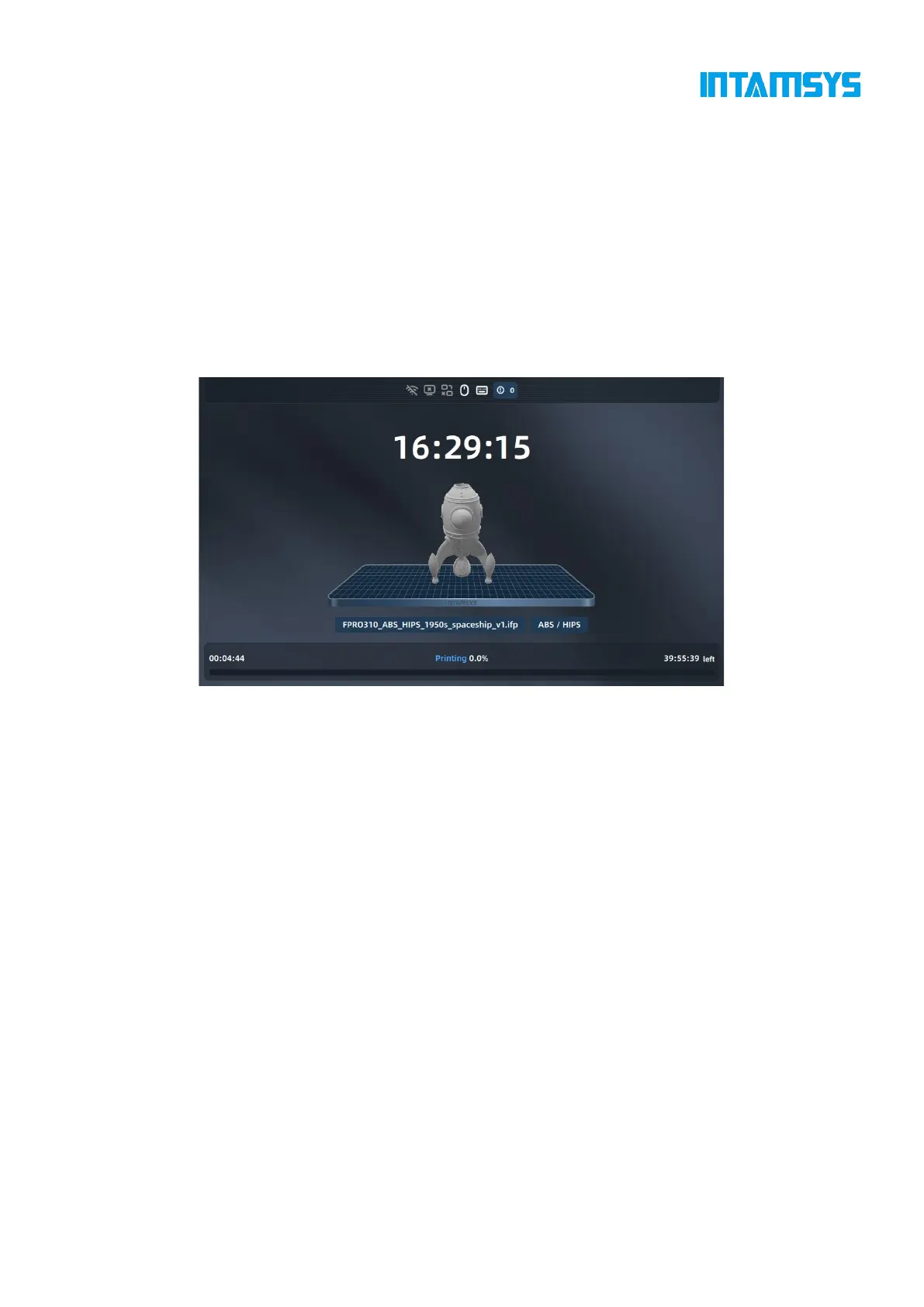
If there is no screen operation for 5 minutes, the system will automatically call the Screen Saver
(the screen protecting time can be set in the setting interface). Touch the screen again to return to
the main interface.
Fig. 4.4 Screen Saver Interface
4.2 Main Interface
The homepage interface mainly displays the overall information of the device during printing. The
left area includes model print progress preview and print operation buttons, which are used to
start/pause/stop printing.
The real-time temperature status of the printer is displayed in the right area, including L-nozzle
temperature, R-nozzle temperature, chamber temperature and hot bed temperature.
The current connection status of the device is displayed by the icon on the top. If an error alarm
occurs during printing, it will also be displayed in this bar.
Touch the screen to view and operate other functions displayed on the main interface.



 To Next Page