60
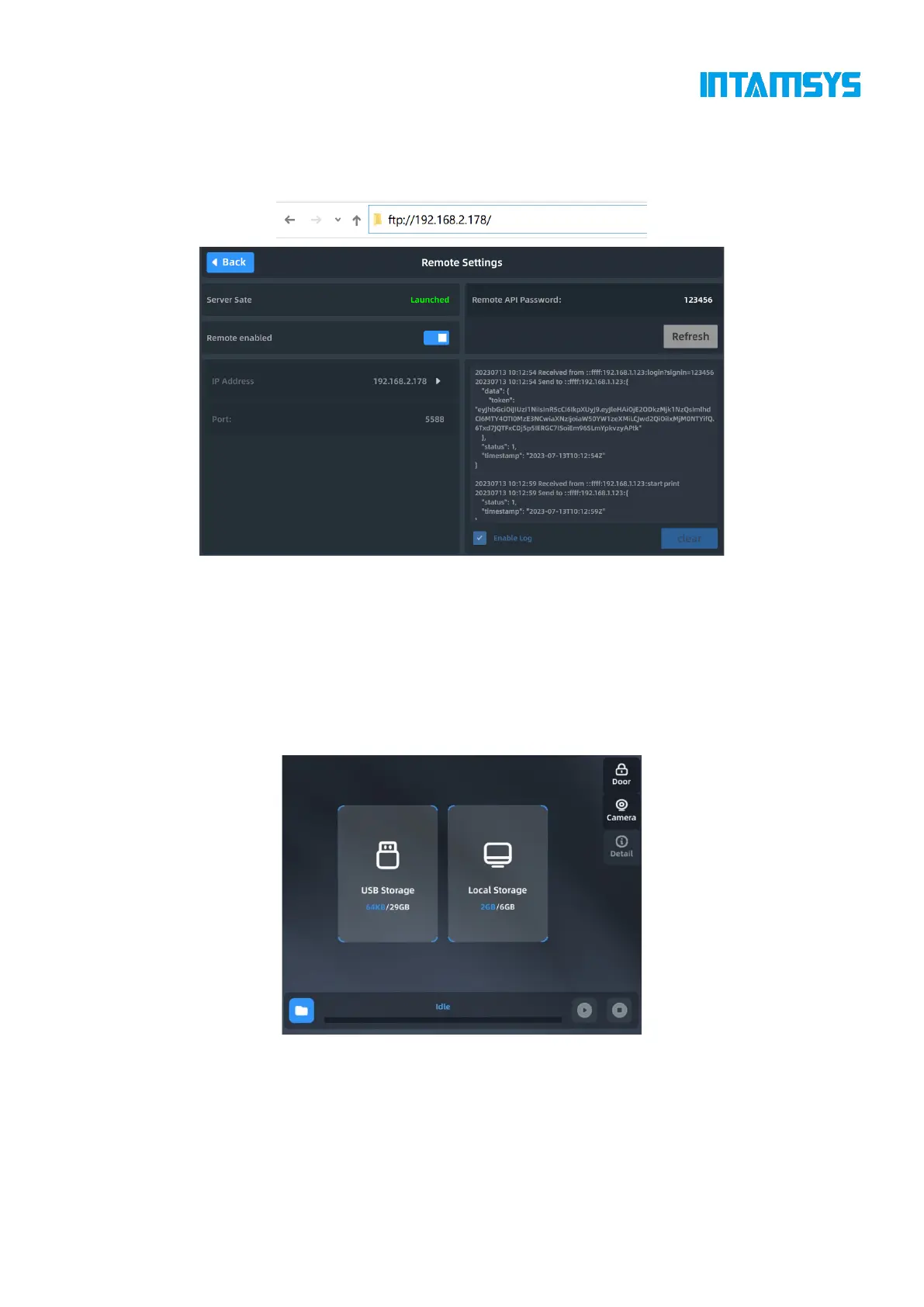
2. Start the gcode print task remotely, and the upper machine will enter the print interface
accordingly. For other remote operations, the upper machine interface will also display
corresponding actions.
Fig. 5.13 Remote Network Printing
5.4.3 Load the print file
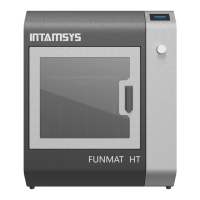
1. Select the location of the print file. Select the location where the file is stored in the drop-
down bar in the upper right corner of the screen, such as USB storage or local storage, or directly
transfer the file to the printer through remote printing mode;
2. Click the Open icon in the lower left corner of the screen, and the print file list will pop up;
Fig. 5.14 Select File Storage Location
3. Select the print file, and click the "Print" button to load the print file. You can also select
"Add to Queue" to add print files to the print queue. If you import the file through U-disk, after the
print file is loaded, you can pull the U-disk out of the USB port without affecting the printing.



 To Next Page