45
Software Version: Display the current software version number. To update it, click the
"Upgrade" button on the right
Firmware Version: Display the current firmware version number. To update it, click "Upgrade"
on the right
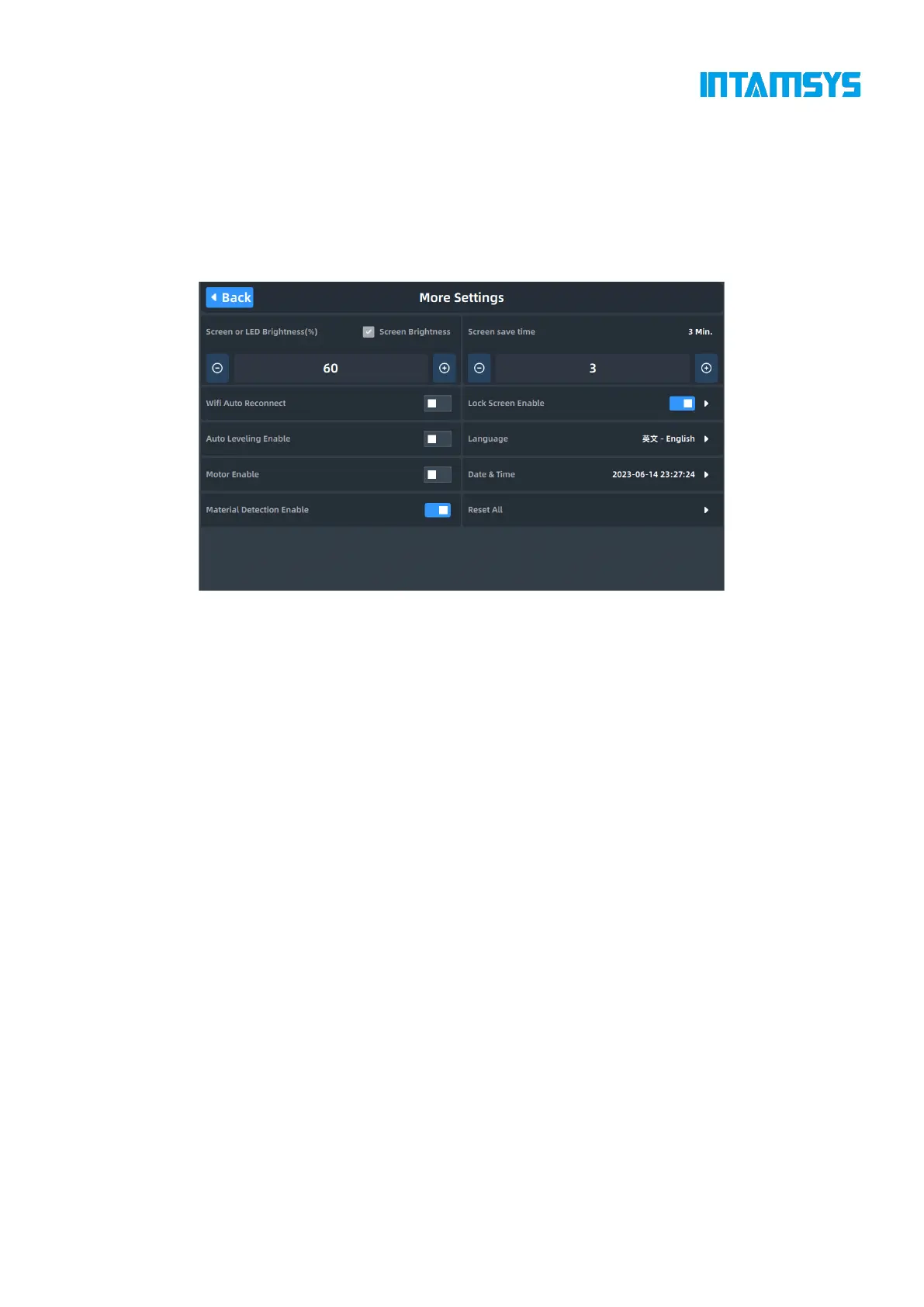
More Settings: including screen brightness adjustment, automatic screensaver time, language
switching, automatic time setting and motor and material shortage detection enabling.
Fig. 4.35 More Settings
4.6.2 Wireless network settings
You can enable the Wi-Fi connection for the printer. On the left side, select the wireless network
that can be connected and enter the password to access. The device can automatically record the
password and access the Internet.
Click "Settings" to enter the wireless network interface, and enable/disable it through the button on
the right side of WLAN. Blue indicates that it is enabled. In the WLAN interface, you can
enable/disable wireless network connection and configure other settings related to wireless network.
After restart, the printer will automatically reconnect to the last Wi-Fi connection.



 To Next Page