47
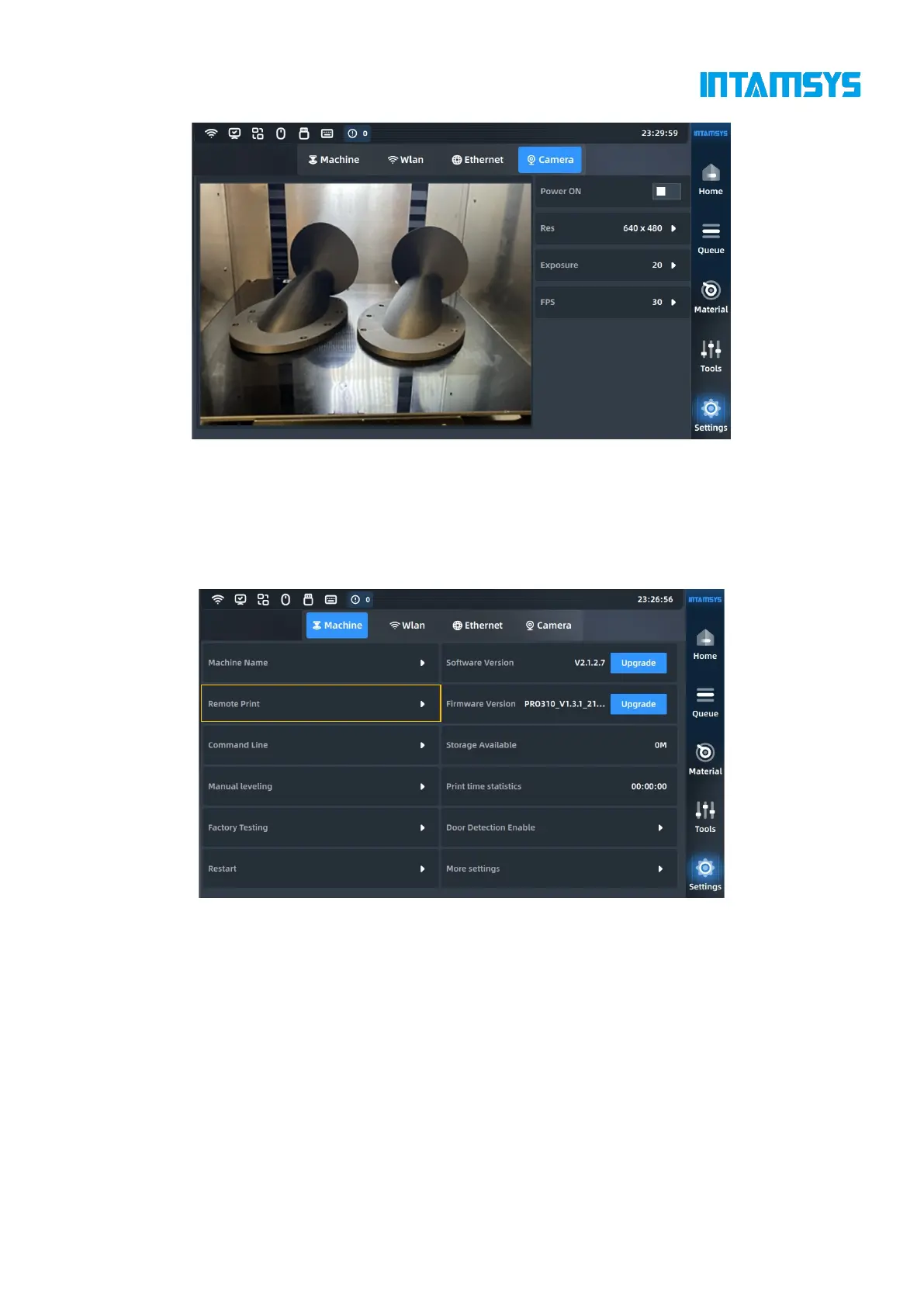
Fig. 4.38 Camera Settings
4.6.5 Remote print
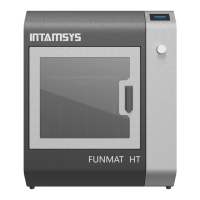
In the device information interface, click the "Remote Print" button to enable remote print and select
the IP address on this page. We can view the log after connection.
Fig. 4.39 Remote Print Settings
Click "Remote enabled", and enter the corresponding IP Address of the remote client. The remote
connection password will be displayed on the right side. Click "Refresh" to randomly change the
remote connection password. When the "Server State" is displayed as "Launched", the device has
remotely connected for remote print.



 To Next Page