6
1) Click the XY Offset calibration
icon to prompt you to confirm
that the left and right printheads
and buildplate have been cleaned
and the materials have been
loaded. After confirming, click the
"Finished" button and the
calibration model printing will
begin.
2) The printheads and hotbed
will automatically set the
temperature according to the
selected material, and
automatically jump to the next
step after the temperature rises
to target temperature; The
printer will print the ruler with
the left and right nozzle
successively.
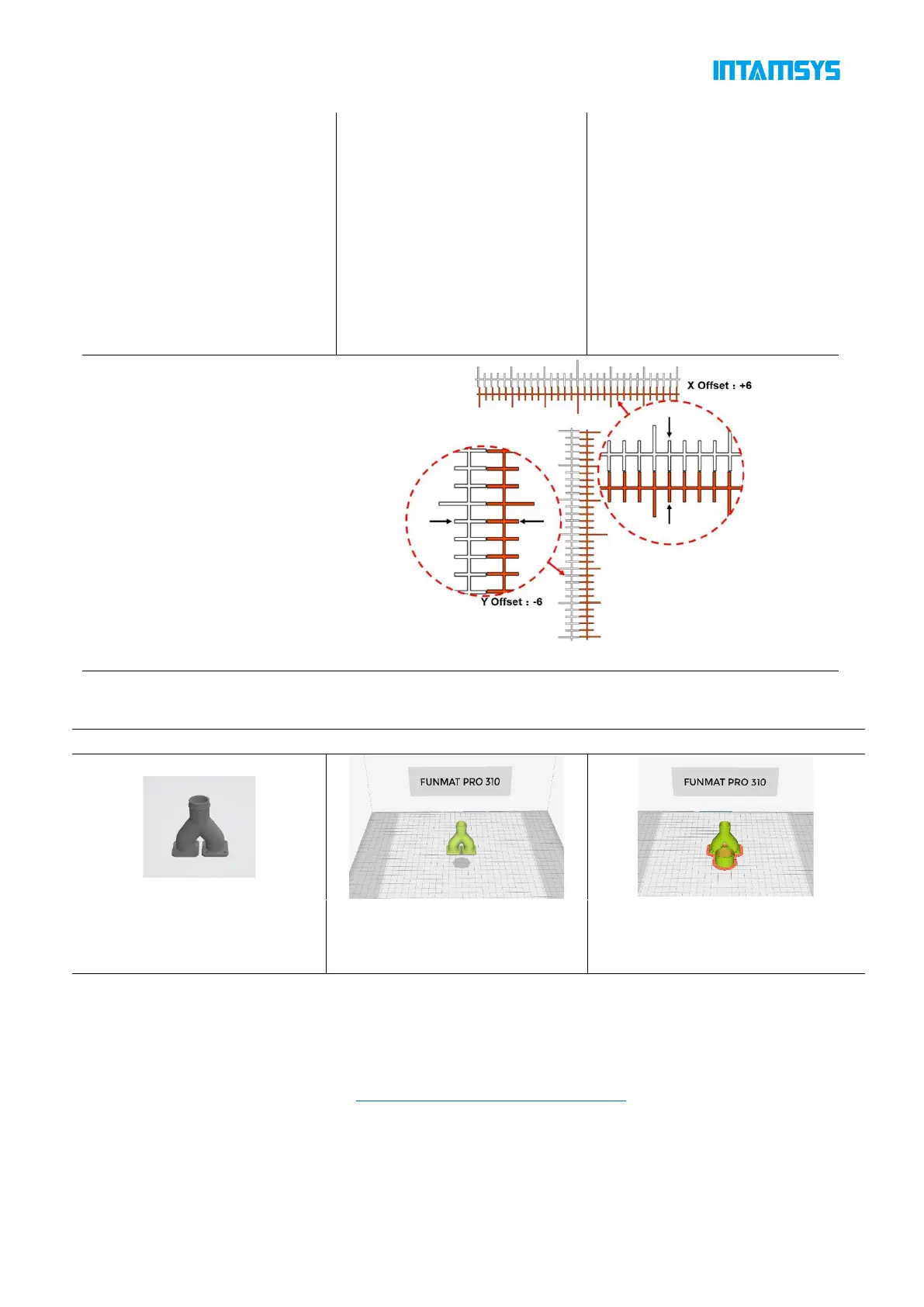
3) After printing, read the ruler to
get the X offset value and Y
offset value respectively, click the
"+"/" - "button to enter the value
Read the scale to obtain X offset value
and Y offset value respectively:
(1) Read the scale of the model printed
by the right extruder;
(2) First, read the X offset value to check
whether the center line is to the left or
right. Use the "-" value for the left and
the "+" value for the right;
(3) Find the scale line where the two
models are most aligned, then count
from the center line to this scale line and
record the value as N;
(4) Enter the "N" value into the input box.
4. Model 3D printing
1) Get model files
in .stl, .stp, .obj, .3mf, etc
2) Import INTAMSUITE to set
printing parameters.
3) After slicing, you can choose to
generate.gcode or.ifp format file (.ifp
file built-in preview image)
The INTAMSUITE slicing software needs to be installed on the computer(Win OS) in advance. The
software can set the printing parameters of the model and plan the slicing path, then generating a G-
code file that can be run and processed by the 3D printer. For software usage and parameter setting,
please referring to "INTAMSUITE User Manual".
Slicing software download address: https://www.intamsys.cn/software.html
Note: After the G-code file is generated, it will prompt you to estimate the material weight required for
printing the model. The printing wire should be greater than the estimated weight. If the amount of
wire is small, it is necessary to replace the wire during the printing process.



 To Next Page