10
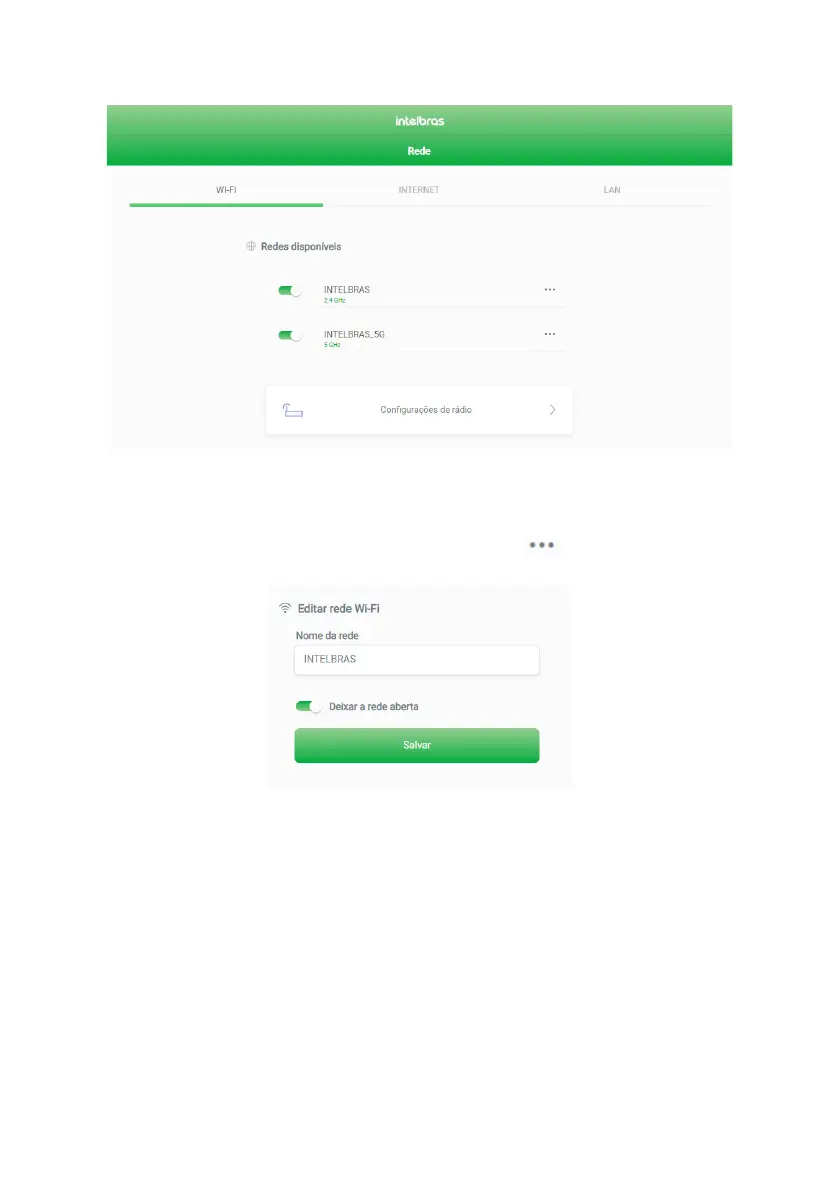
You will be directed to the network settings screen that contains 3 tabs:
WI-FI, INTERNET and LAN
, as shown in the
following image. By default, the
WI-FI
tab will be shown rst.
Wi-Fi settings editing screen
Wi-Fi network name and password
By default, the 2.4 GHz and 5 GHz networks will be named
INTELBRAS and INTELBRAS_5G
, respectively. You can
change the name and password of each separately by clicking on the icon and then on
Edit
to access the edit
screen, as shown in the following image.
Network name and password editing
» Network password: password you want for your Wi-Fi network. For example,
MyHome
. This eld allows you to create
a name with up to 32 characters.
Note:
we recommend that you congure different names for the 2.4 GHz and 5 GHz networks, e.g., MyHome and
MyHome5G. This will prevent possible network identication problems for Wi-Fi devices.
» Leave network open: if this option is active (gure above), your Wi-Fi network will be unprotected (no password) and
any device within range can connect to the network.


 To Next Page