18
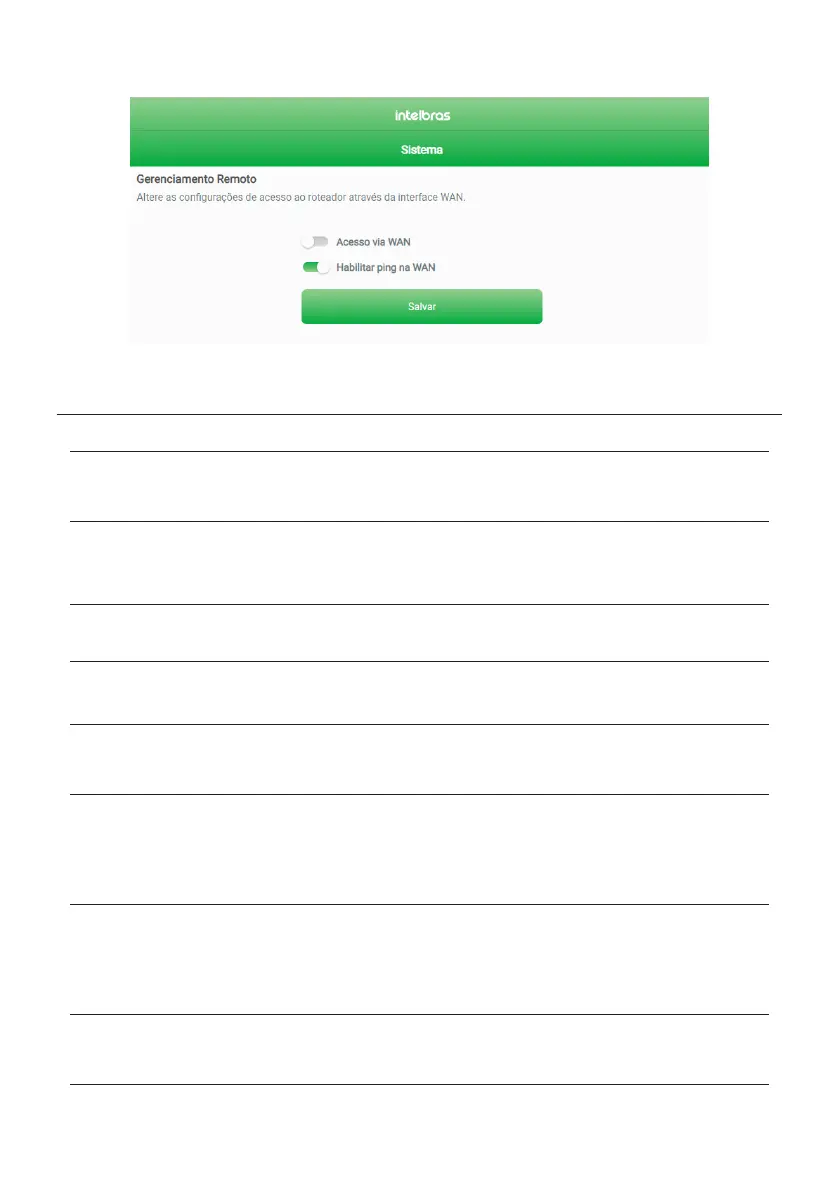
» Enable WAN ping: by enabling this function (image below), you can ping your router’s WAN and get a response. If
you disable the function, the WAN ping will not get a response.
WAN ping conguration screen
5. Frequently Asked Questions
Problem Solution
What to do when I can't access the Internet?
You can try the following options:
Option 1: make sure all the cables are connected correctly, according to the item
3. Installation
and that all the equipment
in the network is active.
Option 2: turn the router and the other equipment that provide your Internet connection off and on again.
Option 3: make sure there is no problem with your broadband service (ADSL/cable).
What to do when I cannot access the
conguration
web page?
Check all physical connections as per item
3. Installation
.
The device you will use to perform the conguration (computer, laptop or other) must be connected to the router via cable
(LAN) or via Wi-Fi.
Check that your device (computer, laptop or other) is congured to obtain an IP address automatically in your network settings.
If you are trying to access through a smartphone, disable the mobile data and try again.
Clear your browser cache before attempting to access the web page to make the settings.
What can I do if I forget the wireless
password?
Option 1: connect a device via the network cable to one of the LAN ports on the router. Then, using a web browser, access the
product’s conguration interface, go to
Network > Wi-Fi
menu and set your password again.
Option 2: restore the router to factory settings by pressing the
RESET/WPS
button for 20 seconds. Then, recongure the router
as explained in this manual in the item
4. settings.
What can I do if I forget the
password to access the web interface?
Restore the router to factory default settings by pressing the
RESET/WPS
button for 20 seconds. After this time, the product
will restart.
Then, recongure the router as explained in this manual in the item
4. settings.
Note: if your product settings are managed by your internet provider, please consult them before doing this.
What to do when the 5 GHz network does not
appear on my device?
Check the technical specications of your device to see if it supports 5 GHz Wi-Fi networks, since not all devices support this
frequency.
If you have congured 2.4 GHz and 5GHz networks with the same name, e.g.,
MY HOME
, when you go looking for the network
on your devices to connect, you will only see the Wi-Fi network with the name
MY HOME
, so there is no differentiation between
frequencies.
What to do when I cannot get a good
Wi-Fi connection?
For a good connection to the router, your device must be within the signal range of the router, i.e., receiving Wi-Fi signal properly,
and with little interference from other Wi-Fi routers or devices at the same operating frequency (2.4 or 5 GHz).
To improve your connection you can try:
» Refer to the item Care and safety to check the best place to install your router.
» Manually change the router’s operating channel, or restart the product if it has automatic channel setting, so it will
choose a new operating channel, with less interference.
» Some devices do not support higher speeds. Check the technical specications of your device to see if it supports the
same technologies as your router.
The Wi-Fi network of my device (mobile,
computer or other)
sometimes disconnects and reconnects to the
router network.
What to do?
Option 1: are you using different names for the 2.4 GHz and 5 GHz networks and have you saved both on your device, letting it
automatically choose between them? If so, remove one of the networks on your device (for example, forgetting the network on
the smartphone). Make sure the behavior stops happening. Some devices may be switching between saved networks, so you'll
notice disconnections. We recommend keeping saved only one of the networks on the device that has this problem.
Option 2: did you give equal names to the Wi-Fi 2.4 GHz and 5 GHz networks? If so, change the names to make them different.
For example, if your 2.4 GHz network has been set up with the name My Network, change the name of the 5GHz network to
My 5G network.
If no option solves your problem, please contact our support.
How do I restore my router to the factory
default settings?
With the product on and in normal operation, press the
RESET/WPS
button for about 20 seconds When the reset time is
reached, with the exception of LED Power, the other LEDs on the product will turn off. When this occurs, you can stop pressing
the button. After releasing the button, wait a few seconds while the conguration is restored. You can also restore through the
web interface, as per item
Restore
within
4.4. System settings.
Note: if your product settings are managed by your internet provider, please consult them before doing this.


 To Next Page
 Loading...