Introduction of operation Introduction of operation
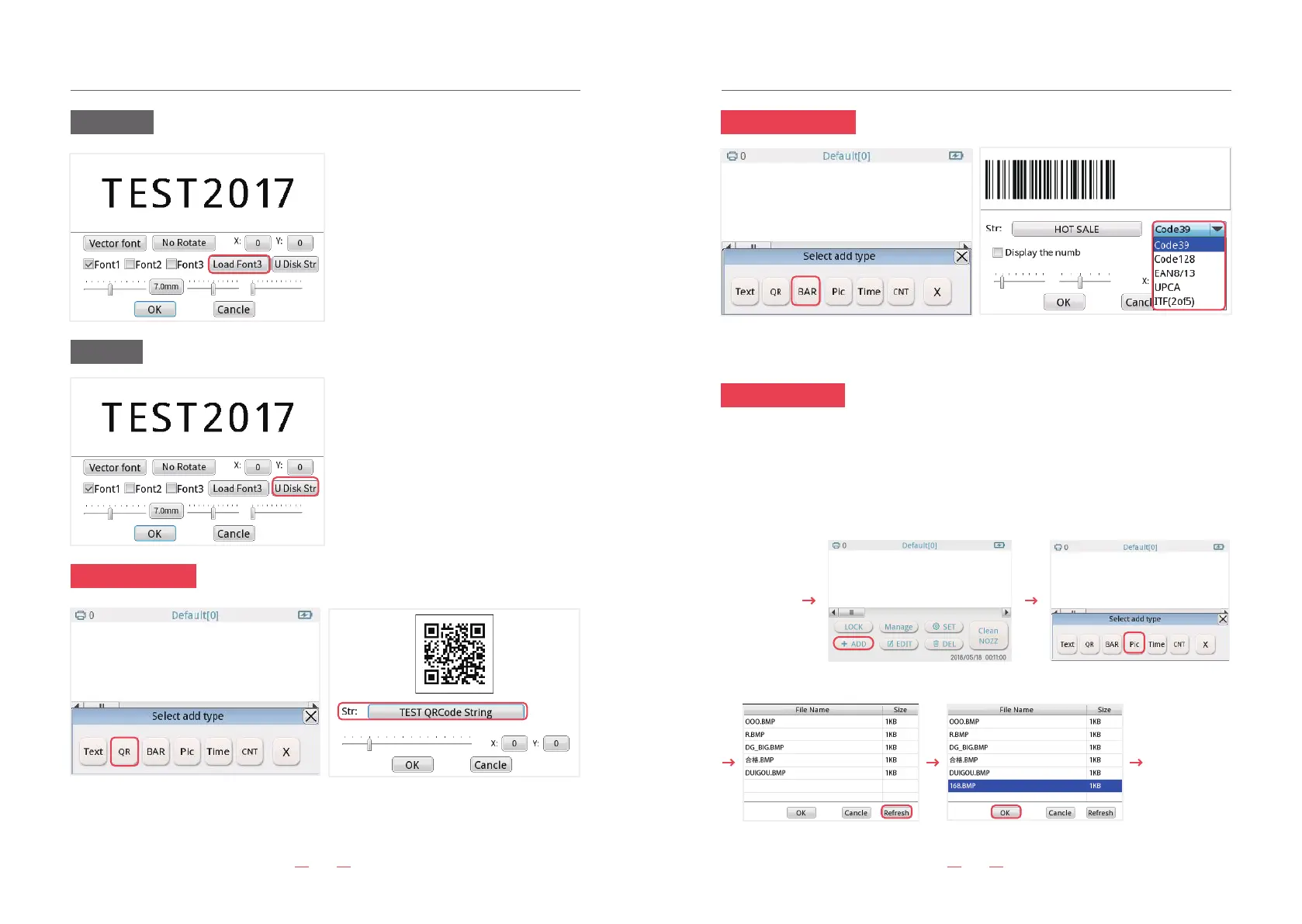
14.QR code setting
15.BAR code setting
16. Picture setting
U Disk Str
Load Font3
11
12
Load other font through USB. Click “Load
font3”, choose your font from the file.
Add a new input.txt file 2. While enter the
file, every content need to distinguished by
the using “Enter” button. The maximum
read the contents of USB is the first 100
content. 3.Cope the content from the
input.txt to the USB.4. Click “add”,select
“text”, then click “U Disk Str”, choose your
file in the USB. Click “ok.
Click “QR”,you can input website, number, text,etc.
NOTE: if you need to input the code of wechat and website link, you need to input with
“picture”.
Click “BAR”, then input the number. You can choose five type of bar code.
Including Code128, code39, EAN8/13, UPCA, ITF(2of5)
Steps are as follows,
1) The biggest size is 800px*150px(px means pixel). You need to set the size of the picture firstly.
2) Use windows system- accessories- paint, Save as type will be “Monochrome Bitmap(*.bmp,*.dib)”.
3) Then input the picture to U- disk. U disk connected to the handheld printer, then Click “Pic” to
choose your file from the u disk.
insert U disk,
power on
click ”ADD” button
click ”Refresh” button click” selected picture” (adjust height and width)
print (LED blue
means printing)
Click “Pic” button


 To Next Page