10.) E-Books
This unit has a preloaded e-book reader.
Copying e-books between computer and device
You can copy e-books via a USB connection to the internal memory of your device. Please take a look
at the section "Transfer of Data between Device and Computer".
Note: Please make sure that the e-book has one of the following formats: PDF, EPUB, TXT, FB2, RTF, PDB.
Downloading e-books and transferring them to the device using Adobe™ Digital Editions
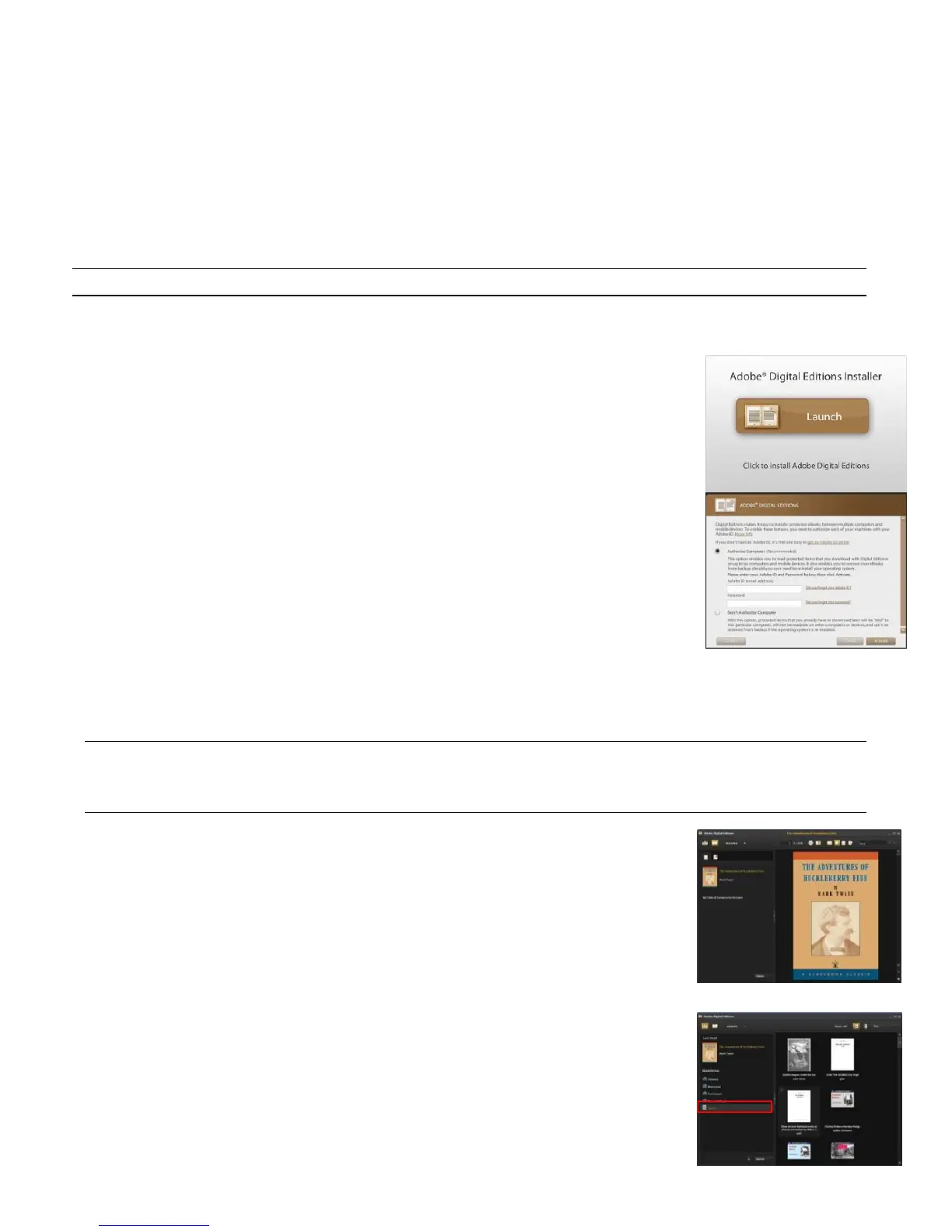
The Adobe™ Digital Editions application allows you to download DRM-protected
e-books to your computer.
(1) Download the website http://www.adobe.com/de/products/digitaleditions/
and install Adobe™ Digital Editions software according to instructions.
(2) Authorization of the computer with your Adobe™ ID and password (if
you do not yet have an Adobe™ ID, please register on the Adobe™ site
for this service).
(3) Now activate the device. Connect the device to the PC using the supplied USB cable and
activate the USB memory. Now, start the Adobe™ Digital Editions software. Click on "Authorize
Device", to authorize your device.
The Adobe™ ID can be used only 6 times. Then you have to delete the ID by pressing the CTRL+SHIFT+D keys on the computer
or by the setting Erase Activation Record, and request a new ID.
The tablet remembers the e-books downloaded with the current valid license and overwrites the previous Adobe™ IDs.
(4) Visit an online e-book store with your computer and select the desired e-
book (please make sure that the e-book has one of the following formats:
PDF, EPUB, TXT, FB2, RTF, PDB). If the e-book is DRM protected, usually
this information is shown.
(5) Once you have bought the e-book and downloaded it on your computer,
you should be able to view it on the Adobe™ Digital Editions application.
(6) Now connect your device via USB cable to the computer. The Adobe™
Digital Editions software should now automatically detect your device.
(7) Drag the cover of the e-book on to your device to transfer the file.



 To Next Page
 Loading...