16 Enhanced Mobile Document Imaging (eMDI) User Guide
Configure Settings Through the eMDI Application
Configure eMDI from the Settings menu of the eMDI application.
1 In the eMDI application, tap Options > Settings. The Settings
screen appears.
2 Configure your settings.
3 Tap Options > Save Changes and Exit.
Configure eMDI Through Intermec Settings
Configure eMDI through Intermec Settings on the computer. If you
have an integrated or custom application, you can only configure
eMDI using Intermec Settings or with the Intermec Developer Library
(IDL) APIs.
1 For Windows Mobile 6.1, tap Start > Settings > System tab >
Intermec Settings.
For Windows Mobile 6.5 or Windows Embedded Handheld 6.5,
tap Start > Settings > System > Intermec Settings.
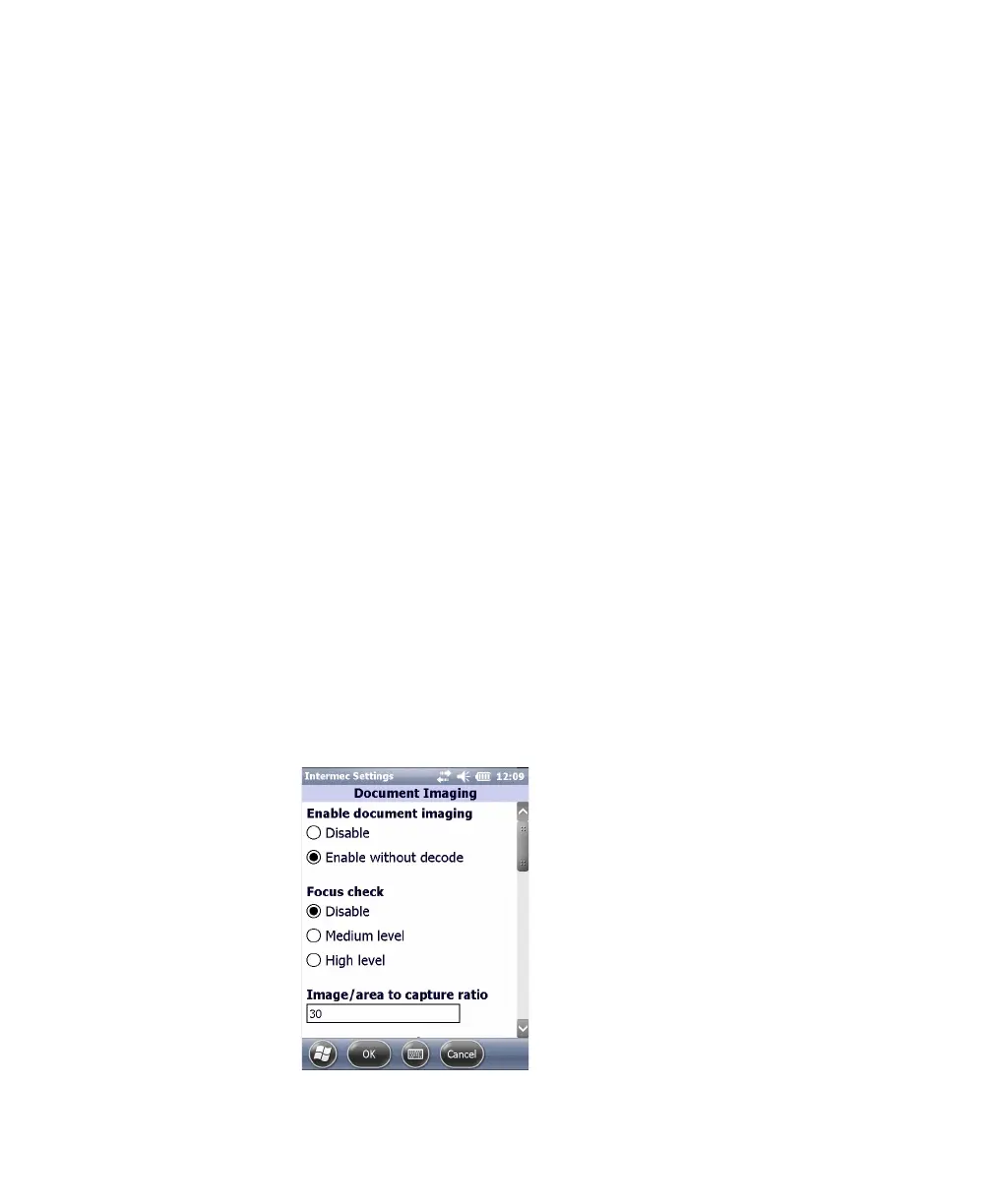
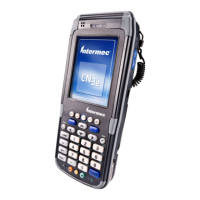
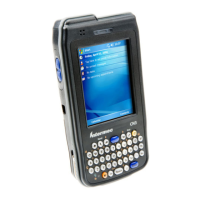
2 On a CN4 or CN50 mobile computer, tap Data Collection >
Internal Scanner > Imager Settings > Document Imaging.
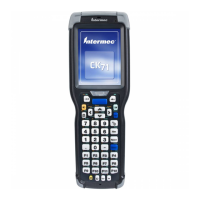
On a CN51 or 70 Series mobile computer, tap Data Collection >
Camera > Camera Settings and select Document Imaging to
configure Document Imaging settings, or tap Viewfinder and
Focus to configure Focus Mode settings.
3 Configure your settings.


 To Next Page