12 Enhanced Mobile Document Imaging (eMDI) User Guide
7 (Optional) If the image is out of focus, you may need to change the
Focus mode.
• To change from Auto Continuous, Auto Single, Extended, or
Macro modes to Focus Lock, tap .
• To disable Focus Lock, tap .
8 Save or discard the image:
• Tap OK to save the image and return to the Document
Imaging main screen.
• Tap to save the image and view the image gallery.
• Tap to discard the image.
9 To view all saved images, tap Options > Gallery.
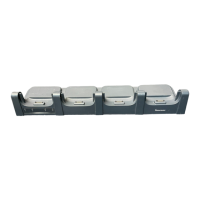
Capture a Document Image With the Imager
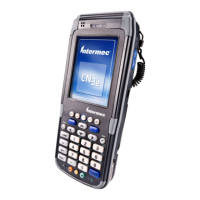
Use the EA21 imager to easily capture a document image with the
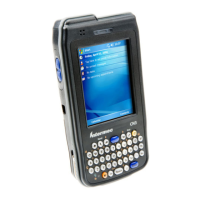
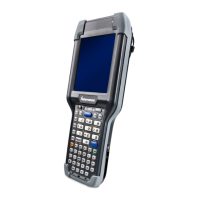
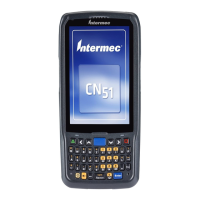
CN4 or CN50 mobile computers.
1 Place your document on a flat surface. Make sure that there is
good contrast between the document and surface.
2 If you have Windows Mobile 6.1, tap Start > Programs >
Document Imaging.
If you have Windows Mobile 6.5 or Windows Embedded Handheld
6.5, tap Start > Document Imaging.
3 Point and hold the camera at a 90º angle a few inches away from
the document.
4 Press and hold the Scan button. The laser frame appears.
5 Move the camera away from the document to align the laser frame
with the document edges.


 To Next Page