8 Enhanced Mobile Document Imaging (eMDI) User Guide
Install eMDI on Your Mobile Computer
Install eMDI by copying it to your mobile computer using one of
these applications:
• Microsoft® ActiveSync (Windows XP or earlier)
• Windows Mobile Device Center (Windows Vista or later)
• SmartSystems
TM
ActiveSync and Windows Mobile Device Center are available from the
Microsoft website at www.microsoft.com, and SmartSystems can be
downloaded from the Intermec website at www.intermec.com.
Install eMDI With ActiveSync or Mobile Device Center
To install eMDI with ActiveSync or Windows Mobile Device Center,
you need:
• a desktop PC with ActiveSync or Mobile Device Center installed.
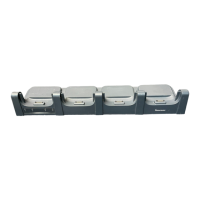
• a communications dock.
• a USB cable connecting your desktop PC to the communications
dock.
1 Download and install eMDI onto your desktop PC.
2 Connect your mobile computer to your desktop PC using the
communications dock and USB cable.
3 On your desktop PC, find the eMDI .cab file and copy it to a folder
on your mobile computer.
4 On your mobile computer, tap the .cab file to install eMDI.
Note: If your mobile computer is using Windows Mobile 6.1,
download and install .NET Microsoft® Compact Framework 3.5. This
free download is available from the Microsoft website at
www.microsoft.com/download.


 To Next Page