14
9. FUNCTION PRIORITY AND FIRMWARE
UPGRADES
9.1 Function Priority
The headset prioritizes connected devices in the following order:
1. (Highest) Mobile phone
2. Voice command mode
3. Bluetooth
®
Intercom
4. Music sharing via Bluetooth
®
stereo
5. FM radio
6. Bluetooth
®
stereo music
A lower-priority function gets interrupted by a higher-priority function. For
example, stereo music will be interrupted by an Intercom Conversation; an
Intercom Conversation will be interrupted by an incoming mobile phone call.
9.2 Firmware Upgrades
The headset supports rmware upgrades. Using the Device Manager utility
(available for PC and MAC on www.interphone.com) you can upgrade
rmware.
The USB Power & Data Cable (USB-C) must be connected to your computer,
then start Device Manager on computer and follow instructions step by step.
Interphone Unite APP can check the rmware version present on the
headset and inform you in case of a newer available rmware, but APP can’t
ash the new rmware to headset.
10. CONFIGURATION SETTING
10.1 Headset Conguration Setting
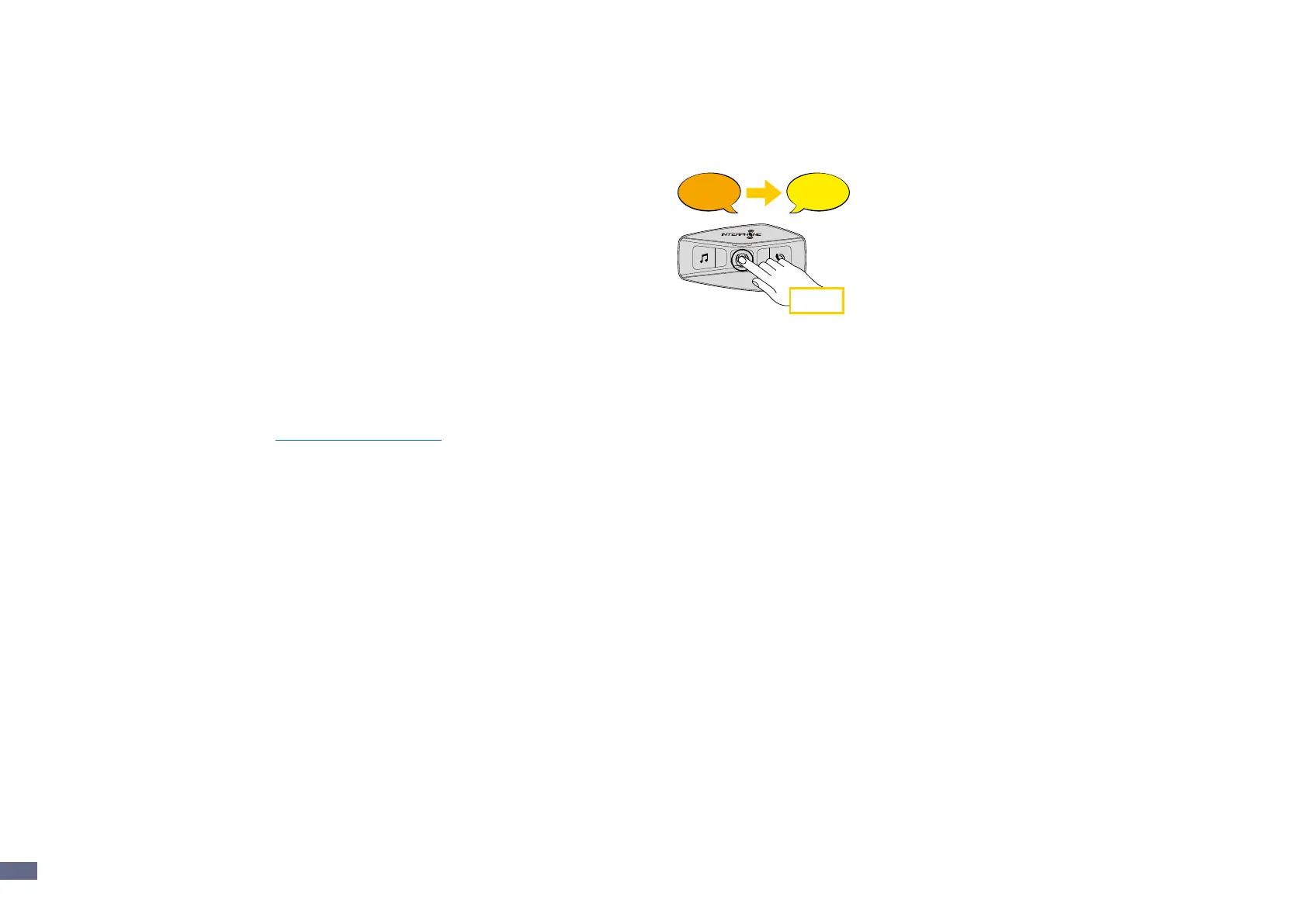
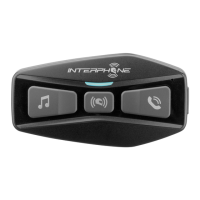
With U-COM 2 on, press and hold central button for 10 seconds, to enter
settings menu. Don’t release the button until the led light is blue.
Bluetooth
Mesh
Interphone U-Com 16 (Utente) Aggiungi utente
Aggiungi utenteAggiungi utente
Fine intercom
Setup
Bluetooth
®
Intercom - other pairings
Other Interphone series pairing (to be done with unit OFF)
Anycom pairing for other brands (except Sena)
Anycom
pairing
Interphone
pairing
Intercom
pairing
Con guration
menu
Mobile phone
pairing
To navigate through the settings, press once the MUSIC button or the
PHONE button.
1. Phone pairing
2. Second Mobile Phone Pairing
3. Phone selective pairing (pair a device with HFP prole only)
4. Media selective pairing (pair a device with the A2DP prole only)
5. GPS pairing
To conrm the following conguration menu options, press the CENTER
button once.
6. Delete all pairings
7. Anycom pairing
8. Factory reset
9. Exit
10.1.1 Delete all pairings
Delete all Bluetooth
®
pairings stored in the device.


 To Next Page