36
Upgrade Fail
If you don’t see “Firmware upgrade OK” in the “Status Messages” window, it means the
utilityhasfailedtocompletethermwaresuccessfully.Ifthatoccurs,pleasedothefollowing:
Step 1
UnplugthepowerfromtheKVM.Then,connecttheprovidedrmwareupgradecabletothe
rmwareupgradeportoftheKVMandtheserialportofyourcomputer.
Step 2
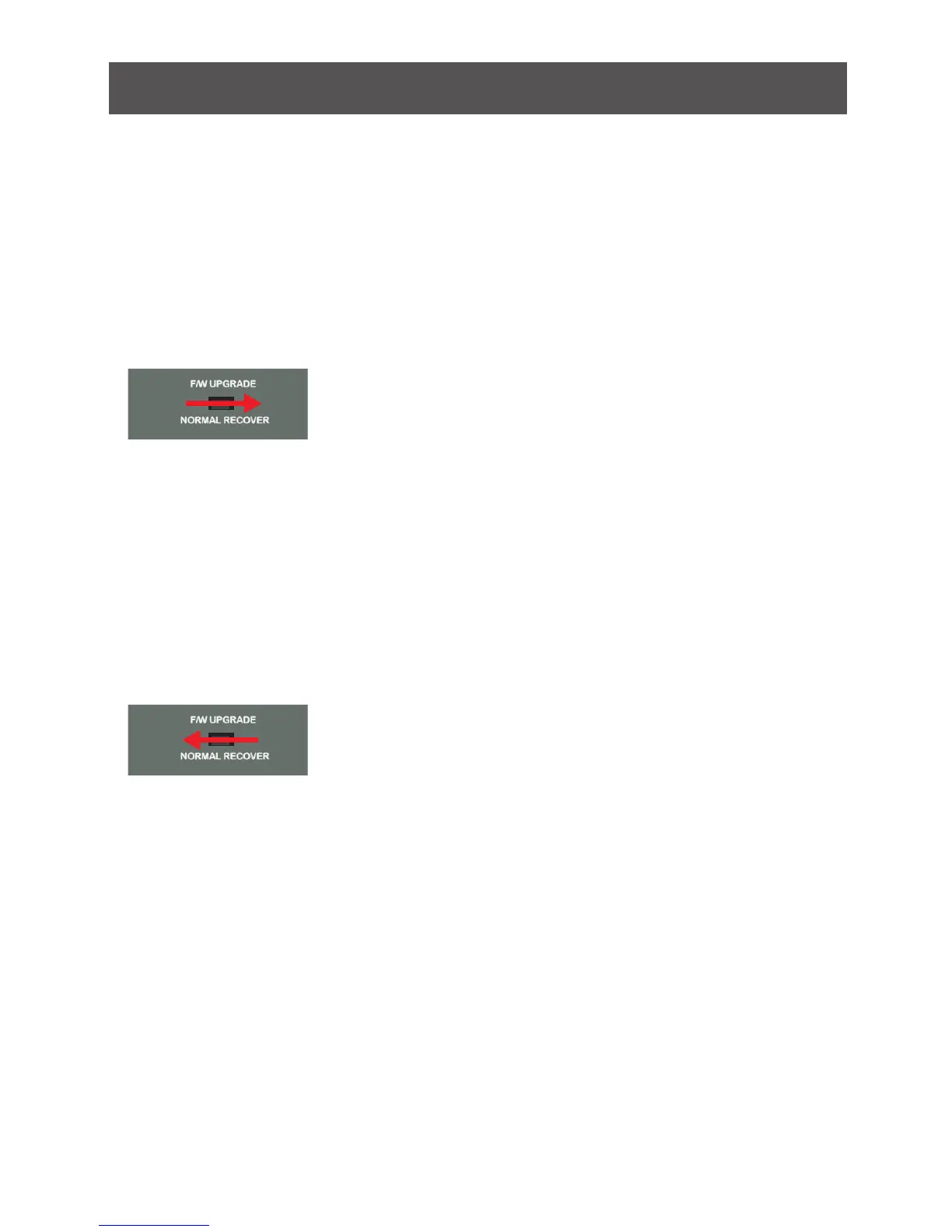
Slide the Firmware Upgrade Recovery Switch to the Recover position (slide to the right).
Then, connect power adapter back to the KVM.
Step 3
Repeatthermwareupgradeprocess.(PleaserefertoFirmwareUpgradesection)
Step 4
Afterthermwareupgradehascompleted,theKVMwillresetitself.Unplugthepowerfrom
the KVM after the KVM is reset.
Step 5
Slide the Firmware Upgrade Recovery Switch back to the Normal position (slide to the left).
Then, connect power adapter back to the KVM.
Final Step
Now the KVM is ready to function again, so you simply reconnect all your computers and
console back to the KVM and begin using the KVM.


 To Next Page
 Loading...