29
d. Press the Get Plotter Data button to ensure the connection is
established.
2. Send Test Plot File
a. Select Send Plot File from the File Menu.
b. Browse to the folder c:\ioline\calibrate\.
c. Double click on the test plot file 40x8.plt to send it to the
printer.
d. When the printer prints the test file correctly, the machine
is ready for printing makers.
e. Close the FlexJet E Control Center.
3. Send Markers
a. Start FlexPlot or your apparel design software.
b. Setup communications so that the COM port and baud rate
are the same in the FlexJet E and the software. Refer to the
FlexPlot User Guide and FlexJet E User Guide or the manual
of your apparel design software for more information.
c. Send markers to the FlexJet E directly from the software.
Getting Help
Refer to Troubleshooting under the FlexJet E User Guide for assis-
tance with common issues. Upon request, Ioline Customer Service
also offers a more detailed publication—the FlexJet E Service Manu-
al—which contains expanded troubleshooting information.
Customer Service
Ioline Corporation is committed to providing quality service and
support to our customers. If you need assistance with an Ioline prod-
uct, contact your local dealer or Ioline authorized service center. You
may also contact:
Ioline Customer Service Department
Monday through Friday
7:00 A.M. - 5:00 P.M. U.S. Pacific Time
Voice: 1.425.398.8282
Fax: 1.425.398.8383
support@ioline.com
www.ioline.com
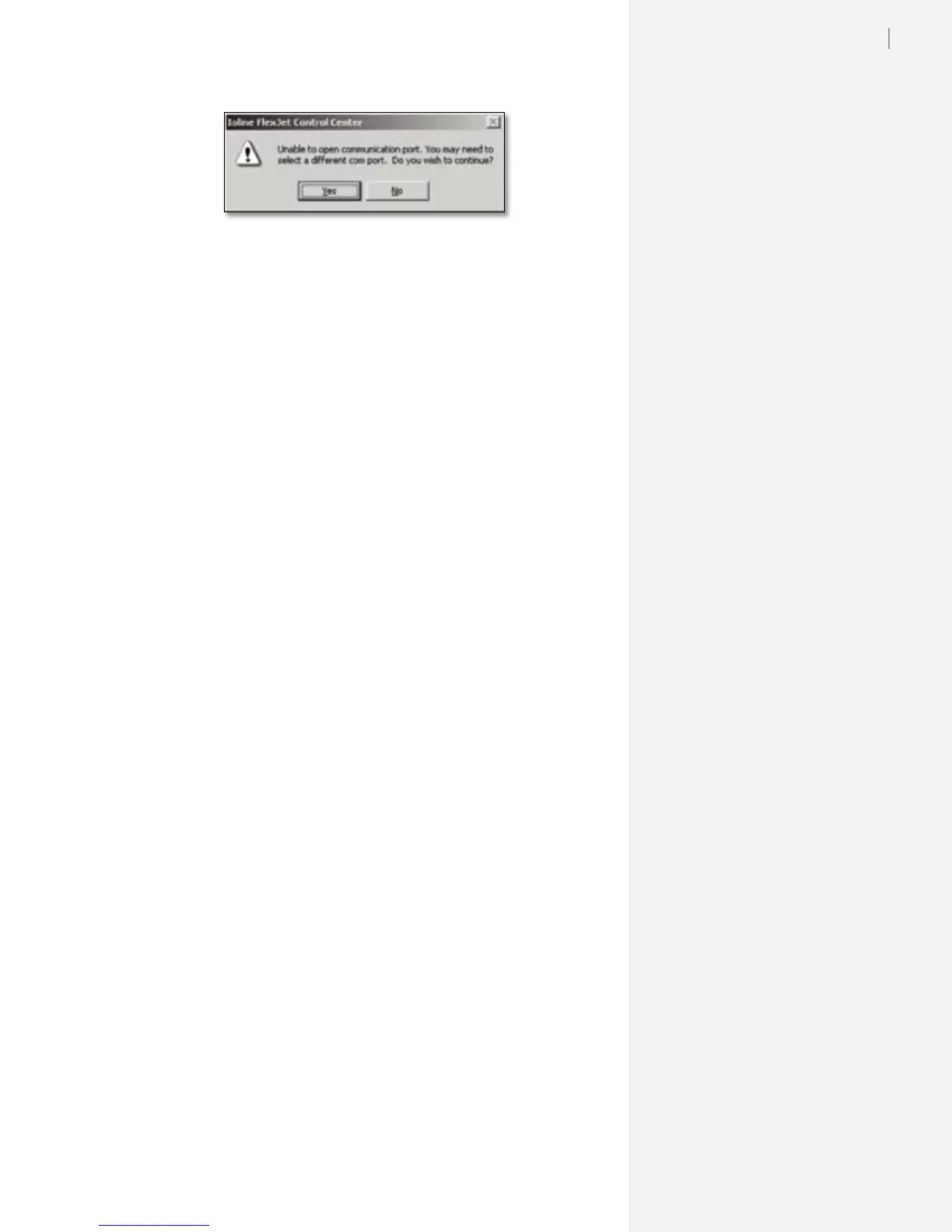
Communications error message.


 To Next Page