3.5.3 Wireless Settings
1. Make sure the router is a wireless router.
2. Make sure the Wi-Fi antenna installed.
3. Make sure whether there is encryption of the WLAN of the router, if there is encryption,
keep the key.
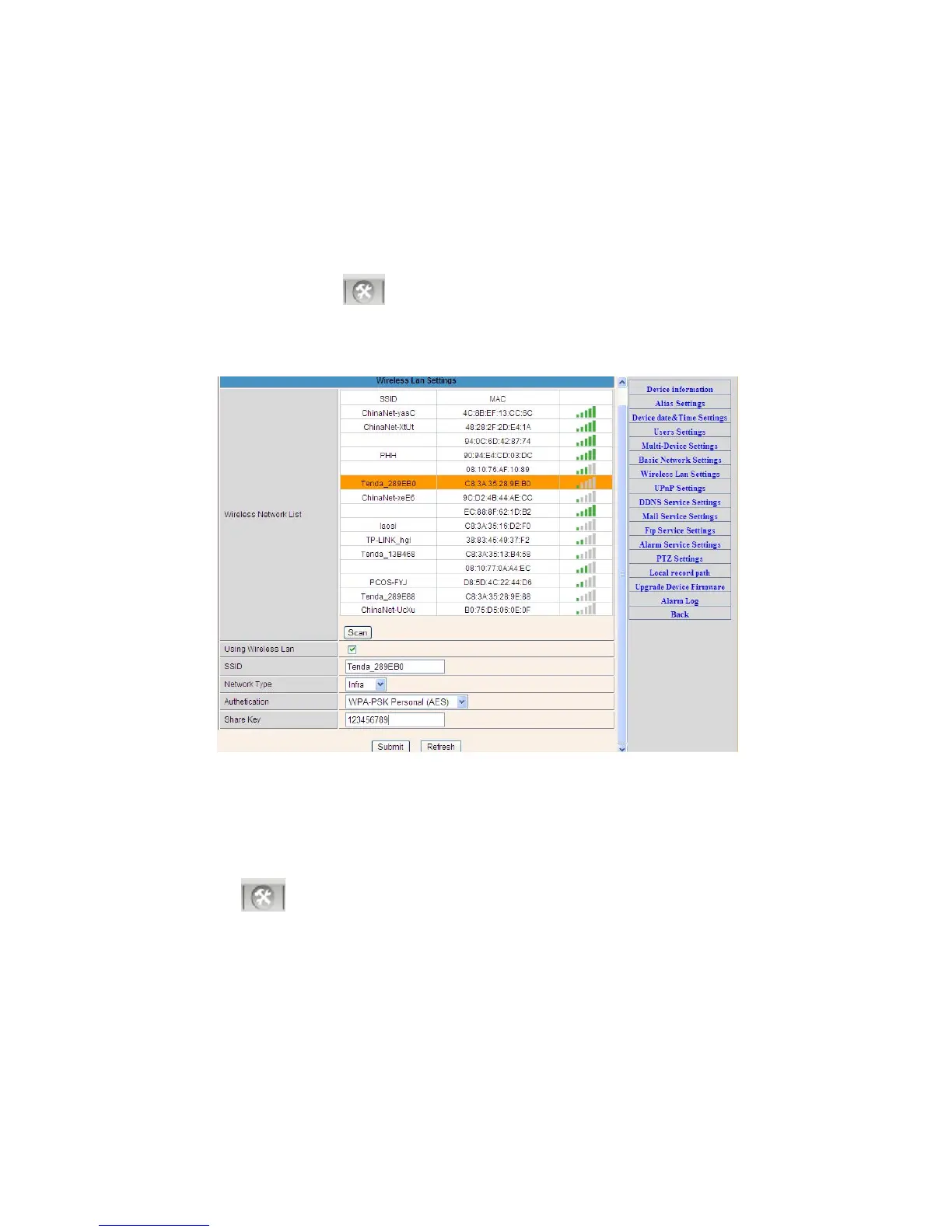
4. Login the camera, click >“Wireless Lan Settings”>”Scan”, please scan 2times, then
you will find the WLAN from the list, choose the one you use.
5. If there is no encryption, just click “Submit”, if there is encryption, please input the key,
then click “Submit”.
6. Wait about 30 seconds, the camera will reboot, then unplug the network cable.
Figure 3.12
3.5.4 Dynamic DNS Setting (DDNS)
3.5.4.1 DDNS Setting:
(1): Click > “DDNS Service Settings”.


 To Next Page