ifiver
Chapter5 Other Information
Using
iriver
plus
3
|
Transferring Media to the iriver clix
|
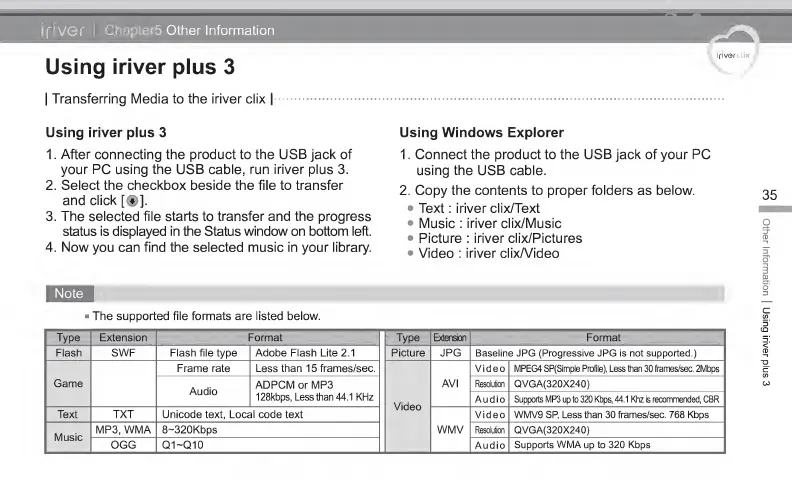
Using iriver plus 3
1 . After connecting the product
to
the USB jack of
your PC using the USB cable, run iriver plus 3.
2. Select the checkbox beside the file to transfer
and click
[®],
3. The selected file starts to transfer and the progress
status
is displayed in the
Status
window on bottom left.
4. Now you can find the selected music in your library.
Using Windows
Explorer
1
.
Connect the product
to
the USB jack of your PC
using the USB cable.
2.
Copy
the contents
to
proper folders
as
below.
•
Text : iriver clix/Text
•
Music : iriver clix/Music
•
Picture : iriver clix/Pictures
•
Video : iriver clix/Video
The supported file formats are listed below.
Type Extension Format
Type
Extension Format
Flash SWF Flash file type Adobe Flash Lite 2.1 Picture JPG Baseline JPG (Progressive JPG is not supported.)
Game
Frame rate Less than 1 5 frames/sec.
Video
AVI
Video MPEG4 SP(Simple Profile), Less than 30 frames/sec. 2Mbps
Audio
ADPCM or MP3
128kbps, Less than 44.1 KHz
Resolution QVGA(320X240)
Audio Supports MP3
up
to 320 Kbps, 44.1 Khz is recommended, CBR
Text
TXT
Unicode
text,
Local
code
text
WMV
Video WMV9
SP,
Less
than
30 frames/sec. 768 Kbps
Music
MP3, WMA 8~320Kbps Resolution
QVGA(320X240)
OGG
Q1-Q10
Audio
Supports WMA
up
to 320 Kbps
Other
Information
|
Using
iriver
plus
3


 To Next Page