13
In [Dir List], music can be searched by folder.
Press and hold the [ ] in the [Bookmark List] to delete the bookmark.
In the [MUSIC] mode, only music files located in the Music Folder will be displayed.
To search and play music files in any other folders, use the [BROWSER] mode.
Continuous Playback Time : approx. 27 hours (based on MP3, 128Kbps, 44.1KHz,
Volume 20, EQ Normal, LCD OFF, earphones).
Supported file formats: MP3 (8~320Kbps), WMA (8~320Kbps), OGG (Q1~Q10),
WAV, APE, FLAC, and ASF
Playlists can be managed using iriver plus 4.
When the Micro SD card is inserted, you can select [Internal Memory & External
Memory].
Hotkeys provide convenient shortcuts for some modes only.
MUSIC
1. If you select [MUSIC] on the home screen, you will see the music list.
2. Press the [ / / / ] button in the music list to select the
music you want, and press the [ ] button or the [ ] button to
play the selected music.
: Move to the upper list/folder.
: Move to the sub menu/folder. Play when selecting files.
/ : Move within the list.
: Play the selected file.
Selecting Music
- Press the [ ] to control volume.
- While playing, press the [ ] to pause/resume.
- While playing, press the [ / ] to play the previous/next music.
- If you press and hold [ / ] while music is being played, the file
will start rewinding/fast forwarding.
- While playing, select [ ] button at point A and press the
[ ] button again to select point B. Now the player plays between
point A and B repeatedly. While playing, press the [ ] button again
to deactivate the loop playback.
Playing Music
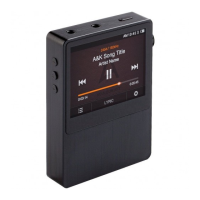
Using E300


 To Next Page